
GitHub is a collaborative platform
Collaboration is at the heart of everything GitHub does. In the first unit of this module, we covered repositories and learned that they help organize your project and its files. In the last unit, we explored pull requests, which allow you to track changes made to a project.
In this unit, we will learn about issues and discussions. These are two additional elements that strengthen the collaborative nature of the GitHub Enterprise platform.
Issues
GitHub issues were created to track ideas, feedback, tasks, or bugs related to work on GitHub. They can be created in different ways, allowing you to choose the method that best fits your workflow.
In this demonstration, we will see how to create an issue from a repository. But it is also possible to create an issue from:
- An item in a task list
- A note in a project
- A comment in an issue or a pull request
- A specific line of code
- A URL request
Create an issue from a repository
On GitHub.com, go to the main page of the repository.
Under the name of your repository, select Issues.

Select “New issue.”
If your repository uses issue templates, next to the type of issue you want to open, select “Get started.”
If the type of issue you want to open is not among the available options, select “Open a blank issue.”
If you are not using templates, skip directly to step 5.
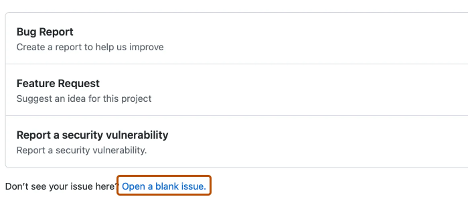
In the “Add a title” field, enter a title for your issue.
In the “Add a description” field, type a description of your issue.
If you are the project owner, you can assign the issue to someone, add it to a project board, link it to a milestone, or apply a label.
When finished, select “Submit new issue.”
Some conversations are better suited for GitHub Discussions.
You can use Discussions to ask and answer questions, share information, make announcements, and lead or participate in conversations around a project.
Discussions
Discussions are intended for conversations that should be accessible to everyone and are not directly related to code. They allow smooth, open conversation in a public forum.
In this section, we will cover:
- Enabling Discussions in your repository
- Creating a new discussion and the different discussion categories
Enable Discussions in your repository
Repository owners and people with write access can enable GitHub Discussions for a community on their public and private repositories. The visibility of a discussion inherits from the repository in which it is created.
When you enable GitHub Discussions for the first time, you are prompted to set up a welcome message.
On GitHub.com, go to the main page of the repository.

Under the name of your repository, select Settings.
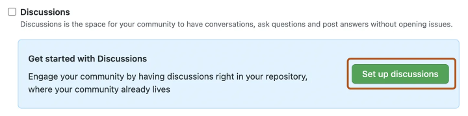
Scroll down to the “Features” section, then under “Discussions”, select “Setup discussions”.

Under “Start a new discussion”, edit the template so that it matches the resources and tone you want to establish for your community.
Select “Start discussion”.
You are now ready to create a new discussion.
On the right side of the page, select “New discussion”.
Select a discussion category by clicking “Get started”.
All discussions must be created in a category.
For repository discussions, people with maintenance or admin permissions define the discussion categories in that repository.
Create a new discussion
Any authenticated user who can view the repository can create a discussion in that repository. Likewise, since organization discussions are based on a source repository, any authenticated user who can view the source repository can create a discussion in that organization.
On GitHub.com, navigate to the main page of the repository or organization where you want to start a discussion.
Under the name of your repository or organization, select Discussions.
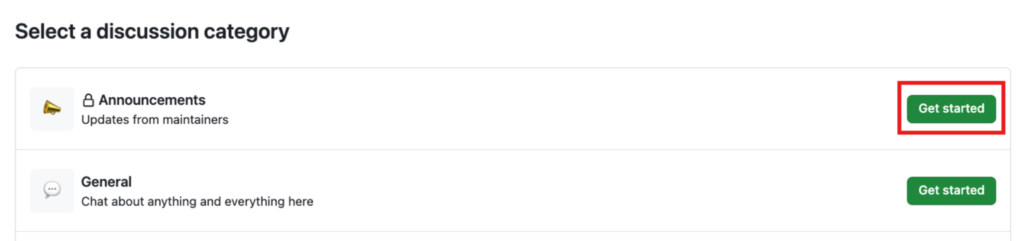
Each category must have a unique name, an associated emoji, and a detailed description specifying its purpose.
Categories help repository maintainers organize how conversations are classified.
They are customizable to distinguish categories intended for Q&A or more open conversations.
The following table shows the default categories for discussions and their purpose.
| Category | Purpose | Format |
|---|---|---|
| 📣 Announcements | Updates and news from project maintainers | Announcement |
| #️⃣ General | Anything generally relevant to the project | Open discussion |
| 💡 Ideas | Suggestions to change or improve the project | Open discussion |
| 🗳️ Polls | Polls with multiple options for the community to vote and discuss | Poll |
| 🙏 Q&A | Questions asked to the community, with a question-and-answer format | Question and answer |
| 🙌 Show and tell | Creations, experiences, or experiments related to the project | Open discussion |
Under “Discussion title”, enter a title for your discussion, and under “Write”, enter the body of your discussion.
Select “Start discussion”.
This concludes a brief overview of how GitHub promotes collaboration.
Now let’s move on to how you can manage notifications, subscribe to discussion threads, and get started with GitHub Pages.
