
Describe Azure File Sync
Azure File Sync is a service that allows you to cache Azure file shares on a local Windows Server file server.
With cloud tiering enabled, Azure File Sync helps ensure that a file server always has free space available while making more files accessible than the server could store locally.
It displays the entire folder structure and files as if they were available locally, even though some files may be tiered (moved to the Azure file share).
If a user tries to access such a file, it is recalled (downloaded transparently from the Azure share) in the background and then presented to the user.
By doing so, File Sync transforms a local Windows Server into a fast cache of your Azure file share.
File Sync supports the multi-master model and can synchronize data between multiple file servers.
Azure File Sync Terminology
To understand how File Sync works, it is essential to know the associated terms.
The diagram uses this terminology to illustrate how Azure File Sync operates.
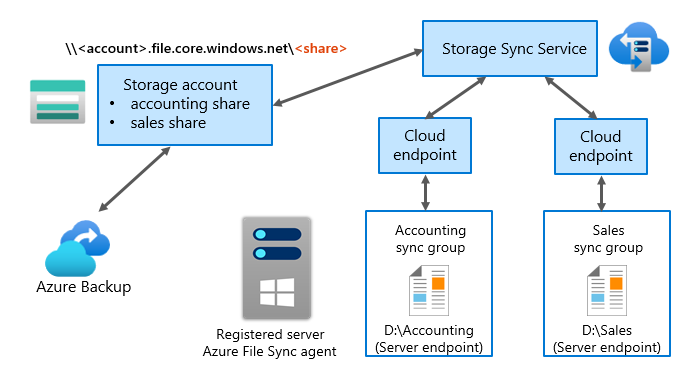
The server running Windows Server in this diagram has the Azure File Sync agent installed and is registered with Azure File Sync.
Next to this server are two sync groups: Accounting and Sales.
The Accounting sync group has D:\Accounting as its server endpoint.
The Sales sync group has D:\Sales as its server endpoint.
Each sync group maintains a bidirectional interaction with the cloud endpoint, meaning the server endpoint synchronizes its content with the cloud endpoint (the Azure file share is the cloud endpoint).
Both cloud endpoints have a bidirectional interaction with the same Storage Sync Service.
Azure File Sync uses the Storage Sync Service.
The Storage Sync Service has a bidirectional interaction with the Azure Storage account, symbolizing that the cloud endpoints (Azure file shares) are created in the Azure Storage account.
The storage account has a bidirectional interaction with Azure Backup, meaning the Azure Storage account can be backed up using Backup.
The following table describes the different components of the diagram:
| Component | Description |
|---|---|
| Storage Sync Service | Top-level Azure resource for File Sync. It allows you to create sync groups, which connect Azure Storage accounts, Azure file shares (called cloud endpoints), and server endpoints (file locations on a registered Windows Server). |
| Sync Group | Defines the sync topology for a set of files. Endpoints in a group are synchronized with each other. If you have two distinct sets of files to manage with File Sync, you must create two sync groups and add different endpoints to each. A Storage Sync Service can contain up to 100 sync groups, and each group can have up to 50 server endpoints. (A sync group always has a single cloud endpoint). |
| Registered Server | Represents a trust relationship between a Windows Server (or cluster) and the Storage Sync Service. You can register up to 99 Windows Servers per Storage Sync Service, regardless of domain membership. A single server (or cluster) can only be registered with one Storage Sync Service at a time. |
| Azure File Sync Agent | Downloadable package that enables Windows Server to sync with an Azure file share. It includes three main components: |
- A background Windows service that monitors changes on server endpoints and initiates sync sessions to Azure.
- A File Sync file system filter, responsible for cloud tiering when enabled. Tiering occurs dynamically in the background.
- PowerShell cmdlets to manage File Sync. | | Server Endpoint | Represents a specific location on a registered Windows Server, such as a folder or volume. You can add multiple server endpoints on the same server, but they must belong to different sync groups. They can be on the same volume if their namespaces do not overlap (e.g., D:\Folder1 and D:\Folder2). Cloud tiering can be configured individually for each endpoint. | | Cloud Endpoint | An Azure file share that is part of a sync group. The entire share is synchronized, but an Azure file share can belong to only one sync group. If you add an existing share as a cloud endpoint, existing files are synchronized with the server endpoints in the same group. |
Benefits of Azure File Sync
Azure File Sync offers many benefits to your organization, including:
- Multi-site synchronization
- Cloud tiering and backup
- Disaster recovery
Multi-site synchronization
The File Sync agent synchronizes a server endpoint with an Azure file share.
After adding, deleting, or modifying files, folders, or their permissions on a server endpoint, the agent detects the change and replicates it to the cloud.
Changes are detected immediately, and added files appear on the Azure share within seconds.
Larger files take longer to appear, depending on their size and Internet connection speed.
When you have multiple server endpoints in the same sync group, the File Sync agent synchronizes their content regardless of location—they can be on the same network or in different regions worldwide.
Thus, File Sync can be used for multi-site synchronization, similar to the DFS Replication role in Windows Server.
File Sync implements multi-master replication, meaning any change on an endpoint is synchronized with all others in the same group.
⚠️ Warning
File Sync does not provide locking, meaning if the same file is modified on multiple endpoints at the same time before the first change is synchronized, a conflict occurs.
File Sync detects these conflicts, which result in multiple copies of the file (names include the endpoint name that caused the conflict).
Cloud tiering
Cloud tiering is an optional feature you can enable and configure for server endpoints.
When cloud tiering is not enabled, all files are kept locally on the server endpoint and in the Azure file share.
However, local disk space limits the server endpoint, and you may run out of space if you copy too many large files.
With cloud tiering, you can define:
- The percentage of free space that must always be available on the server endpoint
- Whether only recently accessed files should be kept locally
You can copy as many files as you want to a server endpoint, and all files are synchronized with the cloud endpoint.
However, files that exceed the free space threshold or have not been accessed recently are removed from local storage but remain available in the Azure file share.
These files are still visible on the server endpoint as reparse points with the offline attribute.
Users can access them, but these files occupy no space on the server endpoint.
Cloud Backup
The File Sync agent ensures that all files on the server endpoint are synchronized with an Azure file share.
You can create up to 200 snapshots of an Azure file share, which you can use to restore previous versions of any file, for example through the Previous Versions feature in File Explorer.
Previous versions are also available for files not cached on a server endpoint due to cloud tiering.
You can use Azure Backup to perform:
- A scheduled daily backup
- Or up to four on-demand backups per day of Azure file shares
Azure Backup uses snapshots to create a backup of the Azure file share.
Depending on your retention policy, a backup can be kept for up to 10 years.
Disaster Recovery
All files from server endpoints are synchronized with Azure file shares, allowing you to quickly rebuild a new server endpoint—for example, in case of a disaster or if you need to add a new endpoint to your network.
Simply install the File Sync agent on a new Windows Server, register it, and then add it as a server endpoint to the sync group.
Regardless of the amount of data in the Azure file share, the sync agent first downloads the entire namespace, making the folder structure and files immediately visible on the new server.
This process is called rapid disaster recovery or quick namespace restore.
While the agent begins caching files in the background, users can already access files according to cloud tiering settings.
If they try to access a file that has not yet been cached, the sync agent immediately and transparently recalls the file data from the Azure share.
The user can open the file without noticing that it was not stored locally.
