
Environments in Microsoft Copilot Studio
Microsoft Copilot Studio gives you the flexibility to create agents in different environments. An environment is a space to store, manage, and share your organization’s business data. The agents you create are stored in an environment. Apps and flows are also stored in environments. Environments can have different roles, security requirements, and target audiences, and each environment is created in a distinct location.
When creating a new agent, it is created in the currently selected environment.
There are two ways to create an agent:
- Describe the agent you want to create: This allows you to provide an overview of the features you want your agent to have. Copilot Studio will create the agent with some topics automatically. You can then adapt the agent to your needs after its creation.
- Manual configuration: This allows you to configure the agent manually. You provide details such as its name, instructions, and knowledge.
We will look at these two options in more detail later.
To create an agent in an environment you do not have access to, you must be a system administrator or contact the system administrator. Then, you need to perform the following steps:
- Create an agent in the environment (this step installs the necessary Microsoft Copilot Studio solutions).
- Assign yourself the “agent author” security role in the environment.
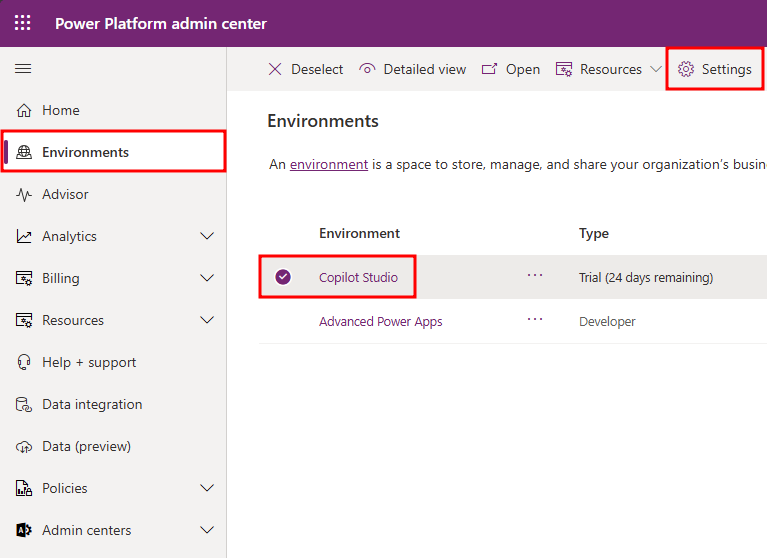
To assign the “agent author” security role, the Microsoft Power Platform administrator must go to the Microsoft Power Platform admin center, select the environment, and then select Settings.
In Users + Permissions, select Security Roles.
Select the ellipsis (the three dots) next to Agent Author, then, in the menu that appears, select Members.
Select + Add people.
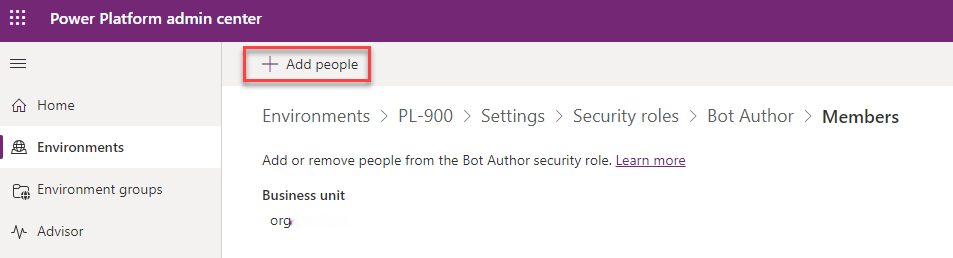
You can search for the person you are looking for, select their name, and then select Add.
The top part of the screen displays a notification banner indicating success and showing the user’s name.
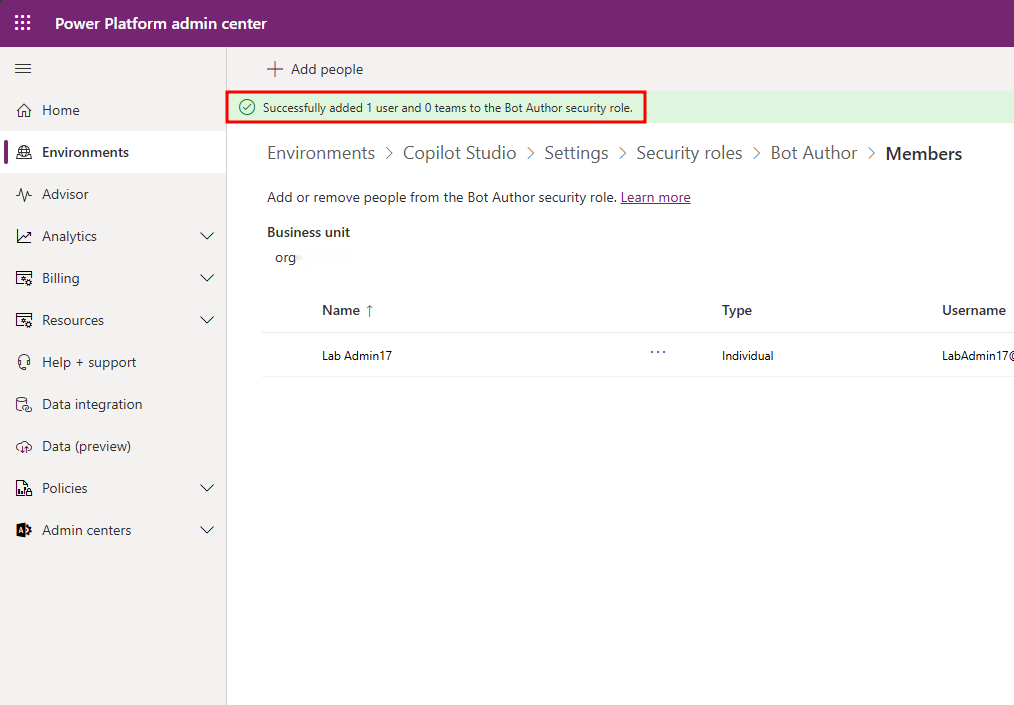
You have successfully given a user access as an agent creator in an environment.
