
New Recipient
Location
Home page > Transfer icon > (+) icon
1. Page Objective
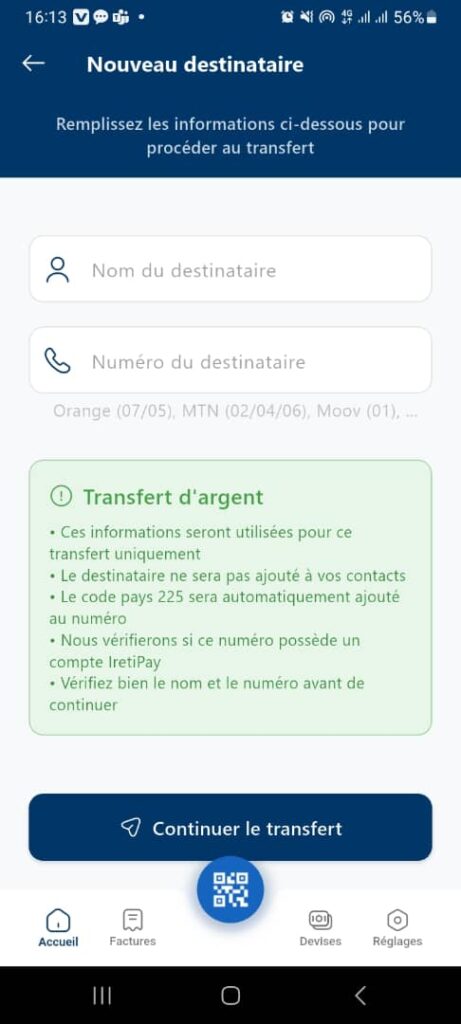
The New Recipient page allows the user to add a temporary recipient in order to perform a money transfer.
The information entered is used only for the current transaction and is not saved in the permanent contacts.
2. Page Access
This page is accessible when the user chooses to make a money transfer to a new phone number that has not been used before.
3. Page Header
Title: New Recipient
Subtitle:
Fill in the information below to proceed with the transfer
👉 This header clearly informs the user of the purpose of the page.
4. Input Fields
4.1 Recipient Name
- Type: Text field
- Icon: User icon
- Description:
Allows entering the full name or first name of the transfer recipient. - Required: ✅ Yes
4.2 Recipient Phone Number
- Type: Numeric field
- Icon: Phone icon
- Description:
Allows entering the recipient’s phone number.
Supported formats:
- Orange: 07
- MTN: 05
- Moov: 01
Country prefix:
The country code +225 (Côte d’Ivoire) is automatically added.
- Required: ✅ Yes
5. Information Box – Money Transfer
Title
Money Transfer
Informational content
This section informs the user of important rules related to the operation:
- ✅ The entered information will be used only for this transfer
- ✅ The recipient will not be added to contacts
- ✅ The +225 country code is added automatically
- ✅ The system checks whether the number corresponds to an Iritipay account
- ⚠️ It is recommended to carefully verify the name and phone number before continuing
📌 Purpose: To reassure the user and reduce transfer errors.
6. Primary Action Button
- Button: Continue transfer
- Position: Bottom of the screen
- Color: Blue
- Icon: Paper airplane (send)
Action:
- Validates the entered fields
- Starts verification of the recipient’s account
- Redirects to the next step of the transfer process
⚠️ The button is enabled only if all required fields are correctly filled in.
7. Bottom Navigation Bar
Visible items:
- Home
- QR Code button (center)
- Bills
📌 This bar allows quick navigation to the main features of the application.
8. Possible Error Cases (Recommendations)
The page should ideally handle the following cases:
- Invalid or incomplete phone number
- Phone number not associated with an Iritipay account
- Required fields not filled in
