
Version 3 of the Ireti App
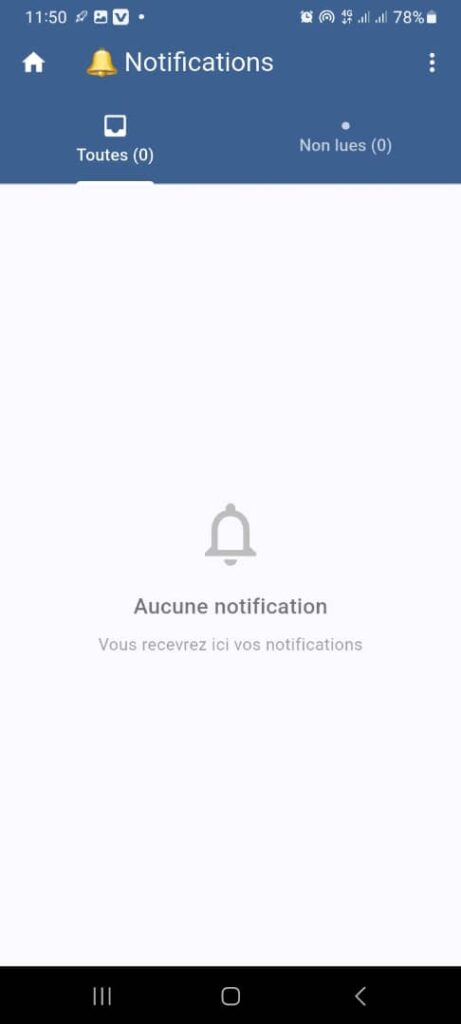
Notifications Page
1. Page Objective
The Notifications page allows the user to:
- view all notifications related to their account
- track important events (transactions, alerts, system information)
- distinguish between read and unread notifications
2. Page Access
This page is accessible from:
- the 🔔 Notifications icon located in the application header
- the main navigation menu
3. Page Header
3.1 Home Icon
- Icon: 🏠
- Function: quick return to the Home page
3.2 Title
🔔 Notifications
🎯 Clearly indicates the content and purpose of the page.
3.3 Options Menu
- Icon: ⋮ (context menu)
- Possible functions:
- mark all notifications as read
- delete all notifications
- access notification settings
(The exact options depend on the application configuration.)
4. Filter Tabs
The page offers two tabs to organize the display:
4.1 All Tab (0)
- Displays all notifications
- The number (0) indicates the total number of available notifications
4.2 Unread Tab (0)
- Displays only unread notifications
- The number (0) indicates the number of unread notifications
📌 The active tab is visually highlighted.
5. Content Area
5.1 Empty State (No Notifications)
When the user has no notifications, the screen displays:
- Central icon: greyed‑out bell
- Main message:
No notifications - Secondary message:
You will receive your notifications here
🎯 Objective:
- clearly inform that there is no content to display
- reassure the user about the future use of this page
6. Expected Functional Behaviors
6.1 Notification Reception
Notifications are generated following:
- a successful or failed transaction
- a top‑up or a transfer
- system or promotional messages
They appear automatically in the list.
6.2 State Management
✅ Unread notification: visually highlighted
✅ Read notification: muted appearance
✅ Counter updates (All / Unread)
6.3 Possible User Actions
- view notification details
- mark a notification as read
- use the menu for global actions
7. UX / UI Rules
- Simple and readable interface
- Clear distinction between empty state and data state
- Smooth navigation between tabs
- Immediate visual feedback after a user action
8. Security and Privacy
- Notifications are strictly linked to the user account
- No notification is visible to a third party
- Displayed data is protected and not editable without authorization
9. Summary
✅ Page dedicated to tracking account events
✅ Clear tab system for filtering notifications
✅ Proper handling of the empty state
✅ Key element of user experience and transparency
