
Notifications Page (Actions Menu)
1. Page Objective
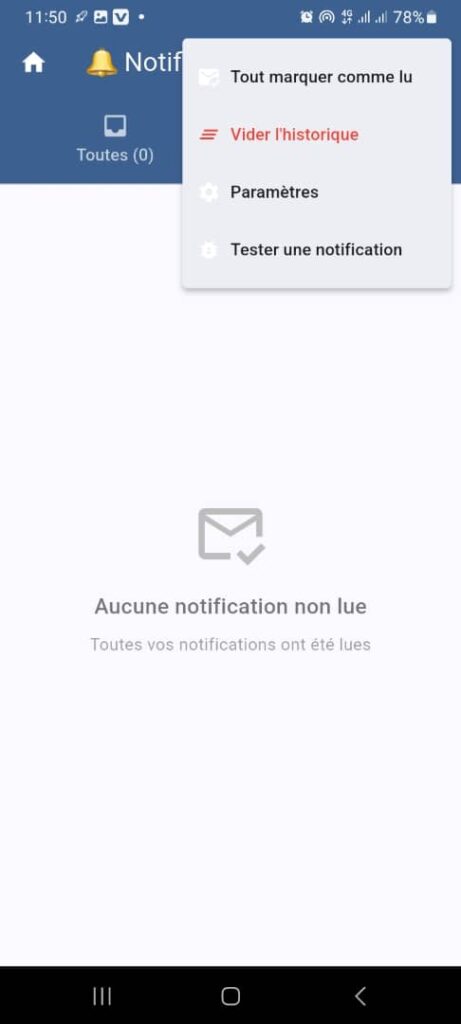
This view corresponds to the Notifications page with the options menu (⋮) opened.
It allows the user to manage all their notifications through quick actions: reading, deletion, settings, and testing.
2. Access Context
The actions menu is accessible from:
- the Notifications page
- the ⋮ icon (context menu) located in the header
3. Page Header
3.1 Icons and Navigation
- 🏠 Home: immediate return to the Home page
- 🔔 Notifications: indicates the current page
3.2 Filter Tabs
- All (0): displays all notifications
- Unread (0): displays only unread notifications
📌 In the displayed screen, no items are available in either tab.
4. Context Menu (⋮)
The context menu presents global actions applicable to notifications.
4.1 Mark All as Read
- Icon: envelope / checkmark
- Function:
- marks all notifications as read
- updates the “Unread” counter to zero
- Condition:
- enabled only if at least one unread notification exists
4.2 Clear History
- Icon: delete symbol
- Function:
- permanently deletes all notifications
- Impact:
- resets the list
- displays the empty state
- Security:
- user confirmation is recommended before deletion
4.3 Settings
- Icon: ⚙️ gear
- Function:
- redirects to the notification settings page
- Example settings:
- enable / disable notifications
- manage notification types (transactions, alerts, promotions)
- push / in‑app preferences
4.4 Test a Notification
- Icon: envelope / test
- Function:
- generates a test notification
- allows verification of proper functioning of:
- in‑app notifications
- push notifications
- Usage:
- useful for support or user validation
5. Content Area – Empty State (Unread)
When all notifications have been viewed:
- Icon: envelope with checkmark
- Main message:
No unread notifications - Secondary message:
All your notifications have been read
🎯 Objective:
- confirm the fully read state
- reassure the user about their status
6. Expected Functional Behaviors
✅ Immediate update after each menu action
✅ Synchronization with the backend
✅ Counter refresh (All / Unread)
✅ Visual feedback or confirmation message after an action
7. UX / UI Rules
- Clear and non‑intrusive menu
- Critical actions clearly identified (deletion in red)
- Explicit icons
- Automatic menu closure after selection
8. Security and Best Practices
- Deletions are irreversible
- Settings are specific to the logged‑in user
- Notification tests must not impact real data
9. Summary
✅ Centralized menu for notification management
✅ Fast and accessible actions
✅ Proper handling of states (read / unread / empty)
✅ Useful tool for both users and technical support
