
Version 3 of the Ireti App
My QR Code
1. Page Objective
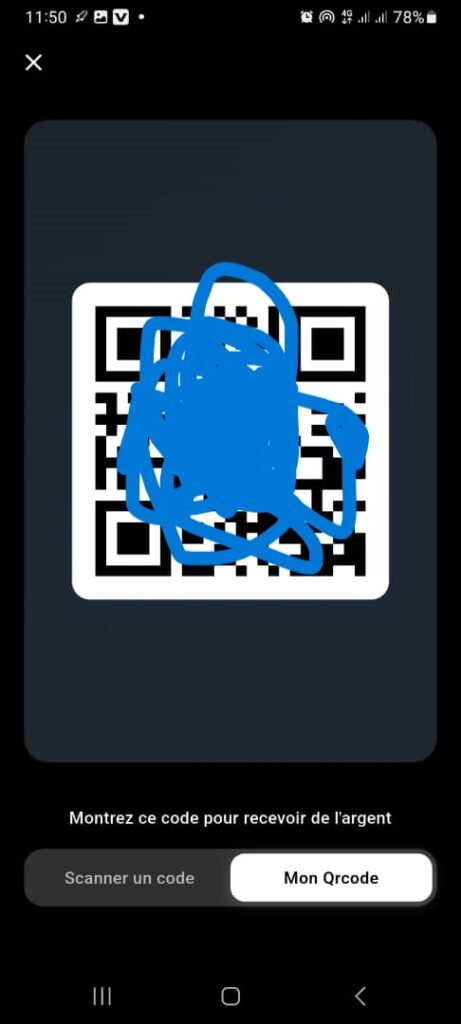
The My QR Code page allows the user to receive money easily by sharing their personal QR code.
It avoids manual entry of the number and secures transactions.
2. Access Context
This page is accessible from:
- the QR Code button (central button) in the navigation bar
- the main menu of quick features
3. General Page Structure
3.1 Display Type
- Modal / full‑screen view
- Dark background to highlight the QR Code
- Central card containing the QR Code
🎯 Objective: focus attention on the code to be scanned.
4. Page Header
4.1 Close Button
- Icon: ❌ (cross)
- Position: top left corner
- Function: close the QR Code page and return to the previous screen
5. Main Area – QR Code
5.1 User QR Code
- Type: unique QR Code
- Encoded content:
- user account identifier
- information required to receive money
- Usage:
- to be scanned by another IritiPay user
- allows initiating a transfer to this account
📌 The QR Code is:
- unique
- secure
- not editable by the user
5.2 Presentation Card
- Light background
- Rounded corners
- Highlights the QR Code for better readability during scanning
6. Instruction Message
Displayed text:
“Show this code to receive money”
🎯 Objective:
- clearly guide the user
- indicate the expected action (present the code to be scanned)
7. Bottom Page Options
7.1 Scan a Code Tab
- Function:
- allows scanning another user’s QR Code
- initiates a payment or outgoing transfer
- Usage:
- send money
- pay a merchant or an individual
7.2 My QR Code Tab
- Function:
- displays the personal QR Code (active page)
- State:
- visually selected
📌 These two options allow switching between sending and receiving money.
8. Expected Functional Behaviors
✅ Fast QR Code loading
✅ QR Code always valid and synchronized with the account
✅ Fast scanning by other devices
✅ Immediate closure via the close (❌) button
9. Error Cases to Handle
- QR Code not recognized during scanning
- Camera issue on the scanner side
- User account unavailable or suspended
👉 Clear messages must be displayed in these cases.
10. Security
- The QR Code does not allow automatic debiting
- Any transaction requires validation from the sender
- Sensitive data is not displayed in plain text
11. UX / UI Rules
- High contrast to facilitate scanning
- Clear, uncluttered central area
- Minimal and explicit explanatory text
- Simple navigation (scan ↔ display)
12. Summary
✅ Page dedicated to receiving money via QR Code
✅ Fast, intuitive, and secure experience
✅ Reduced manual entry errors
✅ Key feature for peer‑to‑peer payments
