
Notification Settings
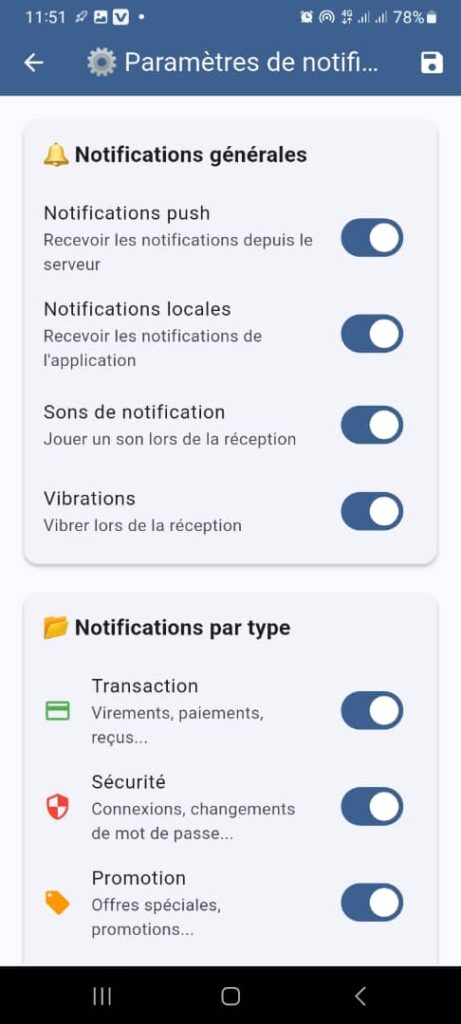
1. Page Objective
The Notification Settings page allows the user to configure the behavior of the application’s notifications according to their preferences.
It provides control over:
- receiving notifications
- the channels used (push, local)
- effects (sound, vibration)
- the types of notifications received
2. Page Access
This page is accessible from:
- the Notifications page
- the Settings option in the context menu (⋮)
- or the application Settings menu
3. Page Header
3.1 Back Button
- Icon: back arrow
- Function: return to the previous page without modifying the current state
3.2 Title
⚙️ Notification Settings
Clearly indicates that the page is dedicated to configuring alerts.
3.3 Save Button
- Icon: floppy disk
- Function:
- save the selected settings
- synchronize preferences with the server
📌 Changes may be saved automatically or via this action.
4. Section
General Notifications
This section groups global settings applicable to all notifications.
4.1 Push Notifications
- Label: Push notifications
- Description:
Receive notifications from the server - Control type: toggle switch (ON/OFF)
- Function:
Enables or disables push notifications sent by the server - Impact:
If disabled, no remote notifications are received
4.2 Local Notifications
- Label: Local notifications
- Description:
Receive notifications from the application - Control type: toggle switch
- Function:
Manages notifications generated directly by the application
4.3 Notification Sounds
- Label: Notification sounds
- Description:
Play a sound upon receipt - Function:
Enables or disables sound when a notification is received
4.4 Vibrations
- Label: Vibrations
- Description:
Vibrate upon receipt - Function:
Enables or disables phone vibration
5. Section
Notifications by Type
This section allows precise control of notifications based on their category.
5.1 Transaction
- Label: Transaction
- Description:
Transfers, payments, receipts… - Function:
Enables or disables notifications related to:- transfers
- payments
- money received
5.2 Security
- Label: Security
- Description:
Logins, password changes… - Function:
Manages important security alerts - Recommendation:
This setting is strongly recommended to remain enabled
5.3 Promotion
- Label: Promotion
- Description:
Special offers, promotions… - Function:
Allows receiving or blocking marketing messages
6. Expected Functional Behaviors
✅ Toggles reflect the actual state of preferences
✅ Changes are applied immediately or after saving
✅ Settings are persisted on the server side
✅ Received notifications comply with the configured rules
7. Logical Dependencies
- If Push notifications are disabled:
- notifications by type may become inactive
- If Sounds and Vibrations are disabled:
- only visual notifications are displayed
8. Error Handling
- No internet connection → delayed save or error message
- System permissions disabled → redirection to phone settings
9. Security and Privacy
- Preferences are linked to the user account
- No sensitive data is exposed
- Security notifications are handled with priority
10. UX / UI Rules
- Clear and consistent toggle switches
- Short explanatory texts
- Logical grouping of settings
- Immediate visual feedback after modification
11. Summary
✅ Full control over notifications
✅ Simple and intuitive configuration
✅ Clear separation between global and type‑based settings
✅ Improves user experience and personalization
