
Version 3 of the Ireti App
User Profile
1. Page Objective
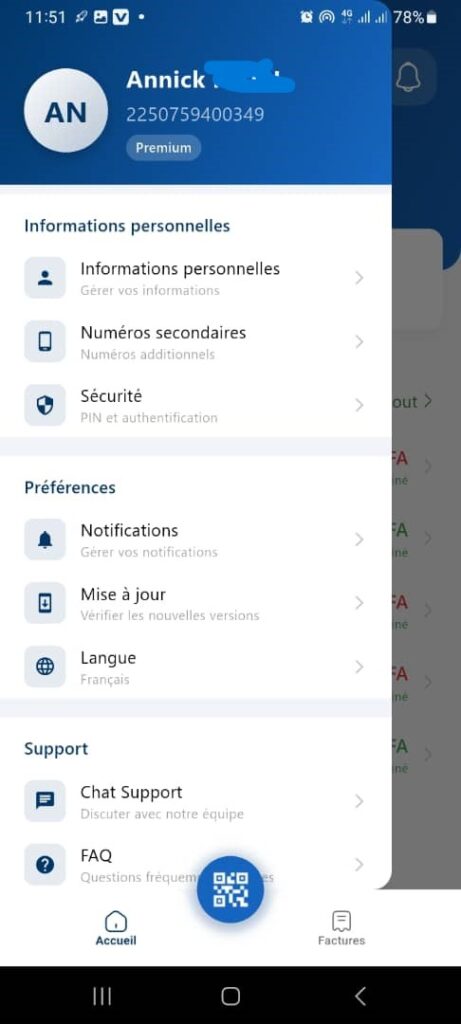
The User Profile page allows the user to:
- view the main information of their account
- access personal and security settings
- configure their preferences
- contact customer support
It centralizes all account management options.
2. Page Access
This page is accessible from:
- the Profile icon (avatar) on the Home page
- the main application menu
3. Profile Header
3.1 User Information
- Name: Annick
- Identifier / Account number: 225075940..
- Status: Premium
🎯 Objective:
- clearly identify the logged‑in user
- display the account level (standard, premium, etc.)
3.2 User Avatar
- Initials: AN
- Visual representation of the profile
- May be editable depending on configuration (photo or initials)
4. Section
Personal Information
This section allows management of essential account data.
4.1 Personal Information
- Description: Manage your information
- Accessible content:
- first and last name
- primary number
- basic account information
- Action: navigation to the edit page
4.2 Secondary Numbers
- Description: Additional numbers
- Function:
- add, edit, or delete secondary numbers
- used for Mobile Money or transfers
4.3 Security
- Description: PIN and authentication
- Function:
- PIN management
- authentication settings
- account security options
📌 Critical section related to user account protection.
5. Section
Preferences
Groups application personalization settings.
5.1 Notifications
- Description: Manage your notifications
- Action:
- access the Notification Settings page
- control alerts and reminders
5.2 Update
- Description: Check for new versions
- Function:
- check update availability
- redirect to the store if necessary
5.3 Language
- Displayed value: French
- Function:
- change the application language
- apply the interface in the selected language
6. Section
Support
Allows the user to get help.
6.1 Support Chat
- Description: Chat with our team
- Function:
- direct communication with customer support
- real‑time or delayed assistance
6.2 FAQ
- Description: Frequently Asked Questions
- Function:
- view answers to common questions
- reduce the need to contact support
7. Bottom Navigation
Visible elements:
- 🏠 Home
- 📷 QR Code (floating central button)
- 🧾 Bills
📌 Persistent navigation for quick access to key features.
8. Expected Functional Behaviors
✅ All options are clickable
✅ Smooth navigation to sub‑pages
✅ Displayed data is up to date
✅ Secure access to sensitive settings
9. Security and Privacy
- Information is visible only to the user
- Sensitive actions require authentication
- Personal data is protected
10. UX / UI Rules
- Clear organization by sections
- Explicit icons
- Short descriptive texts
- Good readability on mobile
11. Summary
✅ Central page for user account management
✅ Quick access to essential settings
✅ Logical separation (information, preferences, support)
✅ Strengthens user autonomy and security
