
How Azure VMware Solution works
Now that you know Azure VMware Solution and what it can do, let’s take a look at how it works on Azure.
Shared support
On‑premises VMware vSphere environments require the customer to support all the software and hardware to run the platform.
Azure VMware Solution does not.
Microsoft maintains the platform for the customer.
Let’s take a look at what the customer manages and what Microsoft manages.
In the case of the following table:
Microsoft Managed = Blue, Customer Managed = Gray
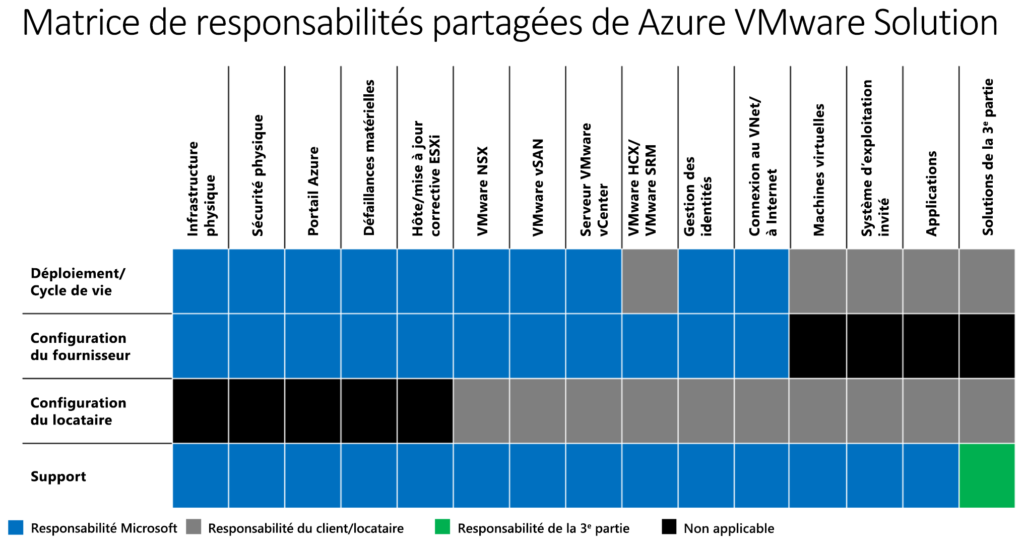
In partnership with VMware, Microsoft handles the lifecycle management of VMware software (ESXi, vCenter Server, and vSAN). Microsoft also works with VMware for the lifecycle management of the NSX appliance and the bootstrapping of network configuration. This includes creating the Tier‑0 gateway and enabling north/south routing.
The customer is responsible for the NSX SDN configuration:
- Network Segments
- Distributed Firewall Rules
- Level 1 Gateways
- Load Balancers
Monitoring and Remediation
Azure VMware Solution continuously monitors the health of the underlying components and the components of the VMware solution. If Azure VMware Solution detects a failure, it repairs the failed components. When Azure VMware Solution detects degradation or failure on an Azure VMware Solution node, it triggers the host remediation process.
Host remediation consists of replacing the failed node with a new, healthy node in the cluster. Then, when possible, the failed host is placed into VMware vSphere maintenance mode. VMware vMotion moves VMs from the failed host to other servers available in the cluster, which can allow live migration of workloads without downtime. If the failed host cannot be placed into maintenance mode, the host is removed from the cluster.
Azure VMware Solution monitors the following conditions on the host:
- Processor Status
- Memory Status
- Connection and Power Status
- Hardware Fan Status
- Loss of Network Connectivity
- Hardware System Board Status
- Errors occurring on the disks of a vSAN host
- Hardware Voltage
- Hardware Temperature Status
- Hardware Power Status
- Storage Status
- Connection Failure
Private Clouds, Clusters, and Hosts in Azure
Azure VMware Solution provides VCF private clouds on dedicated Azure hardware.
Each private cloud can have multiple clusters managed by the same vCenter Server and the same NSX Manager. Private clouds are installed and managed from an Azure subscription. The number of private clouds within a subscription is scalable.
For each private cloud created, there is a default vSphere cluster. You can add, remove, and scale clusters using the Azure portal or the API. Microsoft offers node configurations based on baseline, memory, and storage requirements. Choose the appropriate node type for your region; the most common choice is AV36P.
The minimum and maximum node configurations are as follows:
- At least three nodes in a cluster
- A maximum of 16 nodes in a cluster
- A maximum of 12 clusters in an Azure VMware Solution private cloud
- A maximum of 96 nodes in an Azure VMware Solution private cloud
The following table presents the processor, memory, disk, and network specifications for the available AVS hosts:
| Host Type | CPU (Central Processing Unit) | RAM | vSAN Cache Level | vSAN Capacity |
|---|---|---|---|---|
| AV36P | Two Intel Xeon Gold 6240 processors, 18 cores/processor @ 2.6 GHz / 3.9 GHz Turbo. Total of 36 physical cores. | 768 GB | 1.5 TB (Intel Cache) | 19.20 TB (NVMe) |
| AV48 | Two Intel Xeon Gold 6442Y processors, 24 cores/processor @ 2.6 GHz / 4.0 GHz Turbo. Total of 48 physical cores. | 1,024 GB | N/A | 25.6 TB (NVMe) |
| AV52 | Two Intel Xeon Platinum 8270 processors, 26 cores per processor at 2.7 GHz; 4.0 GHz in Turbo mode. Total of 52 physical cores. | 1,536 GB | 1.5 TB (Intel Cache) | 38.40 TB (NVMe) |
| AV64* | Two Intel Xeon Platinum 8370C processors, 32 cores/processor at 2.8 GHz / 3.5 GHz Turbo. Total of 64 physical cores. | 1,024 GB | 3.84 TB (NVMe) | 15.36 TB (NVMe) |
* In AVS Gen 1, an Azure VMware Solution private cloud deployed with AV36P, AV48, or AV52 is required before adding AV64 hosts.
In AVS Gen 2, AV64 can be deployed on its own.
⭐ Interconnect in Azure
The private cloud environment for Azure VMware Solution can be accessed both from on‑premises resources and from Azure‑based resources.
The following services provide interconnection:
- Azure ExpressRoute
- VPN Connections
- Azure Virtual WAN
- Azure ExpressRoute Gateway
The following diagram illustrates the ExpressRoute and ExpressRoute Global Reach interconnect method for Azure VMware Solution.
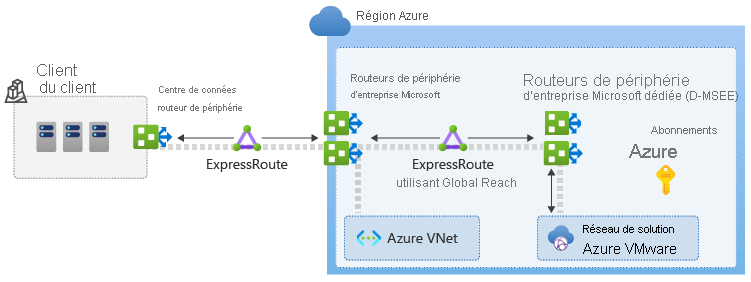
These services require the activation of specific network address ranges and firewall ports.
You can use an existing ExpressRoute gateway to connect to Azure VMware Solution if it does not exceed the limit of four ExpressRoute circuits per virtual network (VNet). To access Azure VMware Solution from an on‑premises location via ExpressRoute, use ExpressRoute Global Reach as your preferred option. If it is not available or not suitable due to specific network or security requirements, consider other options.
ExpressRoute Global Reach is used to connect private clouds to your on‑premises environment. The connection requires a virtual network with an ExpressRoute circuit to the on‑premises environment in your subscription. There are two private cloud interconnect options for Azure VMware Solution:
Basic Azure interconnect allows you to manage and use your private cloud with a single virtual network in Azure. This implementation is ideal for Azure VMware Solution assessments or implementations that do not require access from on‑premises environments.
Full interconnection between an on‑premises environment and a private cloud extends the basic Azure implementation to include interconnection between on‑premises environments and Azure VMware Solution private clouds.
During the deployment of a private cloud, private networks for management, provisioning, and vMotion are created. These private networks are used to access vCenter Server and NSX‑T Manager, the vMotion virtual machine, or the virtual machine deployment.
Private cloud storage
Azure VMware Solution uses fully flash, fully configured VMware vSAN storage that is local to the cluster. All local storage for each host in a cluster is used in a VMware vSAN datastore, and data‑at‑rest encryption is enabled by default.
The original vSAN storage architecture uses a resource unit called a disk group. Each disk group consists of a cache tier and a capacity tier. All disk groups use an NVMe or Intel cache, as described in the following table. The size of the cache and capacity tiers varies depending on the Azure VMware Solution host type. Two disk groups are created on each node in the vSphere cluster. Each contains one cache disk and three capacity disks. All datastores are created as part of a private cloud deployment and are immediately usable.
Host Type | vSAN cache level (TB, raw) | vSAN Capacity Level (TB, raw)
- AV36P — 1.5 (Intel Cache) — 19.20 (NVMe)
- AV48 — N/A — 25.60 (NVMe)
- AV52 — 1.5 (Intel Cache) — 38.40 (NVMe)
- AV64 — 3.84 (NVMe) — 15.36 (NVMe)
A policy is created on the vSphere cluster and applied to the vSAN datastore. It determines how VM storage objects are provisioned and allocated in the vSAN datastore to ensure the required level of service. To meet the SLA, 25% of the free capacity must be retained on the vSAN datastore. In addition, the applicable FTT (failure to tolerate) policy must be applied to meet the service level agreement for Azure VMware Solution. This changes depending on the size of the cluster.
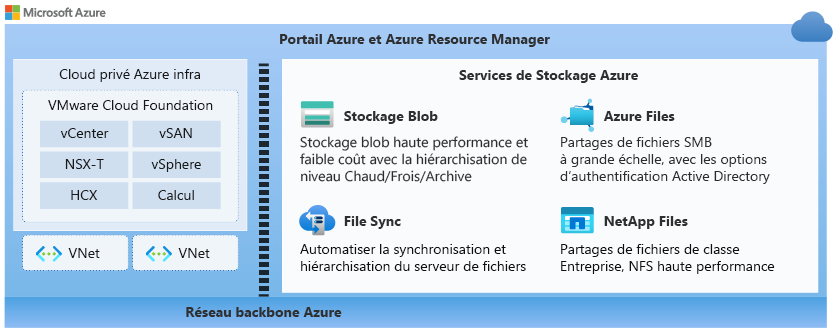
You can use Azure Storage services in workloads that run in your private cloud. The following diagram illustrates some of the storage services available that you can use with Azure VMware Solution.
Security and Compliance
Azure VMware Solution private clouds use vSphere role‑based access control for access and security. You can configure users and groups in Active Directory with the CloudAdmin role by using LDAP or LDAPS.
In Azure VMware Solution, vCenter Server has a built‑in local user called cloudadmin assigned to the cloudAdmin role. The cloudAdmin role has vCenter Server permissions that differ from administrator permissions in other VMware cloud solutions:
The local CloudAdmin user does not have permission to add an identity source, such as an on‑premises Lightweight Directory Access Protocol (LDAP) server or a secure LDAP (LDAPS) server to vCenter Server. Runtime commands can be used to add an identity source and assign the CloudAdmin role to users and groups.
In an Azure VMware Solution deployment, the administrator does not have access to the administrator user account. The administrator can assign Active Directory users and groups to the CloudAdmin role in vCenter Server.
The private cloud user does not have access to or the ability to configure certain management components that are supported and managed by Microsoft. Clusters, hosts, datastores, and distributed virtual switches are examples of these components.
Azure VMware Solution provides security for vSAN storage datastores by using data‑at‑rest encryption and enabling it by default. The encryption is based on the Key Management Service (KMS) and supports key management operations within vCenter Server. The keys are stored, encrypted, and wrapped by an Azure Key Vault master key. When a host is removed from a cluster, the data on the SSDs is immediately invalidated. The following diagram illustrates the relationship of encryption keys with Azure VMware Solution.
| Milestones | Steps |
|---|---|
| Plan | Plan the deployment of Azure VMware Solution: – Assess workloads – Determine sizing – Identify the host – Request quota – Determine networking and connectivity |
| Deploy | Deploy and configure Azure VMware Solution: – Register the Microsoft.AVS resource provider – Create an Azure VMware Solution private cloud – Connect to the Azure Virtual Network with ExpressRoute – Validate the connection |
| Local connection | Create an ExpressRoute authorization key in the on‑premises ExpressRoute circuit: – Peer the on‑premises private cloud – Verify local network connectivity Other connectivity options are also available. |
| Deploy and configure VMware HCX | Deploy and configure VMware HCX: – Enable the HCX service add‑on – Download the VMware HCX Connector OVA file – Deploy the VMware HCX OVA file locally (VMware HCX connector) – Enable the VMware HCX connector – Associate your on‑premises VMware HCX connector with your Azure Cloud Manager VMware Solution – Configure the interconnect (network profile, compute profile, and service mesh) – Complete the installation by checking the status of the appliance and confirming that migration is possible |
