
Module 3
Installing, Configuring, and Troubleshooting GitHub Copilot
This unit explains how to sign up for GitHub Copilot, how to configure GitHub Copilot using VS Code, and how to troubleshoot issues with GitHub Copilot in VS Code.
Signing Up for GitHub Copilot
Before you can start using GitHub Copilot, you need to set up a free trial or subscription for your account.
To begin, click your GitHub profile picture, then select Settings. Copilot is located in the left-hand menu under Code, planning, and automation.
After signing up, you’ll need to install an extension for your preferred environment. GitHub Copilot supports GitHub.com (which doesn’t require an extension), VS Code, Visual Studio, JetBrains IDEs, and Neovim as a standalone extension.
For this module, you’ll focus on extensions and configurations for VS Code. The exercise in the next unit uses VS Code.
If you’re using a different environment, you’ll find specific setup links in the References section at the end of this module.
Setting Up GitHub Copilot in VS Code
Add the VS Code Extension for GitHub Copilot
- In the Visual Studio Marketplace, go to the GitHub Copilot extension page and click Install.
- A pop-up dialog will prompt you to open VS Code. Click Open.
- In VS Code, on the GitHub Copilot extension tab, click Install.
- If you haven’t previously authorized VS Code with your GitHub account, you’ll be prompted to sign in. Click Sign in to GitHub.
GitHub Copilot enables code autocompletion as you type in VS Code. After installation, you can enable or disable GitHub Copilot and configure advanced settings within VS Code.
Enable or Disable GitHub Copilot in VS Code
- In the bottom panel of the VS Code window, click the status icon, then select Enable or Disable.
- When disabling GitHub Copilot, VS Code will ask if you want to disable completions globally or just for the language of the current file.
- To disable completions globally, select Disable completions.
- To disable completions for a specific language, select Disable completions for LANGUAGE.
Enable or Disable Inline Suggestions in VS Code
- From the File menu, go to Settings > Preferences.
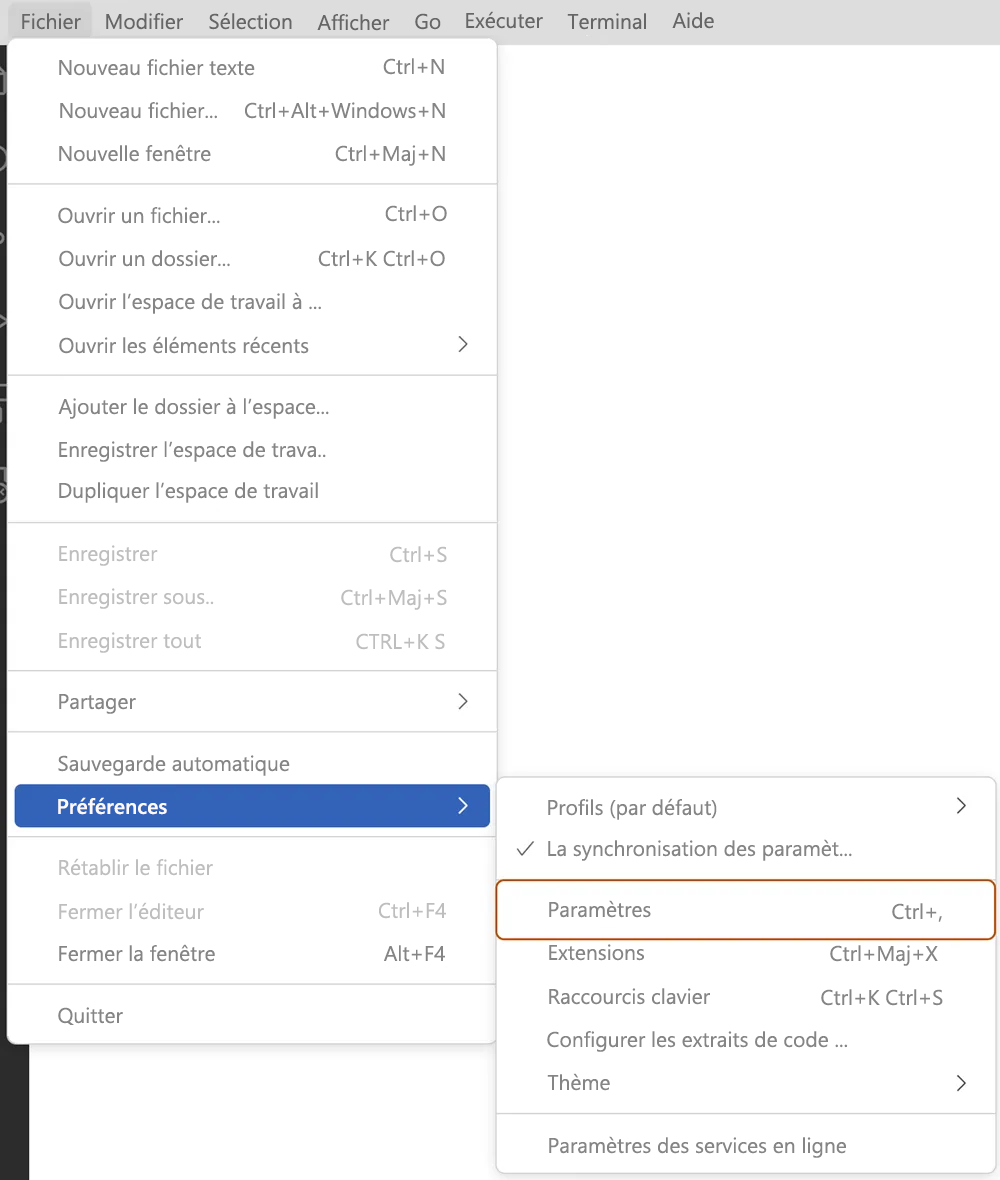
In the left pane of the Settings tab, select Extensions, then GitHub Copilot.
Under Editor: Enable Completions, check or uncheck the box to enable or disable inline suggestions.
You can also choose to enable or disable inline suggestions and specify the languages for which you want GitHub Copilot to be active or inactive.
Troubleshooting GitHub Copilot in VS Code
In VS Code, log files are useful for diagnosing connection issues. The GitHub Copilot extension stores logs in the standard log location for VS Code extensions. You can find the log files by opening the Command Palette and entering:
- Developer: Open Log File or
- Developer: Open Extension Logs Folder
In rare cases, errors may not be logged in the usual locations. If you encounter issues and find nothing in the logs, try viewing the logs for the process running VS Code as well as the extension logs. This will show the Electron logs. You can access these by selecting:
Help > Toggle Developer Tools in VS Code.
Network Restrictions and Proxy Issues
Network restrictions, firewalls, or your proxy may cause issues when connecting to GitHub Copilot. If a problem occurs, follow these steps to open a new editor and view relevant diagnostic information that you can inspect or share with the support team:
- Open the Command Palette in VS Code:
- On Mac, use Shift+Command+P
- On Windows or Linux, use Ctrl+Shift+P
- Type Diagnostics, then select GitHub Copilot: Collect Diagnostics from the list.
For more information on troubleshooting in other environments, refer to the References section at the end of this module.
