
How to create a preliminary account via mobile ?
Introduction
The Phénix mobile application allows any eligible person to create a preliminary customer account without needing to visit the bank in person. Subsequently, the customer must go to the bank with the physical documents for verification in the case of a loan application or if the bank requests it. After the verification of these documents, if they are approved, the customer’s account can be activated to access the products and services offered by the bank. If the documents are not approved, the customer will need to return with the missing documents to benefit from the bank’s offers.
At startup
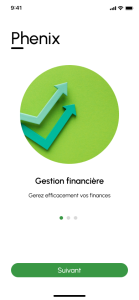
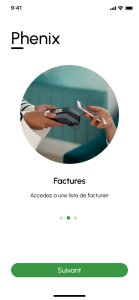
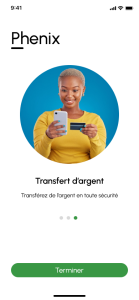
When you start the application, you will see these screens that will display information about the app. You can click ‘Next’ until you reach the home page

Choosing your bank for new users
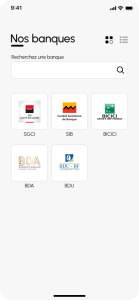
After clicking the ‘Continue’ button on the previous screen, you will see a display of different banks on the screen. Select a bank, and you will be redirected to the put your phone number to either go through authentication as a returning user or choose a product as a new user.
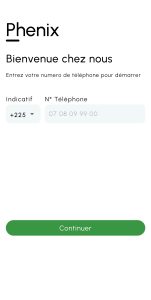
Phone number page for creating a new user account
After choosing your bank, you will see the screen below, which will ask you to enter your phone number to access the products offered by your bank and create a user account.
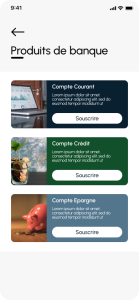
Product presentation for the new user
After entering your phone number as a new user, you will see the products offered by the bank you have chosen.
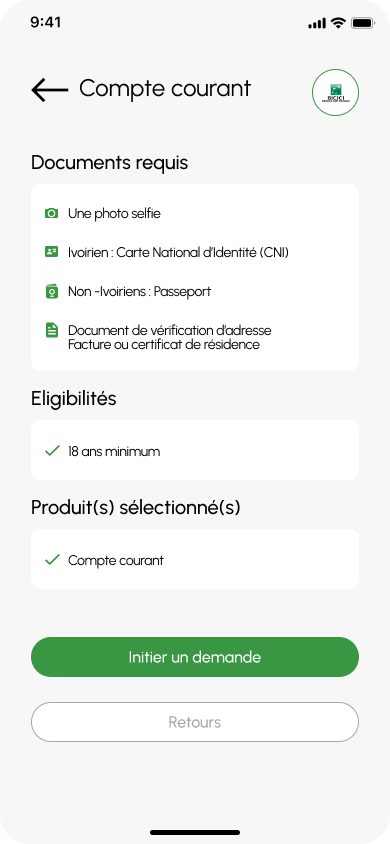
Presentation of required documents for new user
- You choose a product and apply for a subscription to the product by clicking the ‘Subscribe’ button.
- You will be redirected to the information page about the required documents.
- Click on the ‘Initiate a request’ button, and you will be redirected to the OTP page.
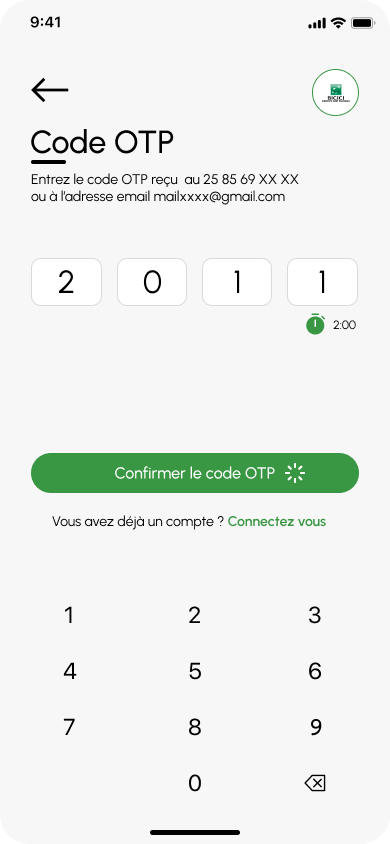
Addition of the temporary code for the new User
Here is the OTP page. This page requires you to enter the temporary code received when you clicked the ‘Initiate a request’ button.
If the sending time exceeds the expected time, you will be asked to resend your phone number to receive another code.
Second method for subscribing to a product for a new user
To see more details about the product, click the ‘See more’ button on the product. On the details page, if you click ‘Next’, you will be directed to the list of required documents. Then, if you click the ‘Initiate a request’ button, you will be redirected to the OTP page.
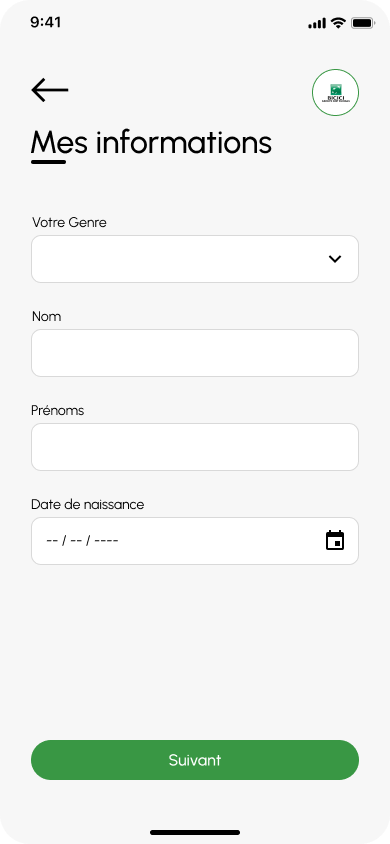
When you click the ‘Confirm OTP code’ button, you will be redirected to the ‘My Information’ form. Once your information is entered, you will be directed to the password page, which is the login page.

Customer Account Registration and Login for New Users
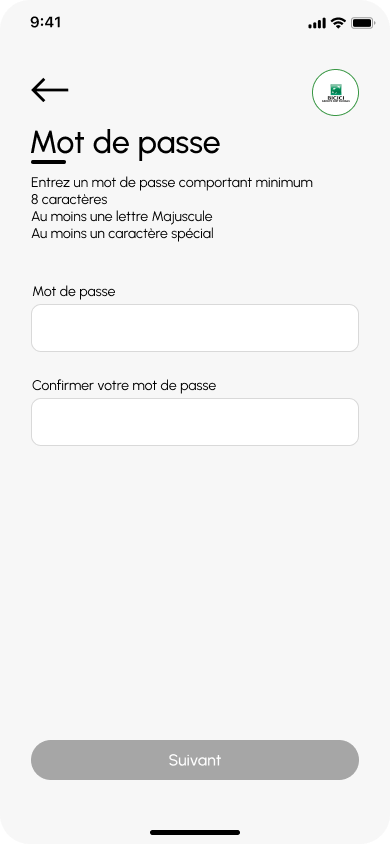
The information page allows the user to create an account with the chosen bank, which will activate the account upon document approval. Once this information is submitted, you (the client) will be redirected to the login page, where you will be asked to set your password.
Success and Validation Message
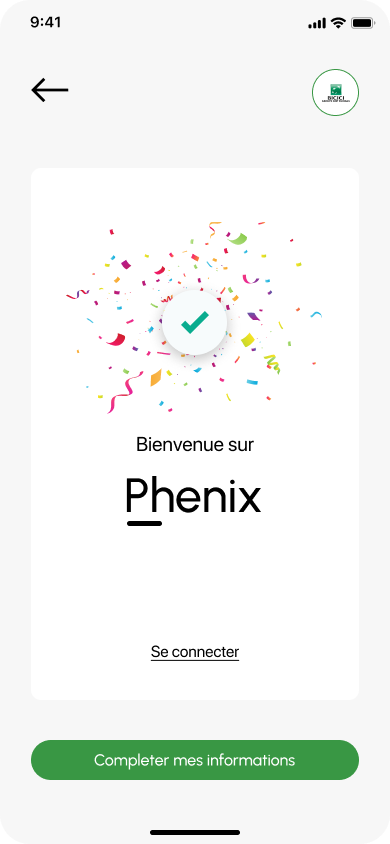
The password can be numeric, alphabetic, or alphanumeric. It must be five characters long. Once validated, you will receive a welcome message. See the screenshot below.
Click the Log In Button
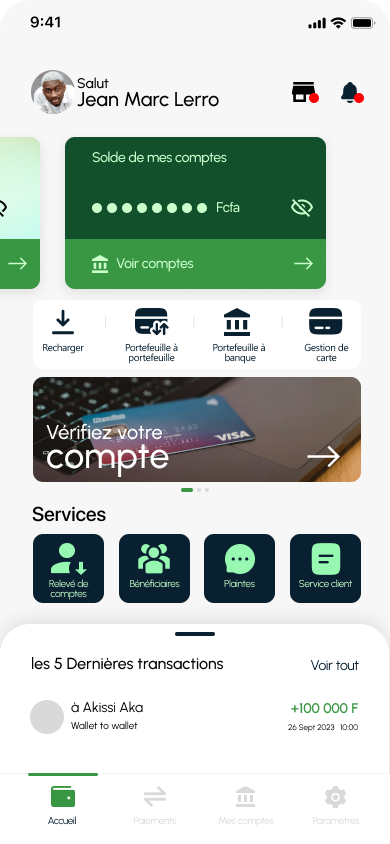
The Log In button allows you to access your homepage. When you click “Login”, you will be taken to your home page, where you can perform transactions and other operations see the screenshot below.
Click on the “Complete My Information” button
The “Complete my information” button allows you to access different document forms. These forms allow you to send your documents to the bank you have chosen and they will verify them. Once all form fields have been successfully completed, you will have access to your home page. Here are the different forms to fill out.


Note: For a person who has not provided all their documents in full and who wishes to add them later, they will have access to the authentication page. Once the password is validated, she will be redirected to his home page (with a notification message inviting them to complete or submit their documents). From there, she will can add his documents by clicking on the “Add my documents” button.
