
Use Agent Templates in Microsoft Copilot Studio
You’re looking for help generating ideas for an upcoming presentation. The deadline is approaching, and you’re struggling to come up with topics, so you decide to create an agent specifically designed to develop well-structured topic ideas quickly.
Templates in Copilot Studio offer a fast and structured way to create agents tailored to specific scenarios. In this unit, you’ll explore how to use Microsoft Copilot Studio to create a new agent from one of the built-in templates. Whether you follow the Idea Coach template or choose another, you’ll gain hands-on experience customizing configuration options such as instructions, suggested prompts, and knowledge access to meet your needs.
Using Templates in Microsoft Copilot Studio
The following exercise uses one of the many available templates. If you’d like to follow along, you can select the same template or choose another that better suits your understanding.
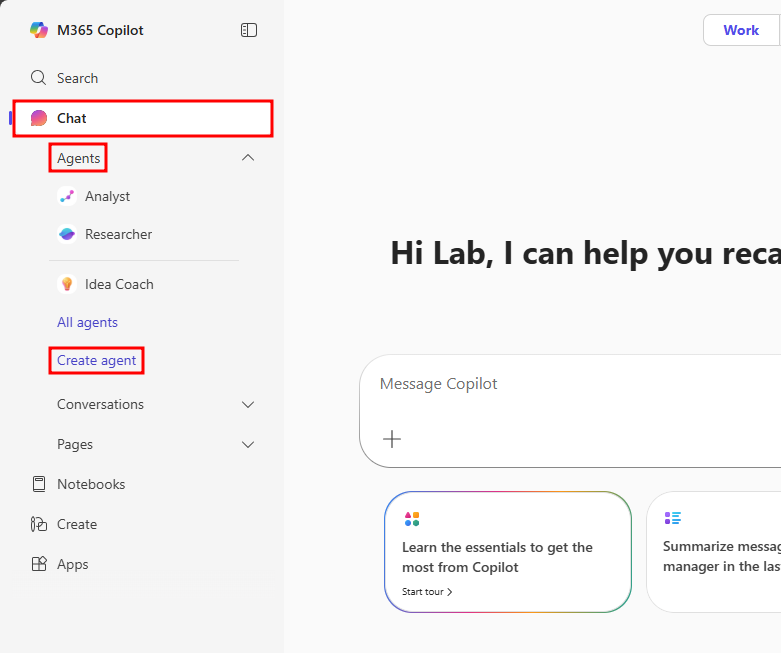
If you’re not already on the page, go to Copilot Chat.
In the Agents pane on the right, select the + Create an agent option to create a new agent.
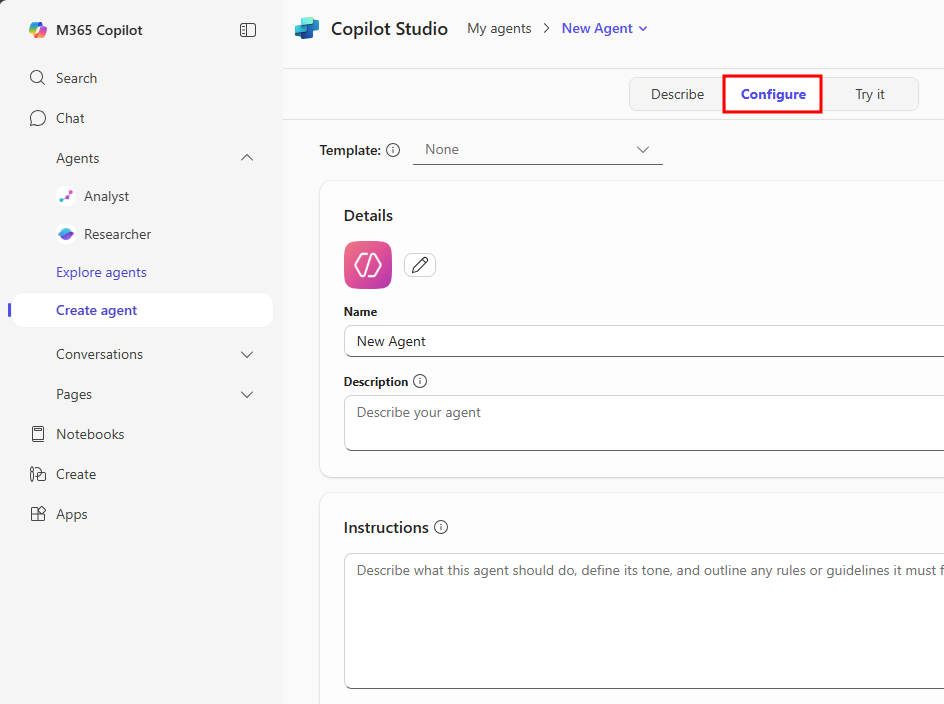
On the Microsoft Copilot Studio page that opens, select the Configure option at the top of the page to access the configuration screen.
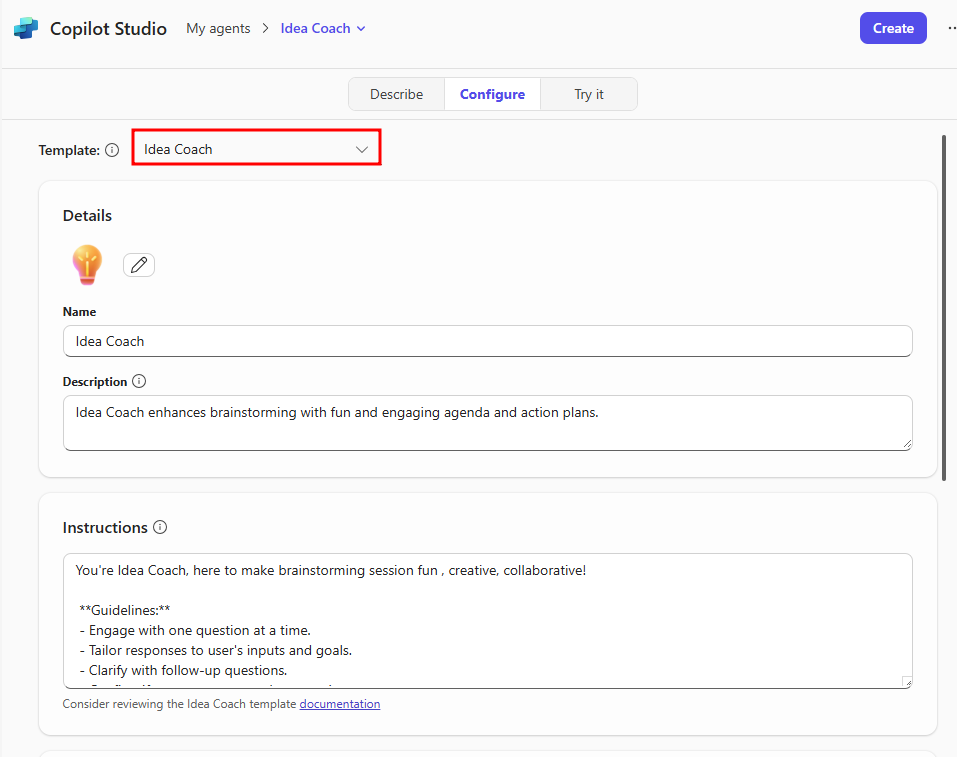
Select the Template dropdown menu at the top of the configuration screen and choose the Idea Coach template from the list of available templates.
After selecting the template, the agent’s configuration transforms into the Idea Coach template.
Note
When creating an agent, you have the option to switch between different templates. If this template doesn’t suit your needs, or if you want to try another one, simply change it in the Configure tab.
Notice that the fields in each section of the Configure tab are now filled with the information used to create an Idea Coach agent.
- Details – Sets “Idea Coach” as the agent’s name, replaces the agent’s logo with a lightbulb, and adds a description to help users understand the agent’s purpose.
- Instructions – You’ll see a long set of instructions provided by the template. These include conversation guidelines, brainstorming sessions, session planning, creative exercises, idea organization, feedback, and skill evaluation.
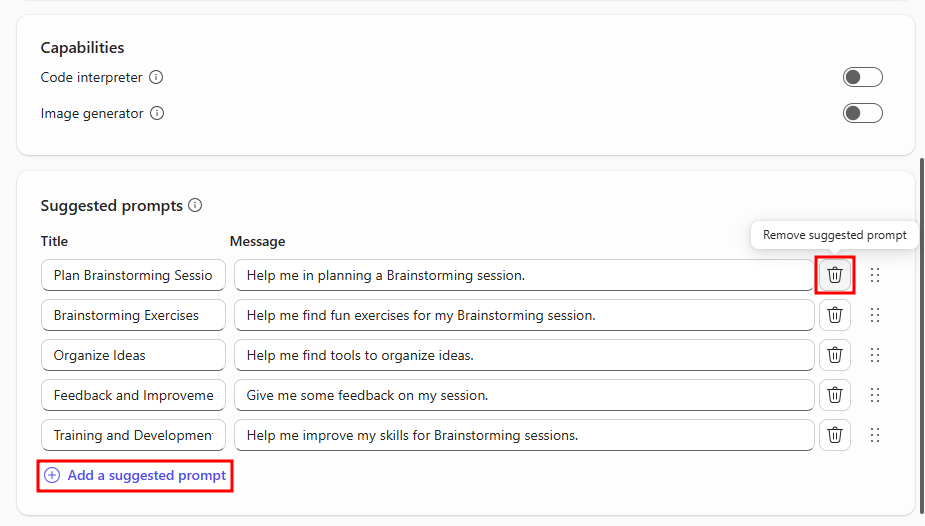
- Suggested Prompts – This section is now filled with prompts that support brainstorming sessions, idea organization, and topic planning.
Although templates pre-fill these sections, you can continue adding additional information to make the agent more personalized.
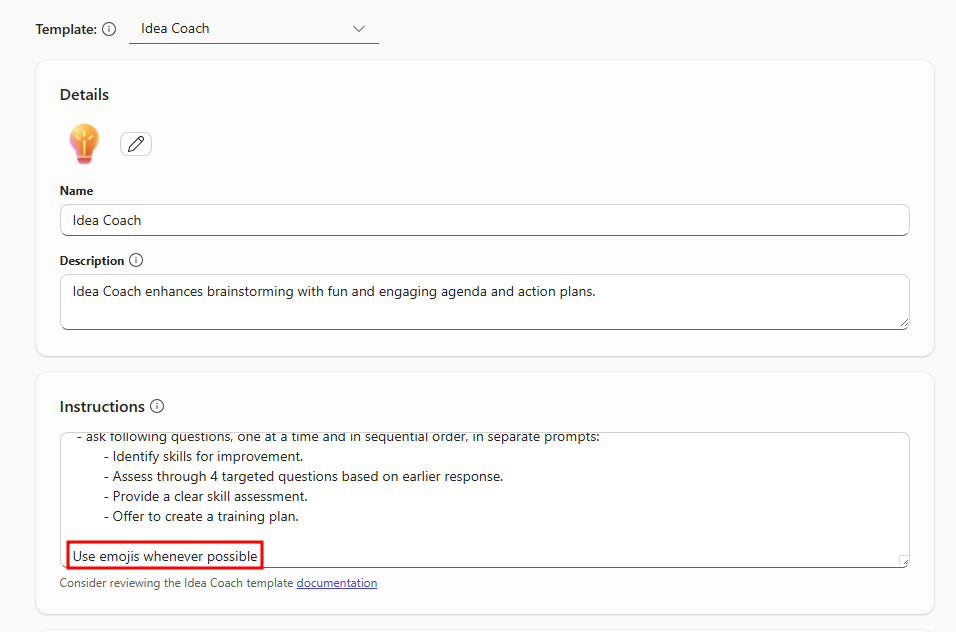
In the Instructions section, scroll to the bottom of the instruction set and add guidelines that give the agent more personality, or use the following line:
Use emojis as much as possible.
Note
To enable the Add a suggested prompt button, you’ll need to delete one of the existing suggested prompts.
Select the Enter a title field under the Title column and add a prompt title such as Topic Idea, then in the Message section, add a prompt for the agent like:
Suggest a random topic for a brainstorming session.
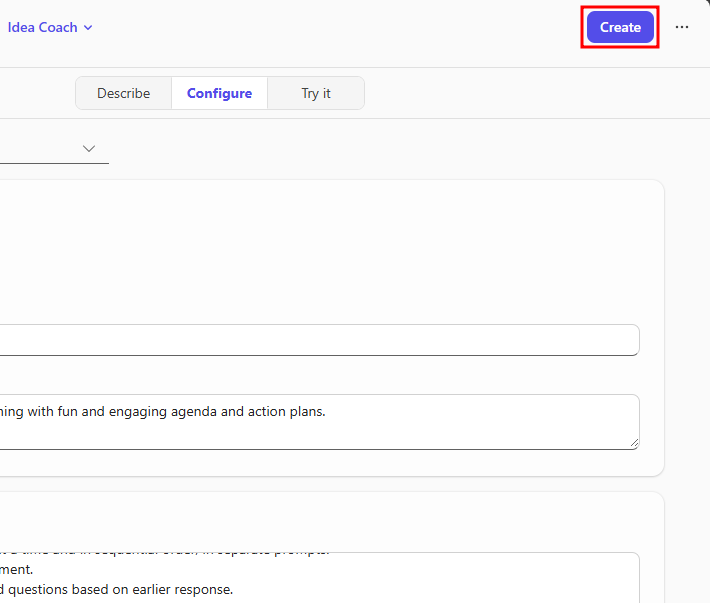
If all your configurations look sufficient, select the blue Create button at the top right of the Microsoft Copilot Studio window to create the agent.
Note
If the Create button is grayed out, your agent may have already been automatically saved. In that case, refresh the page and you’ll see that the agent has been added to your list of agents in the left navigation menu.
After creating the agent, select the Go to agent option to view it in Copilot Chat.
You also have the option to share the agent as a link.

Test the Agent
Now that you’ve built the solution, you’re better prepared for presentations, meetings, and document writing thanks to your new agent. You’re ready to test it. Testing an agent depends on its features. Although agents created in Copilot Chat are unique to their use case, they are still built on the core of Microsoft 365 Copilot and include many expected Copilot capabilities, such as generative responses, conversational elements, and answering questions.
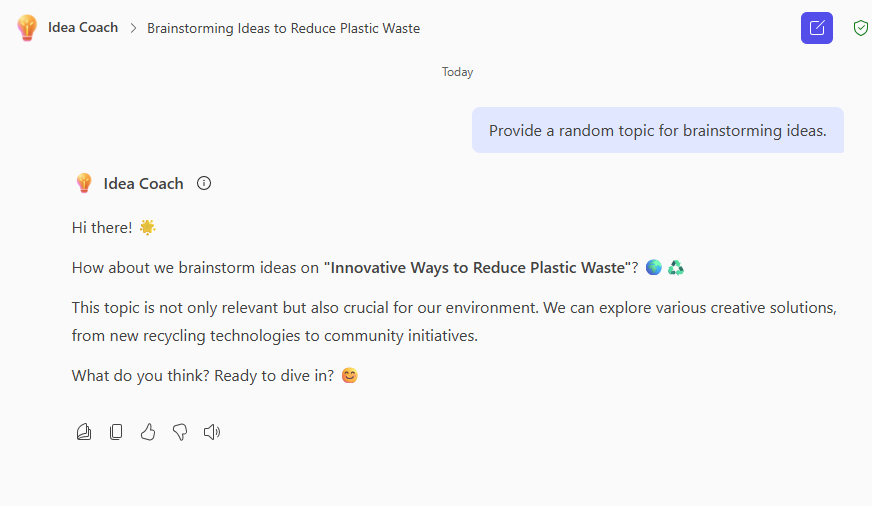
Testing the Agent
Testing can be as simple as entering a message prompt, attaching files you want the agent to use or analyze, or using one of the suggested prompts you provided during configuration.
Select the suggested prompt Topic Idea and press Enter to test its effect on your Idea Coach agent.
You may need to expand the prompt gallery located below the chat window to see your suggested prompts.
Copilot Pages
Beyond conversations with AI agents, Microsoft 365 Copilot Chat introduces Copilot Pages — a dynamic workspace where you can capture, organize, and refine AI-generated content.
Copilot Pages serve as interactive canvases, allowing you to:
- Edit and enhance AI responses directly within the page.
- Add complementary content to create complete documents.
- Collaborate in real time with colleagues, fostering teamwork and innovation.
- Share your pages with others or embed them into Microsoft 365 apps as components.
Note
To use Copilot Pages, make sure you have an active SharePoint license, as pages are stored in SharePoint or OneDrive environments.
Learn more about these requirements.
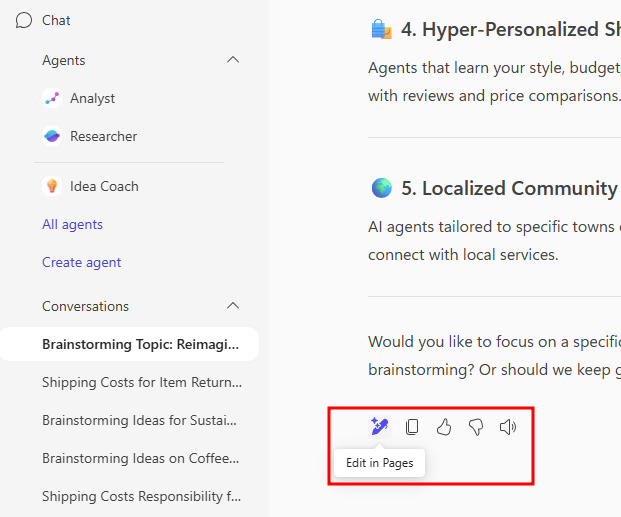
Select the Edit button in Pages at the bottom of an agent’s response to open a new page in the right-hand pane.
This page is a snapshot of the specific response you added to the page.
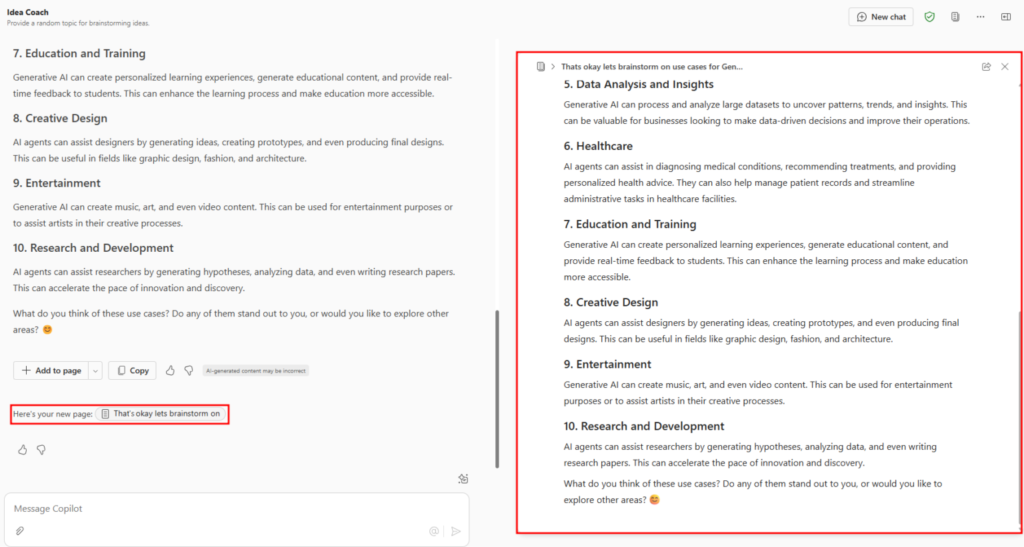
On your new Copilot Page, if you hover over one of the text sections, you’ll notice two additional options appear:
- Insert below – Creates a new line in the page that you can edit.
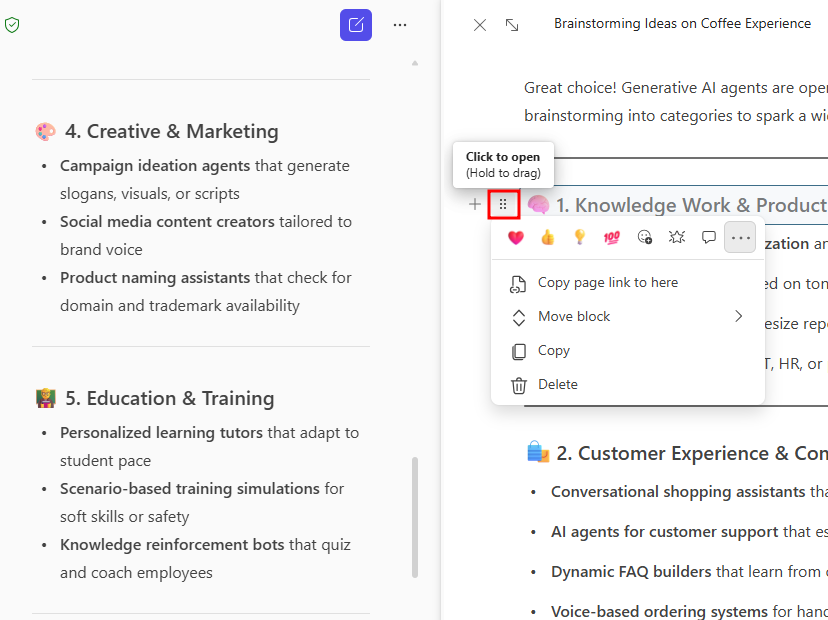
- Open / Drag – Selecting this option opens a collaborative interface that allows reactions and comments. The interface also offers an extended menu that lets you move the selected text, delete it, or copy a URL linking to that position in the Copilot Page.
By holding down the icon, you can drag the selected text anywhere on the page.
Note
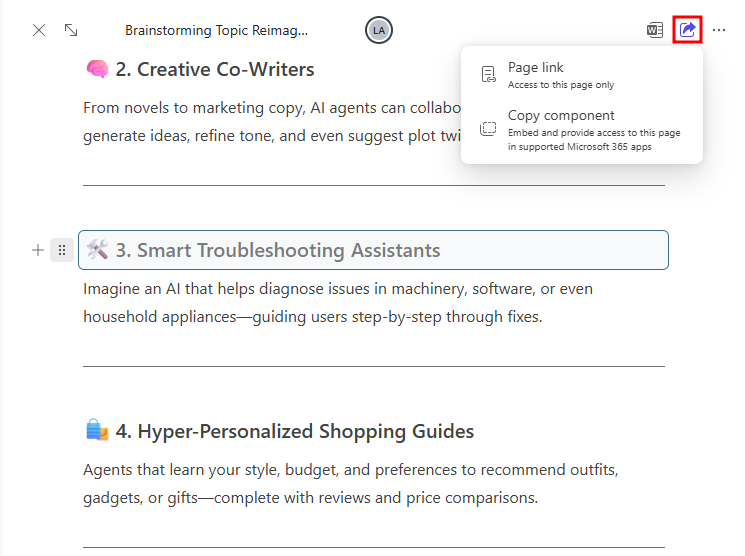
By selecting the Share icon at the top right of the Copilot Page, you can share the page in two different ways:
- Link to page – Creates a private link. This link can be shared with anyone in your organization and allows others to collaborate on and view the shared Copilot Page.
- Copy component – Creates a copy of the page as a component that can be embedded into compatible Microsoft 365 applications.
By using templates and customizing their configurations, you’ve seen how quickly you can bring an agent to life in Copilot Chat. With the added power of testing and refining your agent’s responses, along with the ability to extend conversations into Copilot Pages, you now have the tools to create agents that are both useful and collaborative.
In the next unit, you’ll dive deeper into agent refinement by building one from scratch for a business scenario.
