
Create Custom Agents in Microsoft Copilot Studio
Your manager has informed you of several emails from people experiencing issues returning coffee machines ordered through the Contoso Coffee ordering app, as well as difficulties getting clear responses from customer service. Having recently learned how to create agents, you decide to build a reliable agent to help resolve this issue and respond to internal questions from the customer service team. The goal is to standardize responses and make them predictable.
Agents are a simple and powerful way to provide support to users. In this exercise, you will create a customer support agent for the fictional company Contoso Coffee. You’ll learn how to configure the agent’s basic settings, define clear instructions, create helpful message suggestions, and adjust sharing options to control who can access your agent.
IMPORTANT
This lab and the following ones use a set of student files available via the following link: Download the student files. Make sure to download and extract this file before continuing.
Configure a Custom Agent
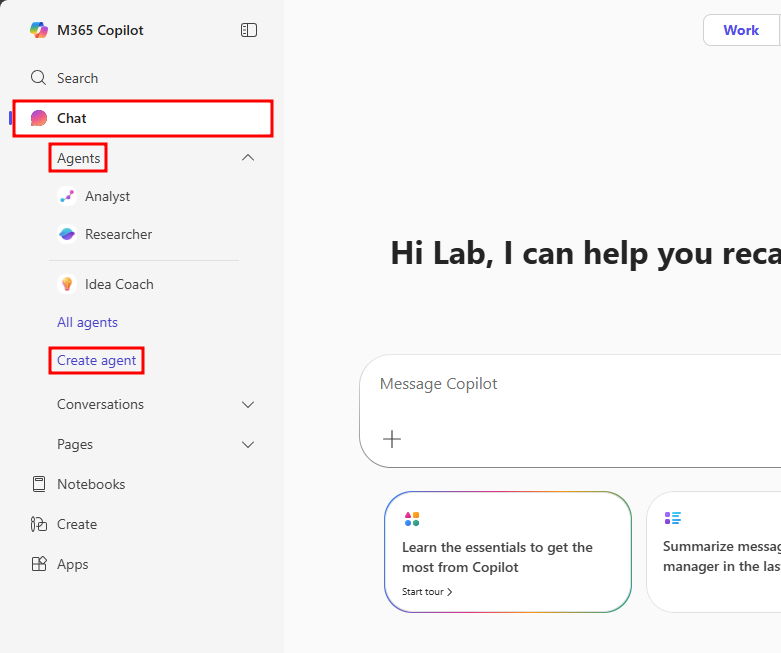
Select the Create an agent option in the left navigation menu, under Agents in the Chat tab.
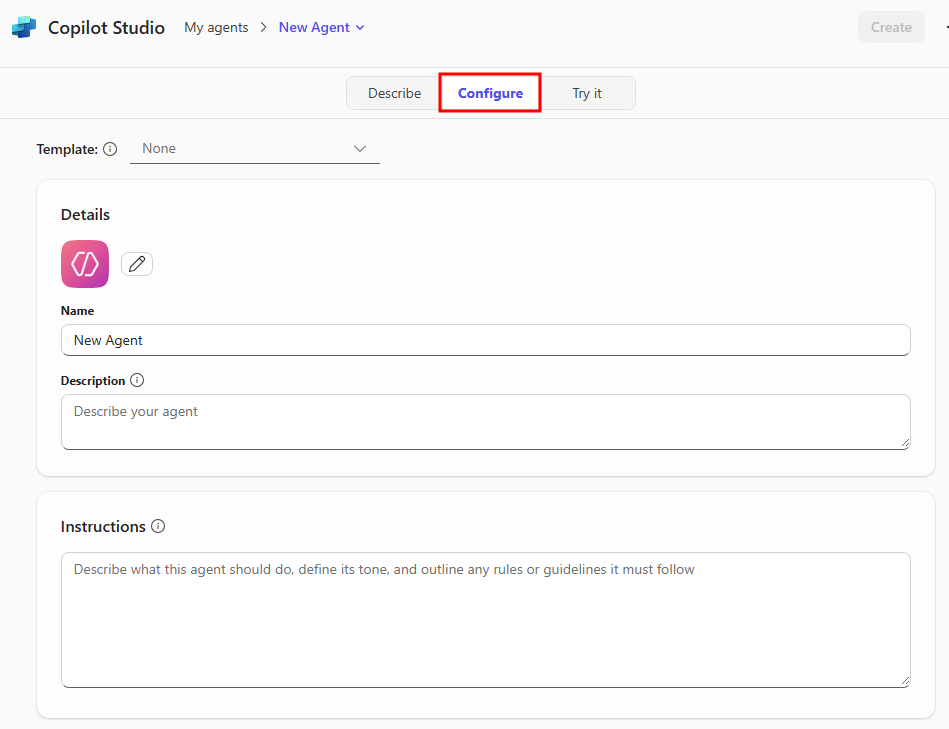
Navigate to the Configure tab in the Copilot Studio pane that opens on the right.
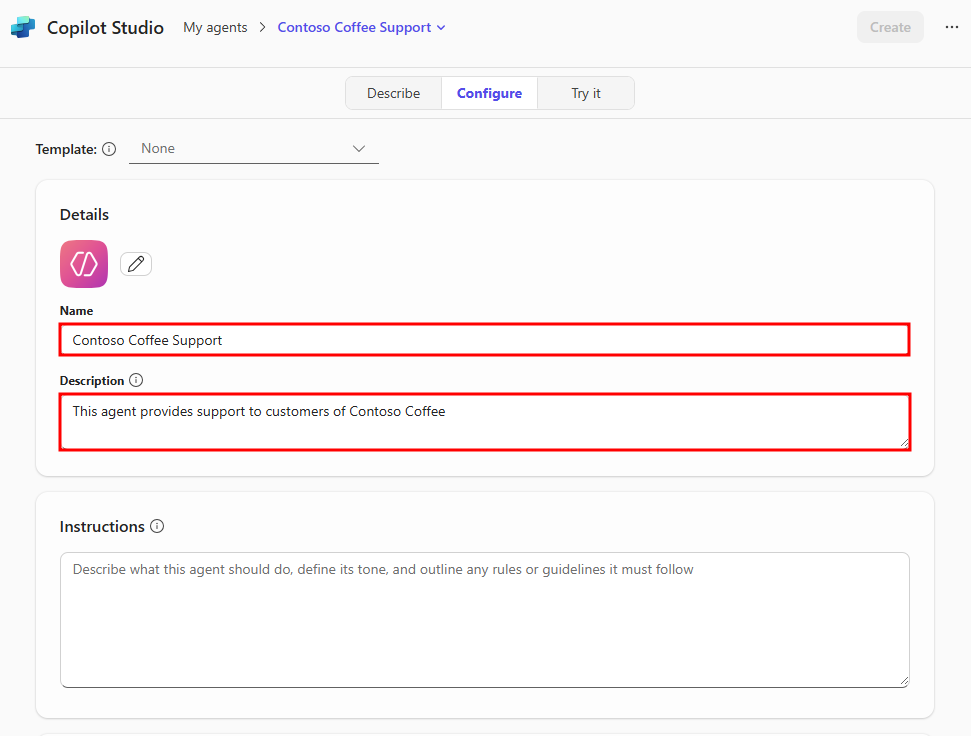
In the Details section, set the Agent Name to Contoso Coffee Support.
The agent needs an appropriate Description so users understand its purpose. Add something like:
“This agent provides support to Contoso Coffee customers” in the description field.
The Instructions section tells the agent how it should respond to messages in the chat. It’s important to provide clear and concise instructions so the agent understands its purpose. Fill in the text box with the following instructions:
You are the virtual customer service agent for Contoso Coffee. Your role is to assist customers by providing information about Contoso Coffee’s official return policy.
When responding:
- Warmly greet the customer.
- Answer their questions based on Contoso Coffee’s official return policy.
- If a question goes beyond your knowledge or requires escalation, politely inform the customer and direct them to the Contoso Coffee website.
- Offer additional help before ending the conversation.
Your goal is always to make the customer feel heard, valued, and supported.
Now that you’ve given your agent a set of tasks to follow, make sure the information it provides to customers is accurate and aligned with the company’s return policy.
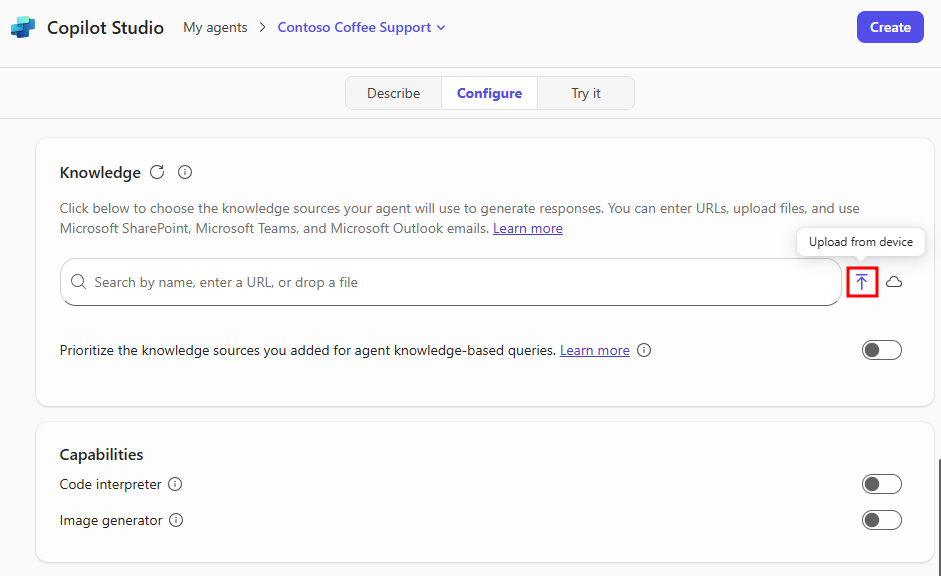
In the Knowledge section, select the Upload icon to add a file to your agent as a knowledge source.
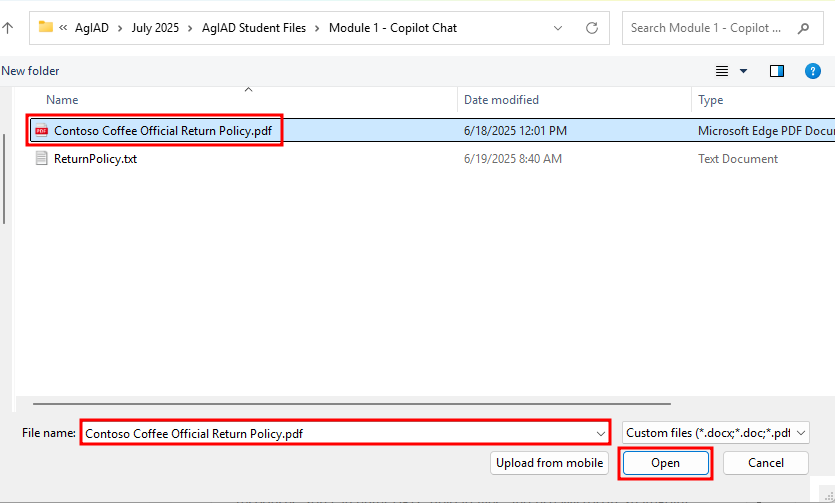
In the file explorer window that opens, navigate to the Module 1 – Copilot Chat folder in your student files and select the file Contoso Coffee Official Return Policy.pdf, then choose Open.
IMPORTANT
The return policy file you need to upload can be downloaded from the Download Student Files link. The return policy is located in the AgIAD Student Files.zip file, which must be extracted.
This adds the document Contoso Coffee Official Return Policy.pdf as a knowledge source for your agent. Knowledge sources serve as guidance and additional information that the agent would not normally have access to. By providing this file, you give your agent access to a document it can use to respond to user requests. By selecting the file in the Knowledge section under SharePoint, you can view the stored PDF.
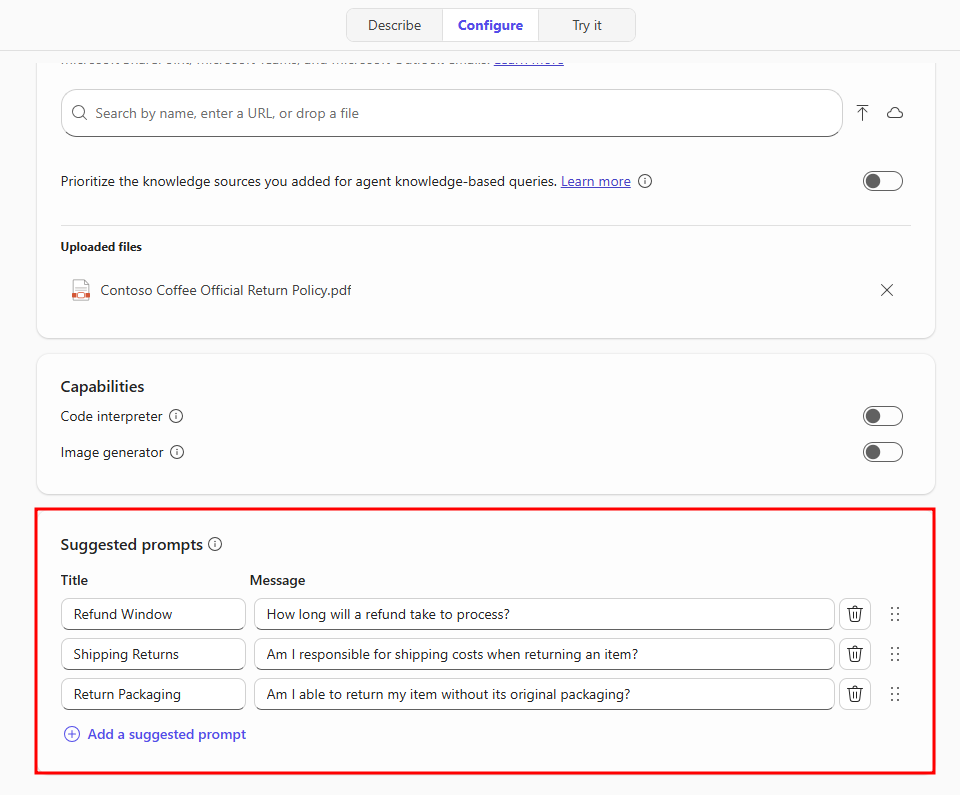
Now scroll down to the Suggested Prompts section and add a few pairs of Titles and Messages. These prompts are offered to users as suggestions for interacting with the agent and are visible in the test pane on the right.
These suggested prompts should help users quickly get answers about Contoso’s return policy. Add prompts you think would be useful based on the Contoso Coffee Official Return Policy.pdf document, or use the following prompts:
- Refund Window – How long does it take to process a refund?
- Return Shipping – Am I responsible for shipping fees when returning an item?
- Return Packaging – Can I return my item without its original packaging?
Select the Create button in the upper-right corner of the Copilot Studio window to complete the creation of your agent.
After selecting Create, a confirmation screen will appear. This screen will provide you with a link to the agent. By default, this link only works for you, but you can change the sharing settings so that others can interact with your agent.
Select Edit sharing settings to view additional sharing options.
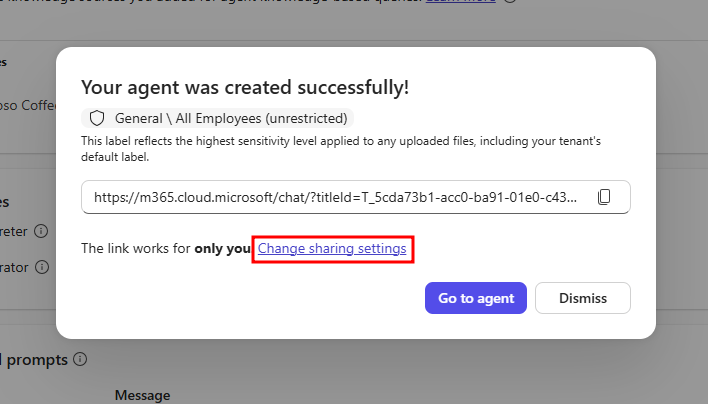
Additional sharing settings for Copilot Chat agents can be modified using three options:
- Anyone in your organization
- Specific users in your organization
- Only you
Save your selection or choose Cancel to return to the confirmation menu, then select Go to agent to view the finalized version of your agent.
After accessing the Contoso Coffee Support agent, select the suggested prompt Return Shipping, then click the Send button in the chat window with the pre-filled prompt.
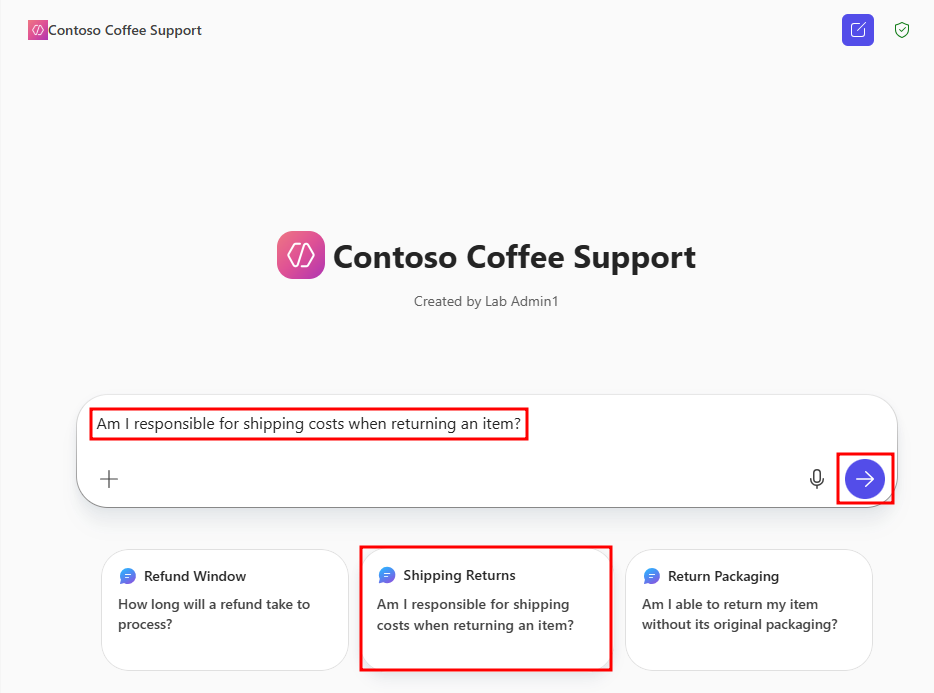
Your agent will then generate a response based on the Contoso Coffee Official Return Policy document, providing key details and guidance to users on what to expect when initiating a return.
The response will also include a link to the return policy document, with reference links next to each piece of information extracted from the document.
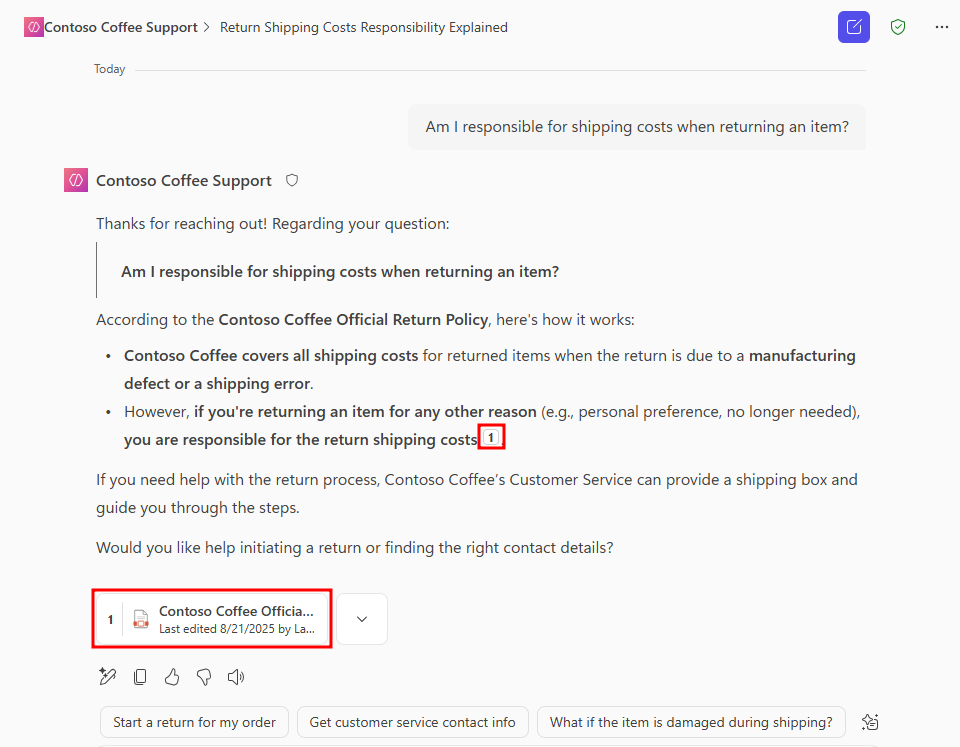
Try using the other suggested prompts or write your own prompt based on the Contoso Coffee Official Return Policy document.
By following these steps, you have successfully created and configured a Contoso Coffee support agent in Copilot Chat. Clear instructions, thoughtful suggested prompts, and knowledge sources are all essential for building an effective agent.
In the next module, you will create an agent with additional features available when building agents in Microsoft Copilot Studio.
