
Plan and Deploy Microsoft 365 Copilot and Agents
Microsoft 365 Copilot represents a major shift in how organizations use artificial intelligence in everyday work. Unlike standalone AI tools, Copilot is tightly integrated into Microsoft 365 applications and Microsoft Graph, meaning it operates directly within the context of documents, emails, chats, and workflows.
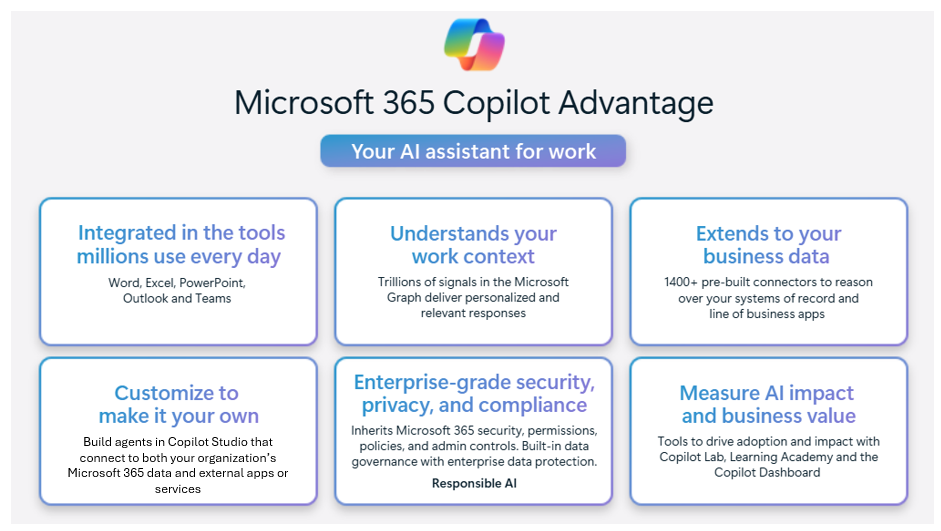
This integration brings significant power, but it also introduces the need for thoughtful planning and governance.
Administrators must balance user productivity with organizational security and compliance, ensuring that features are enabled in alignment with business needs and risk tolerance.
At the same time, Copilot’s capabilities are not delivered as an “all-or-nothing” service. Organizations can enable or disable specific features depending on the application and use case.
Example: Some companies may allow document summarization in Word but restrict meeting recap generation in Teams until appropriate privacy controls are in place.
This modular approach requires administrators to understand the available features, assess their implications, and make informed decisions about deployment sequencing.
Finally, with the introduction of agents — task-oriented, custom AI assistants — administrators face new responsibilities. Agents can range from simple automations to complex solutions extended by developers and integrated with non-Microsoft systems.
Deciding which agents to create or allow, how to govern them, and who has the right to build or manage them requires careful consideration.
This unit explores these decisions in detail and provides a roadmap for planning, configuring, and governing Copilot and agents in Microsoft 365.
Copilot Features That Can Be Enabled or Disabled
One of the most important responsibilities for administrators is understanding which Copilot features can be controlled and how those controls work.
Microsoft 365 Copilot does not operate with a single global switch. Controls exist at two levels:
- Tenant-wide controls (global enable/disable):
At this level, an organization can enable or disable entire categories of Copilot features across all applications.
Example: Some companies temporarily disable Copilot across the tenant during the planning phase to prevent premature adoption before data governance policies are in place.
These controls are simple and fast but lack flexibility when departments have different levels of readiness. - Granular controls (by app, feature, or group):
More commonly, organizations want finer control. Granular settings allow enabling or disabling Copilot features in specific applications, or only for certain users or groups.
Example: The Finance department may be allowed to use Copilot in Excel to generate formulas, while the Legal department keeps Copilot disabled in Word until compliance guidelines are established.
This approach supports phased rollouts, pilots, and targeted adoption by department.
Examples of Controllable Features:
Document Summarization and Content Generation
In Word, PowerPoint, and Excel, Copilot can write or summarize content. Administrators can choose to enable these features for all users or restrict them to specific teams.
Example: An organization may broadly deploy writing features but limit summarization until employees are trained on handling sensitive information.
Meeting Recaps and Transcriptions
Copilot in Teams can generate meeting recaps, but this depends on transcription being enabled. If transcription is disabled, recaps will not be generated.
Example: An organization may allow recaps in Operations, where transparency is valued, but disable them in HR, where discussions often contain sensitive data.
Email Drafting and Summarization
In Outlook, Copilot can assist in drafting new emails or summarizing long threads. Drafting is often considered less risky and may be widely enabled. Summarization, however, may be limited to managers or department heads until data governance policies are in place.
Case Study: Feature Activation by Department
A mid-sized healthcare provider needed to adopt Copilot cautiously due to privacy regulations.
During the initial rollout, it disabled Copilot tenant-wide until compliance teams completed their review. Once ready, it used granular controls:
- Copilot for writing in Word and PowerPoint enabled for the Marketing department
- Analysis in Excel enabled for the Finance department
- Meeting recaps limited to Operations only, as they rely on recorded transcriptions
- Email drafting in Outlook enabled for all staff
- Email summarization limited to department heads
This phased deployment allowed the organization to balance productivity gains with data governance requirements.
Administrative Control Over Feature Availability
Administrators are responsible not only for deciding which features to enable but also for defining how to organize their rollout. Microsoft 365 offers several methods to control availability, ranging from global tenant settings to targeted deployments via licensing and group-based policies.
This flexibility allows organizations to test new features with specific departments before committing to a company-wide rollout.
Practical Methods for Controlling Feature Availability:
- Tenant-wide Controls:
Administrators can enable or disable features for the entire organization. While this is often the simplest option, it is also the least flexible.
Example: If you disable Copilot meeting recaps tenant-wide, no one will be able to use them, even if some teams are ready. This may unnecessarily delay adoption. - Licensing and Group-Based Policies:
Microsoft 365 allows administrators to target features for specific users or departments by applying policies to Microsoft Entra groups.
Example: You can assign Copilot in Excel only to financial analysts during the initial rollout. This allows testing adoption and security impact in one area before expanding. - Pilot Programs and Phased Deployment:
Organizations often launch structured pilots, such as enabling Copilot in Outlook only for the leadership team. This allows testing technical stability and gives executives firsthand experience. Their feedback can guide broader deployment decisions.
Case Study: Phased Deployment Using Groups
A healthcare organization carefully planned its deployment.
Global controls were first used to block all Copilot features until governance policies were reviewed.
Then, group-based policies were applied to staff in the Finance and Operations departments, who were granted access to Copilot in Excel for reporting tasks.
Finally, a phased pilot deployment activated Copilot in Outlook for a selected group of executives, whose feedback revealed that the summarization feature required additional oversight.
By combining these methods, the organization balanced caution with progress.
Feature Planning and Governance Considerations
Planning Copilot features is not just about deciding which switches to turn on. Organizations must assess their data landscape, compliance requirements, and business priorities to ensure Copilot operates securely and effectively.
A strong governance framework begins with an inventory of data that Copilot might potentially access, followed by policies defining how sensitive information should be handled.
Key Governance Considerations:
- Data Access and Sensitivity Classification:
Copilot relies heavily on Microsoft Graph signals to provide contextual responses. If sensitive data is not properly classified, Copilot could accidentally summarize or generate content from it.
Example: A project manager asks, “Summarize the latest financial forecasts,” and Copilot might surface Finance department drafts that were not intended to be shared.
→ Strong data classification policies are essential. - Usage Monitoring and Auditing:
Once Copilot is deployed, administrators must actively monitor feature usage. Audit logs can reveal trends, such as frequent summarization of HR documents, which may indicate the need for additional restrictions.
Without ongoing auditing, risky behaviors may go unnoticed until a compliance issue arises. - Cross-Departmental Governance Committees:
Many organizations establish governance committees that include IT, Legal, Compliance, and business leaders. These groups review which Copilot features should be enabled and under what conditions.
→ Decisions are not made in isolation by IT but reflect a balance between security, compliance, and productivity goals.
Case Study: Governance Committee in Action
A global manufacturing company formed a governance committee before activating Copilot.
The committee reviewed data classification rules to ensure confidential R&D documents would not be accidentally summarized.
It also implemented audit dashboards to monitor Copilot usage in Teams, ensuring sensitive project discussions were not widely shared.
→ By combining classification, monitoring, and cross-departmental oversight, the company avoided compliance risks while benefiting from productivity gains.
Permissions and Roles Required to Manage These Features
Managing Microsoft 365 Copilot relies on correctly assigning permissions and roles. At a minimum, global administrators and Copilot service administrators must be able to manage tenant-wide settings, but most organizations prefer to delegate responsibilities to specific roles based on workloads.
Key Considerations When Planning Permissions:
- Role-Based Delegation:
Assigning features to specialized administrators ensures that business experts — not generalists — manage the controls.
Example: Exchange administrators should manage Copilot’s drafting and summarization features in Outlook. This prevents global admins from becoming bottlenecks while ensuring competent oversight. - Privileged Identity Management (PIM):
Using Microsoft Entra PIM ensures that high-privilege roles are only activated when necessary.
Example: The Copilot Studio Maker role may require temporary elevation so users don’t have permanent privileges. This reduces both the risk of errors and the attack surface for malicious activity. - Separation of Duties:
Critical roles should not be concentrated in the hands of a single person.
Example: The person managing tenant-wide Copilot settings should not be the same person approving agent publication in Copilot Studio.
→ Separation of duties enforces control mechanisms and reduces the risk of abuse or mistakes.
Case Study: Role Delegation in a Global Enterprise
An international law firm was concerned about agents being created in Copilot Studio without proper oversight.
- It delegated management of Copilot features in Outlook to Exchange administrators.
- It assigned control of meeting recap features in Teams to collaboration administrators.
- It required temporary elevation via PIM for any role involved in agent publication.
- Finally, separation of duties ensured that no administrator could both approve and publish new agents.
→ This role model minimized risks while ensuring effective feature management.
Best Practices for Feature Deployment
Deploying Copilot features is not a one-time event but an iterative process that requires pilots, feedback, and adjustments.
User training and awareness are equally important. Users need to know when and how to use Copilot — and when human judgment remains essential.
To effectively structure deployment, administrators should:
- Launch Pilot Deployments:
Select representative groups to test features.
Example: Enabling Copilot in Excel for the Finance team during budget planning provides concrete feedback on real workloads. - Create Training and Adoption Plans:
Training should focus not only on “how” but also on “when” and “why.”
Example: Show Outlook users how to review and edit drafts generated by Copilot before sending them. - Establish Feedback and Escalation Loops:
Encourage departments to report issues or concerns promptly.
Example: If the Legal department notices Copilot displaying confidential documents, administrators can adjust data access policies before a compliance incident occurs.
Case Study: Structured Deployment in a University
A large university deployed Copilot in phases.
- It started with the Finance staff in Excel, who provided feedback during budget planning.
- Based on that success, it organized training sessions for faculty on using Copilot in Word and Outlook.
- A feedback loop with the Legal department identified concerns about summarizing sensitive disciplinary emails, leading to restrictions in Outlook for that department.
→ This phased, feedback-driven deployment enabled controlled adoption while managing risks along the way.
The Microsoft 365 Copilot Adoption Site
When an organization prepares to deploy Microsoft 365 Copilot, it must plan not only user training and change management but also the technical steps to ensure a smooth launch.
To support this, Microsoft offers the Copilot Adoption Site — a resource hub designed to guide organizations from initial planning through ongoing adoption.
The Copilot Adoption Site Helps Organizations:
- Choose the Right License:
Guidance is provided on the available licenses for Microsoft 365 Copilot, how they align with existing Microsoft 365 or Office 365 plans, and how to assign them to the right users or departments. - Prepare Their Environment:
Detailed instructions guide IT administrators in preparing Microsoft 365 apps, SharePoint and OneDrive content, as well as the necessary network and data governance settings for Copilot. - Configure Copilot and Assign Licenses:
The site provides clear instructions for enabling Copilot in the organization’s tenant, assigning licenses, and verifying that users have access within their applications. - Engage and Support Users:
Practical templates and tools are included to send a Copilot welcome email, explain to users what to expect, and offer initial training scenarios. Built-in methods also allow organizations to collect user feedback to track adoption and continuously improve the deployment experience.
The site also offers success kits with ready-to-use guides and templates, scenario libraries showing how different roles can use Copilot, and change management resources to help build an adoption strategy.
By following these structured resources, organizations can confidently move from technical preparation to user activation, ensuring employees are both trained and excited to use Microsoft 365 Copilot.
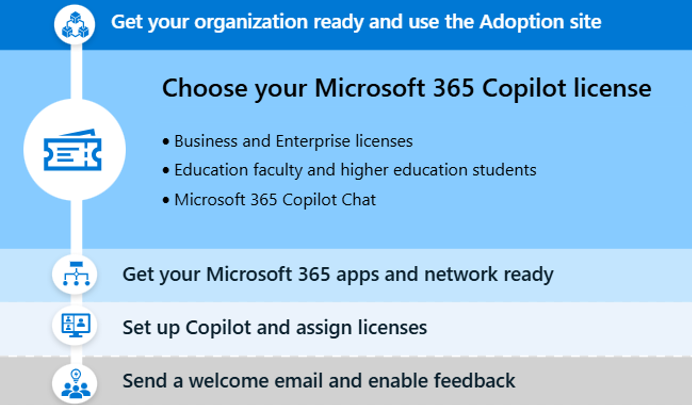
By leveraging the Copilot Adoption Site, organizations can take a structured approach to deployment — starting with technical setup, launching pilots with early users, and then gradually expanding to all employees.
This approach not only reduces risk but also ensures that employees are trained, engaged, and confident in using Copilot effectively.
