
Copilot Chat
The Agents in a Day learning path focuses on understanding and creating agents. These agents can be built and customized directly within Microsoft 365 Copilot Chat. Recent advancements in AI technologies have made key interface elements and features from Copilot Studio available in Microsoft 365 Copilot Chat.
What is Copilot Chat?
Microsoft 365 Copilot Chat is an AI-powered chat tool designed specifically for work. It uses the latest AI models and data from the web to answer your questions, generate content and ideas, and find information. It also protects your data, ensuring that information from your conversations is not publicly exposed.
With Copilot Chat, you can:
- Create custom agents or start with preconfigured agent templates.
- Develop code using natural language.
- Interact with the base Microsoft 365 Copilot agent, built on general knowledge.
- Ask questions to Copilot and engage in a conversational experience to solve problems or explore new topics.
To get started, go to Copilot Chat.
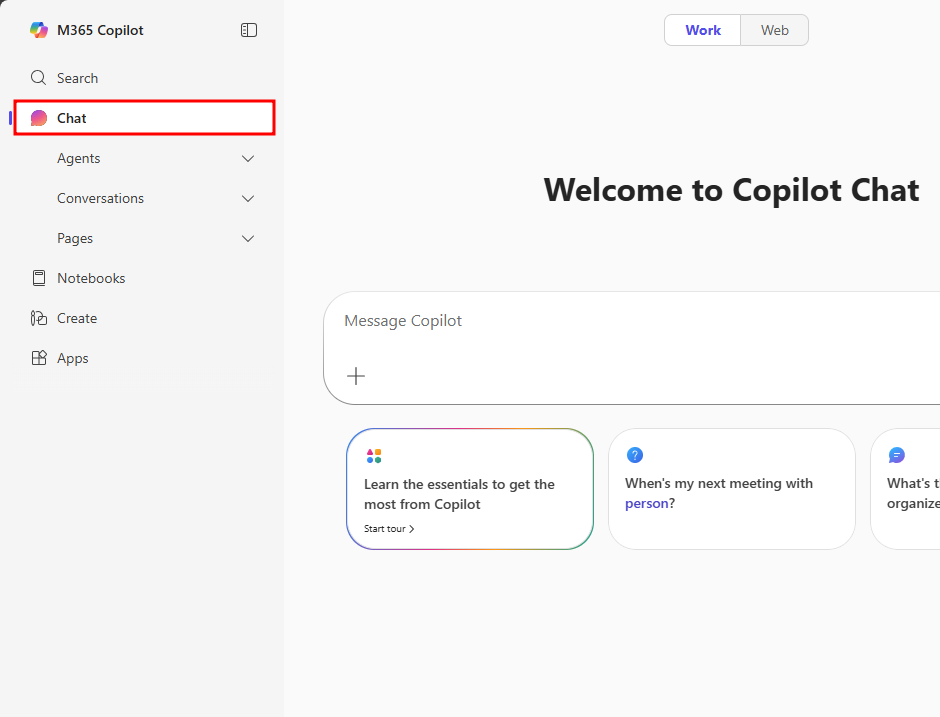
The Microsoft 365 Copilot homepage offers the following options in the left navigation menu:
- Chat – The main page of Copilot Chat. Selecting this opens the base Copilot Chat agent, which has access to your Microsoft 365 data. This agent is ideal for topics requiring web search and includes Microsoft 365 Copilot’s pretrained data. The Chat tab also includes three sub-levels:
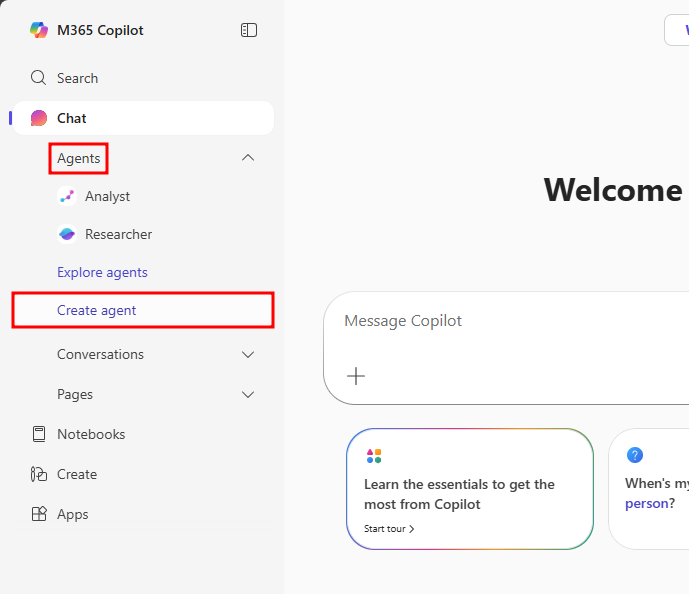
- Agents – Custom and preconfigured agents accessible to your tenant, created by you, your organization, or added from the agent marketplace. These agents have tailored capabilities designed for specific use cases.
- Conversations – Recent conversations you’ve had with individual agents. Selecting a conversation lets you view all sent and received messages, allowing you to pick up where you left off or retrieve useful information.
- Pages – Saved conversation snippets that are customizable and shareable with your team members, creating a collaborative space to leverage insights from Copilot Chat sessions.
- Notebooks – Custom sessions designed to let you ask questions about files hosted in your Microsoft 365 tenant. Useful when you have long documents to analyze with Copilot’s help.
- Create – Allows you to generate AI-powered images, videos, and forms. This section is ideal for quickly creating marketing content, storyboards, documents, and spreadsheets.
- Apps – A list of associated Microsoft 365 applications such as Outlook, Word, Excel, and Teams.
Create an Agent in Copilot Chat
Agents use artificial intelligence to make Copilot Chat even more personalized and intelligent for your daily work. Agents automate repetitive tasks and processes—think of them as apps for Copilot. Copilot Chat comes with a set of agent templates to get started, or you can create custom agents tailored to your own needs.
A quick way to check if you have access to this feature is to look at the Agents tab in the left navigation menu of Copilot Chat, under Chat.
If there is a Create an agent option, you have access to this feature.
Users with a Microsoft 365 Copilot license or a Copilot Studio Pay-As-You-Go plan have this option.
Microsoft 365 users whose role does not include agent creation should only see the Get agents option, along with agents enabled by the organization.
Note
If you don’t see the Create an agent option and you have a Microsoft 365 Copilot license or a Copilot Studio Pay-As-You-Go plan, check with your organization’s administrator to see if they can enable this feature in the Microsoft 365 Admin Center by assigning you a role that allows agent creation.
After selecting Create an agent, a window opens in Copilot Studio. The Describe window is the homepage for defining and creating a new agent in Copilot Chat. Here are the available options when creating an agent through the Describe screen:
- Currently Selected Agent – This area displays the title of the agent being edited and, when selected, allows you to navigate to other agents you want to modify.
- Describe or Configure – This button lets you choose whether to edit the agent using natural language via the Describe tab, or manually configure the agent’s details via the Configure tab.
- Templates – Each time a new agent is created, templates are offered as a configuration option. Templates are preconfigured agents such as Career Coach, Idea Coach, and Learning Coach. By selecting View all templates, you can access the full set of available templates. You can also use templates directly without configuration via the Get agents option in Copilot Chat.
- Chat Area – The chat area at the bottom of the Describe window is where you enter text to define your agent’s settings. Think of this area as a conversation with the agent in the form of instructions. If you need inspiration, checking the Configure window to see available settings can help you understand what you can modify in your agent.
- Test Panel – This panel displays a test screen for the currently submitted settings of the selected agent.
Note
A grading script exists under .github/workflows/grading.yml. You don’t need to modify this workflow to complete this exercise. Altering the contents in this workflow can break the exercise’s ability to validate your actions, provide feedback, or grade the results.
After selecting Create an agent, a window opens in Copilot Studio. The Describe window is the homepage for defining and creating a new agent in Copilot Chat. Here are the available options when creating an agent via the Describe screen:
- Currently Selected Agent – This area displays the title of the agent being edited and, when selected, allows you to navigate to other agents you want to modify.
- Describe or Configure – This button lets you choose whether to edit the agent using natural language via the Describe tab, or manually configure the agent’s details via the Configure tab.
- Templates – Each time a new agent is created, templates are offered as a configuration option. Templates are preconfigured agents such as Career Coach, Idea Coach, and Learning Coach. By selecting View all templates, you can access the full set of available templates. You can also use templates directly without configuration via the Get agents option in Copilot Chat.
- Chat Area – The chat area at the bottom of the Describe window is where you enter text to define your agent’s settings. Think of this area as a conversation with the agent in the form of instructions. If you need inspiration, checking the Configure window to see available settings can help you understand what you can modify in your agent.
- Test Panel – This panel displays a test screen for the currently submitted settings of the selected agent.
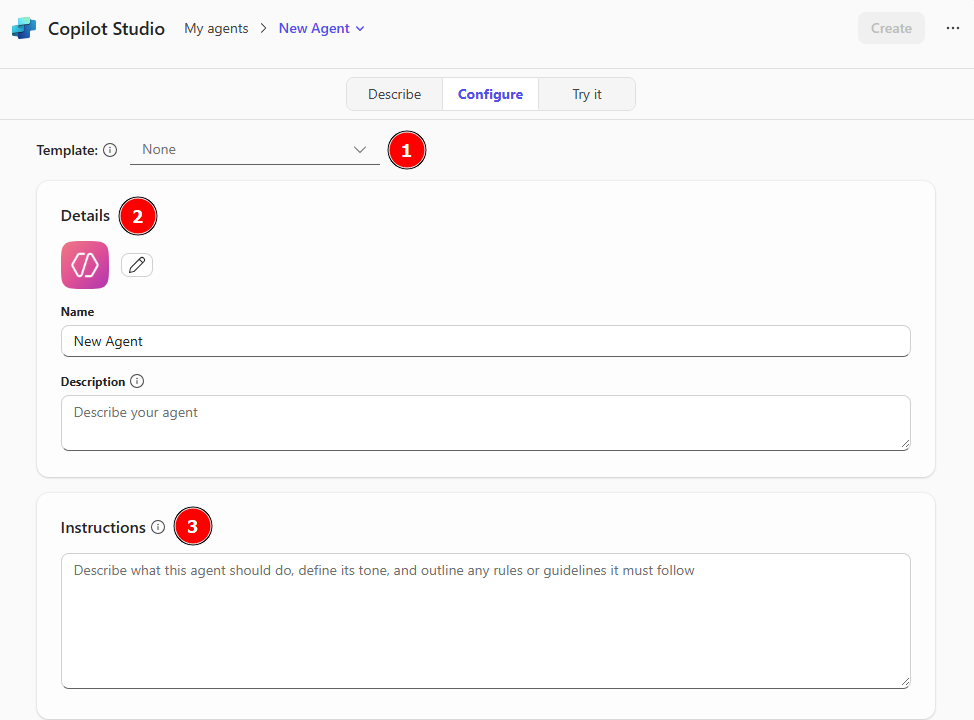
By selecting “Configure,” you access a classic agent creation experience, allowing you to directly modify the agent’s settings. The following options are available in the Configure screen when a user only has a basic Microsoft 365 E5 license:
- Template – A dropdown menu for quickly implementing templates when creating an agent.
- Details – This menu allows you to change the agent’s profile image, name, and the user-visible description of the agent’s purpose.
- Instructions – Guidelines the agent must follow when responding to users. Think of this as a list of rules the agent must respect before replying to a user. If you need inspiration, selecting a template will automatically populate this section with preconfigured information that can spark creativity or speed up the agent creation process.
Knowledge – Add knowledge sources to base your agent’s responses on relevant data. These knowledge sources include:
- Uploaded files – Accepted file types include: text files, Word documents, PowerPoint presentations, PDF files, and Excel sheets/workbooks.
- Website URLs – These links must be publicly accessible websites and are limited to a depth of 2 levels, for example: www.website.com/two/levels
- Recent files – Files recently opened from OneDrive and SharePoint.
- SharePoint sites – Individual SharePoint sites you have access to.
- Teams chats and channels – Individual Teams channels, meetings, and group chats.
- All websites – Gives your agent the ability to search the web.
- My SharePoint files – Allows the agent to access all files, folders, and SharePoint sites you have access to.
- My Teams chats – Allows the agent to access all your available Teams groups, chats, channels, and meetings.
- My emails – Allows the agent to access all emails in your Outlook inbox.
Note
A grading script exists under .github/workflows/grading.yml. You don’t need to modify this workflow to complete this exercise. Altering the contents in this workflow can break the exercise’s ability to validate your actions, provide feedback, or grade the results.
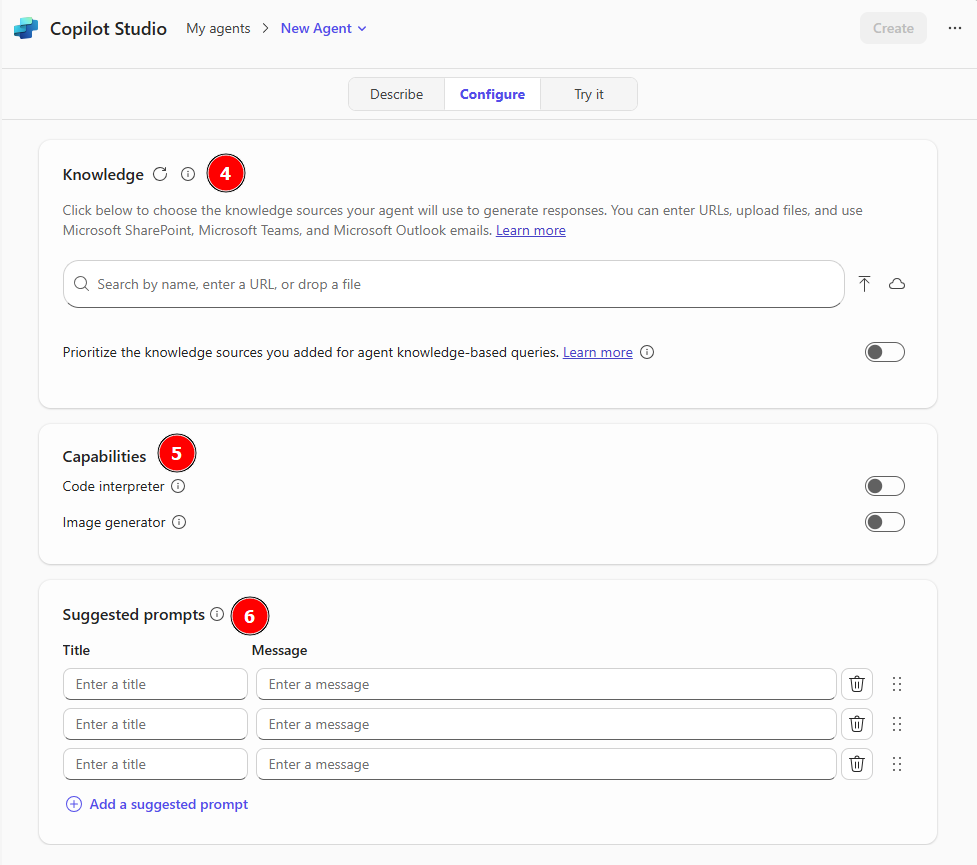
Features –
Predefined features that the agent can access, including:
- Code Interpreter – Converts natural language into code to create visualizations, solve mathematical problems, and analyze data. Enables customization of agents with the ability to execute code in interpreted languages like Python.
- Image Generator – Creates visual content (such as images and illustrations) in response to user prompts. Allows image generation from natural language. By enabling your agent to interpret prompts and conversations as visual media, you extend the conversational experience beyond text into a multimodal experience.
- Suggested Prompts – Predefined prompts available to users of the agent, suggesting ways to start a conversation. These can be tailored to the agent’s purpose and help users better understand how to interact with it.
Now that you have a general understanding of the available options when creating an agent in Copilot Chat, in the next unit, we will create a preconfigured agent using the templates available in Copilot Studio.
