
Create agents and work with the Microsoft Copilot Studio interface
Before you start creating an agent, it’s important to consider what it will be used for. For example, you might use it to handle account-related requests, or you might use it for self-service support cases such as accessing the knowledge base. Knowing how you plan to use the agent helps you define and map conversation paths and determine how many topics the agent needs to handle. Other functions you might consider include searching for basic account details, performing more advanced account operations, or implementing a type of action. The more scenarios you consider upfront, the easier it is to determine the topics your agent needs to help facilitate.
Agents can be created in two ways. You can use the chat interface to describe the features you want the agent to have. The other method is to leverage one of the many built-in templates. In both cases, this provides a quick and simple way to create a basic agent that you can adapt to your specific needs.
If you want to create an agent from scratch, you can go to the + Create tab from the left navigation bar in Microsoft Copilot Studio.
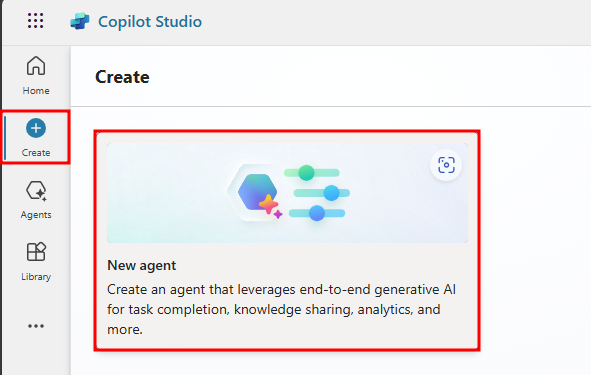
Agents are created for each environment. By default, all agents are created in your organization’s or tenant’s default Power Apps environment unless otherwise specified. You can choose the environment you want to use by selecting the Environments dropdown to view the list of available environments.
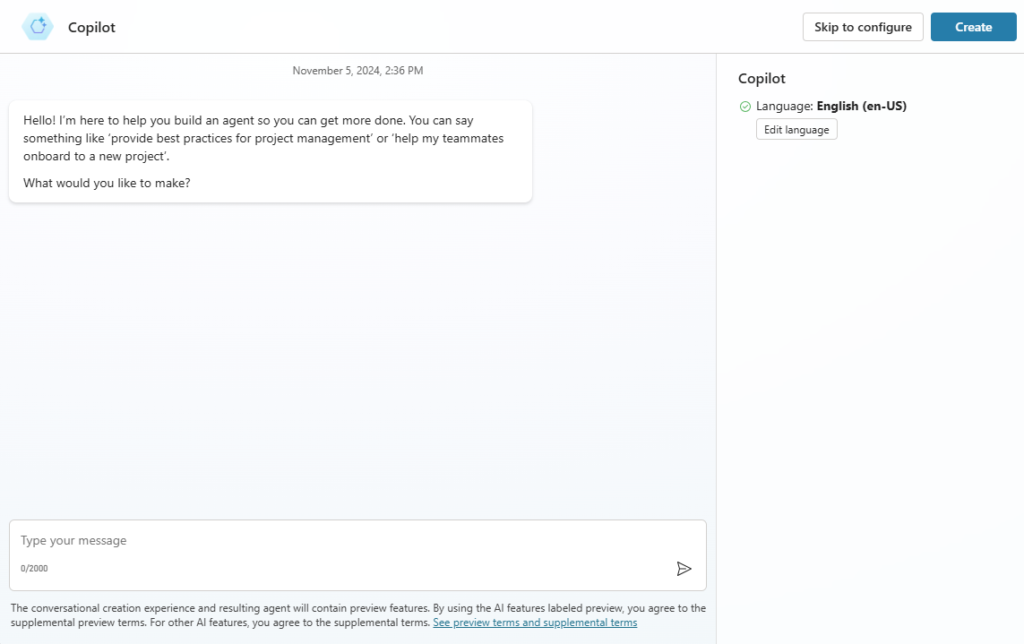
In the new conversational agent creation experience, you have the option to create your agent by describing, in natural language, what you want in an agent. Users also have the option to skip the conversational creation process and go directly to manual agent configuration by selecting Skip to configuration. Selecting Create starts the agent creation process, which can take up to 15 minutes for the first agent you create in an environment. You can also use generated responses in your agent by selecting a website to associate.
Delete an agent
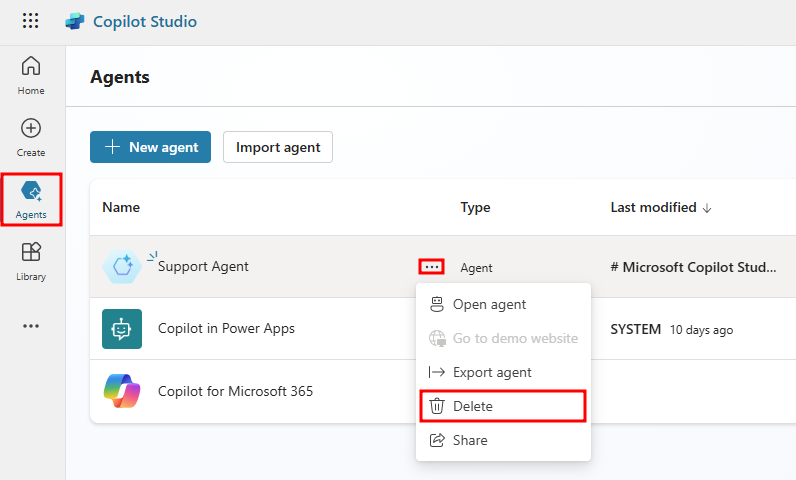
Agents that are no longer needed can be deleted from your environment. This situation may occur when the agent is replaced by another agent or if the agent no longer meets your organization’s needs. Using the agent menu, select the agent you want to delete. Select the Delete button in the command bar to remove the agent.
Work with the Microsoft Copilot Studio user interface
The Microsoft Copilot Studio user interface provides all the tools you need to create, test, publish, and monitor your agent’s performance. When the application loads after the agent is created, you will see several areas that can help you throughout the process of working with your agent.
The following image shows an example of what the user interface looks like.
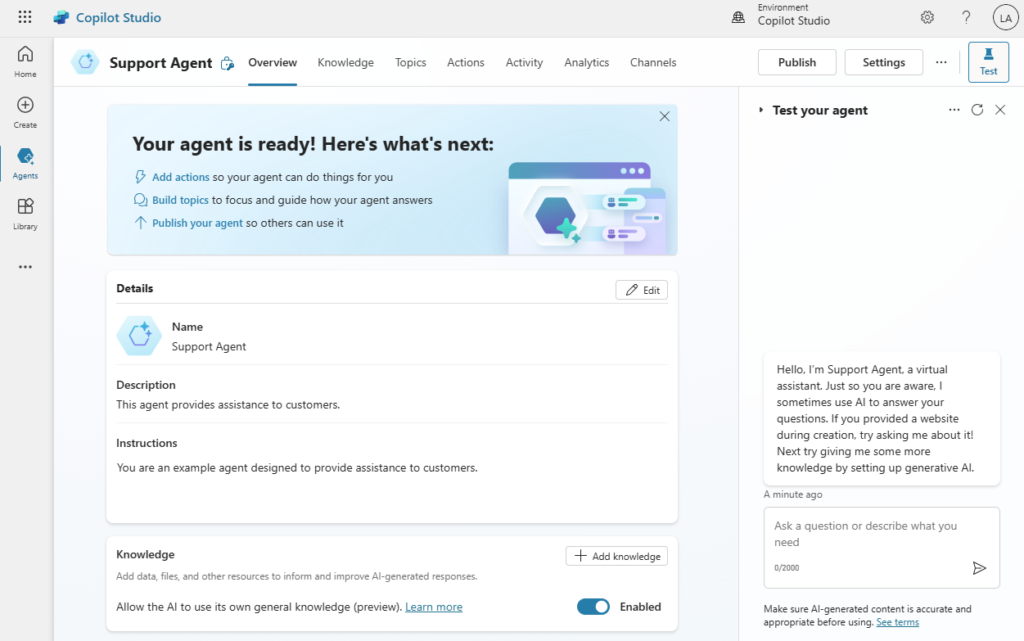
The following list describes the features of the Microsoft Copilot Studio user interface:
- Create – Allows you to create an agent from scratch or from a template.
- Agents – Provides access to the main agents page where all your agents are displayed.
- Library – Provides access to available connectors and component collections.
- Overview – Gives access to the home screen of the agent you are currently working on.
- Knowledge – Allows you to provide knowledge sources to your agent.
- Topics – Provides access to various actions related to the topics available for the agent.
- Actions – Allows you to create and import conversational and AI plugins that can be used in your agent.
- Activity – Displays the agent’s generative AI activity, including calls to the Azure OpenAI GPT service.
- Analytics – Provides analytical details related to the agent’s performance and usage.
- Channels – Provides tools to publish your agent and deploy it across different channels.
- Settings – A set of tools that helps manage elements such as the channels where your agent is deployed, agent authentication, and skill management.
- Test panel for your agent – Allows you to test your agent as an end user to ensure it works as expected.
