Authentication
The authentication setting in Microsoft Copilot Studio impacts how you can manage access to the agent. It allows you to verify a user’s identity during a conversation, which provides:
- Increased personalization of the conversation
- The ability for the agent to perform actions on behalf of the user
- The ability to skip certain dialogues by pre-filling user data to go straight to the point
- Variables such as the user’s ID and display name available for use in topics
It’s a flexible experience. You can mark certain parts of the conversation as requiring user sign-in, while other parts do not require sign-in.
Authentication settings are found in Microsoft Copilot Studio by selecting Settings in the side navigation pane, then going to Settings > Security > Authentication.
The authentication options are:
- No authentication
- Authenticate with Microsoft
- Authenticate manually
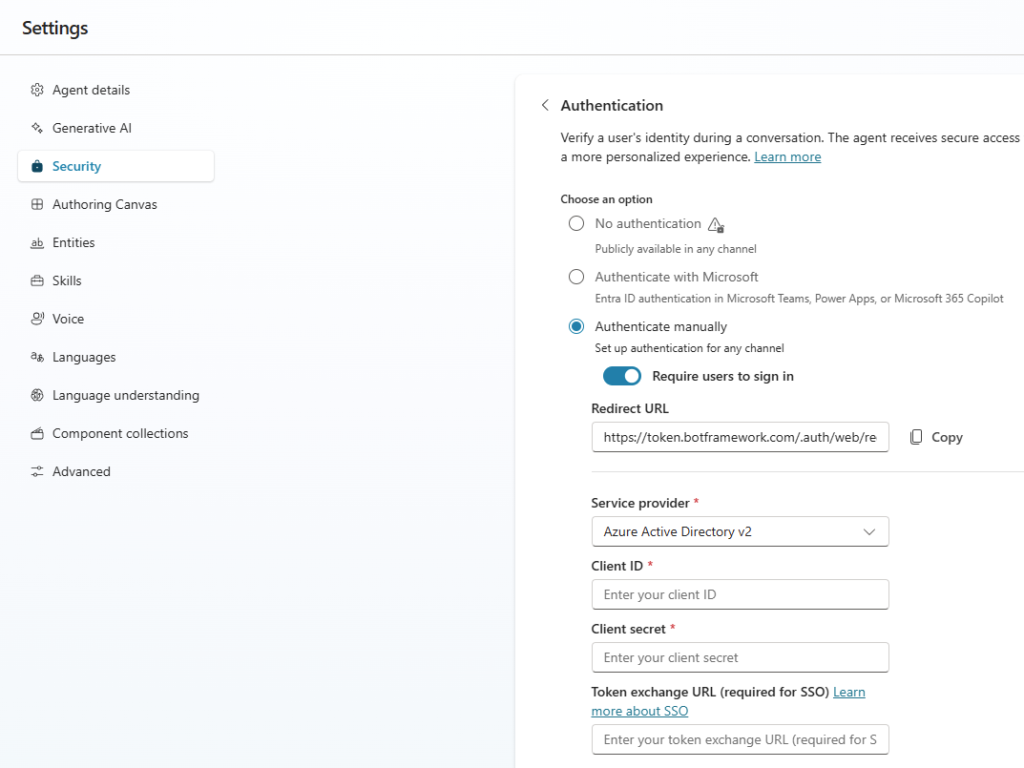
You must publish your agent for the changes to the authentication setting to take effect.
No authentication
No authentication means your agent does not ask users to sign in when interacting with it. An unauthenticated configuration means your agent can only access public information and resources. Classic agents are configured by default to not require authentication.
Authenticate with Microsoft
This configuration automatically sets up Microsoft Entra ID authentication for Teams without requiring manual setup. Since Teams authentication already identifies the user, users are not prompted to sign in when in Teams, unless your agent requires extended scope.
Only the Teams channel is available if you select this option. If you need to publish your agent on other channels while maintaining authentication, choose Authenticate manually.
Authenticate manually
Microsoft Copilot Studio supports identity providers compliant with the OAuth2 standard. This means you can allow users to sign in with any OAuth2 identity provider. OAuth2 providers include:
- Microsoft Entra ID
- Microsoft account
- Custom authentication service you create for your organization
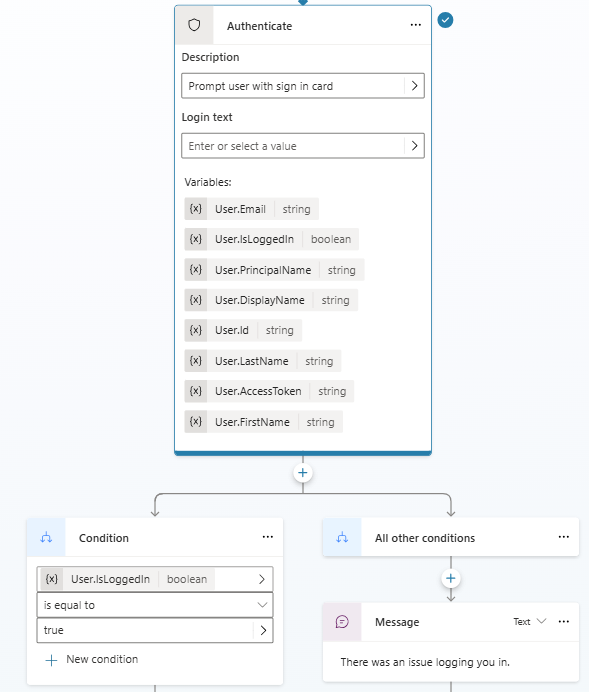
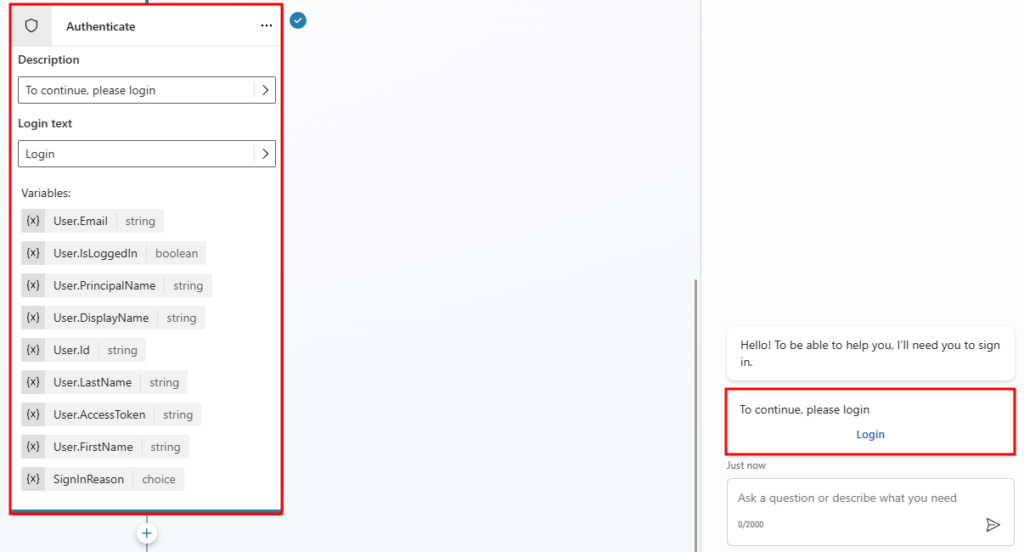
You can call the Authenticate action during a conversation, which prompts the user with a sign-in card. Alternatively, you can select the option Require users to sign in, which creates a system topic called Require user sign-in. This prompts the user to sign in as soon as they start the conversation with the agent.
This screenshot shows the system topic Require user sign-in, along with the stored variables. The obtained variables are:User.Id, User.FirstName, User.Email, User.DisplayName, User.PrincipalName, User.IsLoggedIn, and User.LastName.
Configure manual authentication
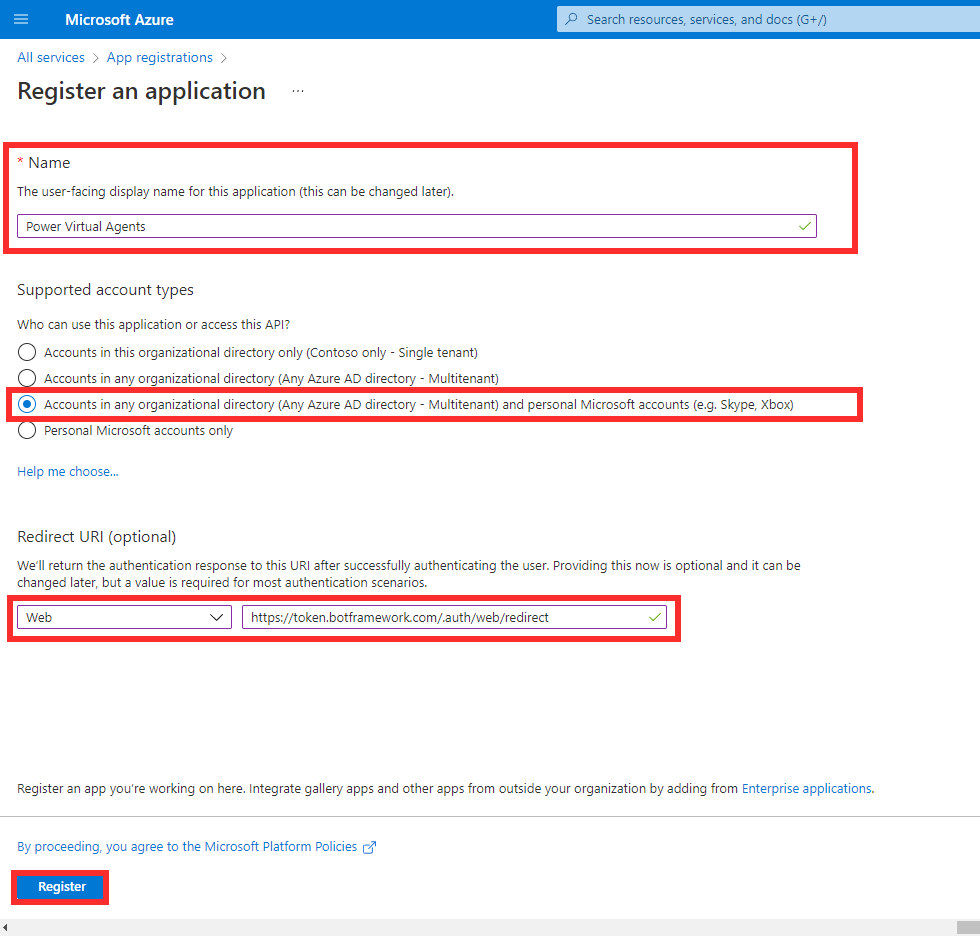
To configure manual authentication in Microsoft Copilot Studio, register a new application with your identity provider and obtain a Client ID and Client Secret. The details below show how you can do this from the Azure portal for Microsoft Entra ID.
To register an application, go to App registrations in the Azure portal and create a new registration. You must provide a name for the registration, such as the agent’s name, then specify which accounts can access the agent. For example, the option selected here allows users from any Microsoft Entra ID directory or personal Microsoft account to sign in and interact with the agent.
The redirect URI must be:
https://token.botframework.com/.auth/web/redirect
with Web as the platform.
Next, you need to add a new client secret.
You can go to the Certificates & secrets section of the app registration and select + New client secret. Here, you can provide a description and select an expiration period.
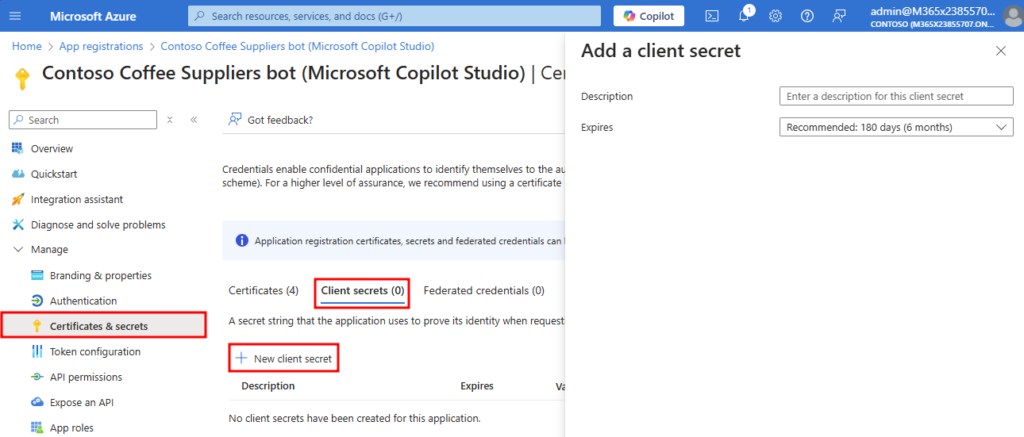
The client secret value must be noted as it will be used for the configuration.
You also need the Application (client) ID, which can be found in the Overview section of the app registration.
Now that Azure is configured, the authentication settings in Microsoft Copilot Studio can be filled in. You can open your agent in Microsoft Copilot Studio and go to Settings > Security > Authentication.
- Authentication option: Must be Manual.
- If you select Require users to sign in, a system topic is created to prompt users to sign in at the start of the conversation. Otherwise, if this option is not selected, you can call the authentication action at any point in the conversation.
- Service provider: Must be Azure Active Directory v2.
- The Client ID and Client Secret fields are where you enter the Application ID and the client secret value obtained earlier.
- Token exchange URL is an optional field used when configuring Single Sign-On (SSO).
- Scope refers to the permissions you want to grant authenticated users once signed in. For more information, see Scopes.
Once the authentication settings are saved and the agent is published, you can use Call an action > Authenticate in your topics. If multiple topics require authentication, the user is prompted to sign in only once during the session.
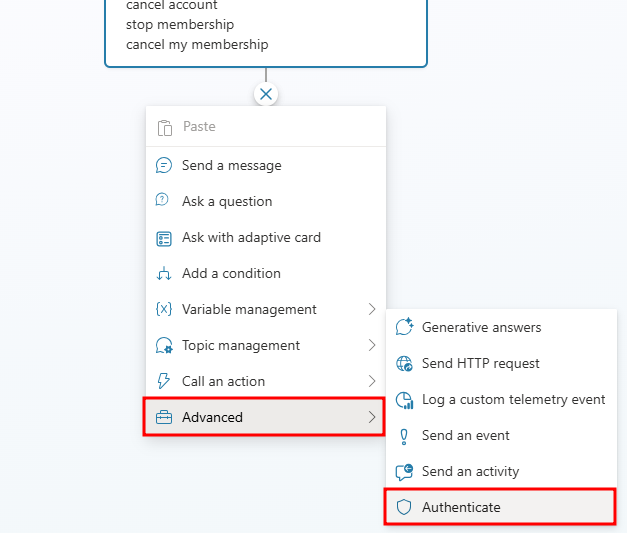
This automatically configures a conditional branch, with messages and variables related to authentication. There is a variable that stores the authentication token when the user signs in. It is a boolean variable that indicates whether the user is signed in, as well as variables for the user’s ID and display name.