
What is GitHub?
In this unit, we reviewed the following learning objectives:
- Overview of the GitHub Enterprise platform
- How to create a repository
- How to add files to a repository
- How to search for repositories
- Introduction to gists and wikis
- Using GitHub
GitHub

GitHub is a cloud-based platform that uses Git, a distributed version control system, as its core. The GitHub platform simplifies project collaboration and provides a website, command-line tools, and an overall workflow that enables developers and users to work together.
As we saw earlier, GitHub offers an AI-powered development platform to build, evolve, and deliver secure software. Let’s examine the fundamental pillars of the GitHub Enterprise platform: AI, collaboration, productivity, security, and scalability.
AI
Generative AI is radically transforming software development. The GitHub Enterprise platform enhances collaboration through AI-assisted pull requests and issues, boosts productivity with Copilot, and improves security by automating security checks faster.
Collaboration
Collaboration is at the heart of everything GitHub does. Inefficient collaboration leads to wasted time and money. GitHub solves this with a suite of seamless tools that make teamwork easier.
Repositories, issues, pull requests, and other tools allow developers, project managers, operations leads, and other team members within an organization to work together faster, reduce approval times, and deliver more quickly.
Productivity
Productivity is accelerated through automation offered by the GitHub Enterprise platform. With CI/CD (Continuous Integration and Continuous Delivery) tools built directly into the workflow, the platform allows users to set tasks and forget them, handling repetitive administrative tasks and speeding up daily work. This frees developers to focus on what matters most: creating innovative solutions.
Security
GitHub integrates security from the very beginning of the development process. The GitHub Enterprise platform includes native security features that reduce risk through an integrated solution. Your code also remains private within your organization. You benefit from a comprehensive security view and the Dependabot tool.
GitHub continues to invest to ensure its features are enterprise-ready. Microsoft and highly regulated industries trust GitHub, which meets global compliance requirements.
Scalability
GitHub is the largest developer community of its kind, with real-time data on over 100 million developers, 330 million repositories, and countless deployments. This enables GitHub to understand developers’ changing needs and adapt its platform accordingly.
This adaptability has resulted in unmatched scale. Every day, GitHub learns from this impressive community and evolves its platform to meet its needs.
In summary, the GitHub Enterprise platform focuses on the developer experience. It offers global scale, transformative collaboration capabilities, productivity tools, security integrated at every step, and AI that drives everything to new heights—all in a single, integrated platform.
Now let’s move on to the core element of GitHub: repositories.
Introduction to Repositories
Quick recap:
- What is a repository?
- How to create a repository
- How to add files to a repository
- How to search for repositories
- Introduction to gists, wikis, and GitHub Pages
What is a repository?
A repository contains all the files for your project as well as the revision history of each file. It is an essential element that helps you collaborate with others. You can use repositories to manage your work, track changes, store version history, and work as a team.
Before going further, let’s see how to create a repository.
How to create a repository
You can create a new repository on your personal account or in any organization where you have the necessary permissions.
Here’s how to create a repository from github.com:
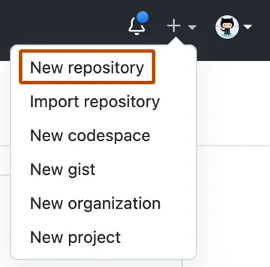
- In the upper-right corner of any page, use the dropdown menu and select New repository.
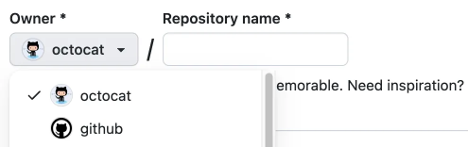
Use the “Owner” dropdown menu to select the account to which you want to assign ownership of the repository.
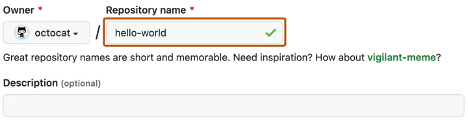
Enter a name for your repository, along with an optional description.
Choose the repository visibility
Public repositories are accessible to everyone on the Internet.
Private repositories are accessible only to you, to people with whom you explicitly share access, and, for organization repositories, to certain members of the organization.
Select Create repository, and congratulations!
You’ve just created a repository!
How to add a file to your repository
Files on GitHub can serve multiple purposes, but their main goal is to store data and information about your project.
Note: To add a file to a repository, you must have at least write access to that repository.
Steps to add a file to your repository:
- On GitHub.com, go to the main page of the repository.
- In your repository, navigate to the folder where you want to create a file by selecting Create new file or by uploading an existing file.
- Once in the correct folder, above the list of files, click the Add file dropdown menu (Add file ᐁ).

4. In the file name field, enter the name and extension of the file. To create subdirectories, use the / symbol as a folder separator.
5. In the file content text area, enter the content of the file.
6. To preview the new content, click on Preview above the content area.
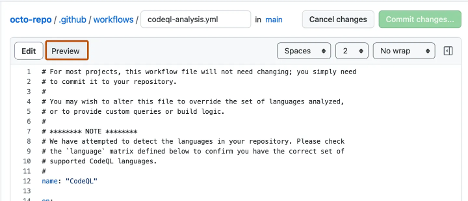
7. Select “Commit changes.”
8. In the commit message field, enter a short and clear message describing the change made to the file.
You can attribute the commit to multiple authors by mentioning them in the commit message.
9. If you have multiple email addresses associated with your GitHub.com account, use the email dropdown menu to select the one to use as the author’s email address for the commit.
Only verified email addresses appear in this menu.
If you have enabled email privacy, then the default address used will be:[username]@users.noreply.github.com.
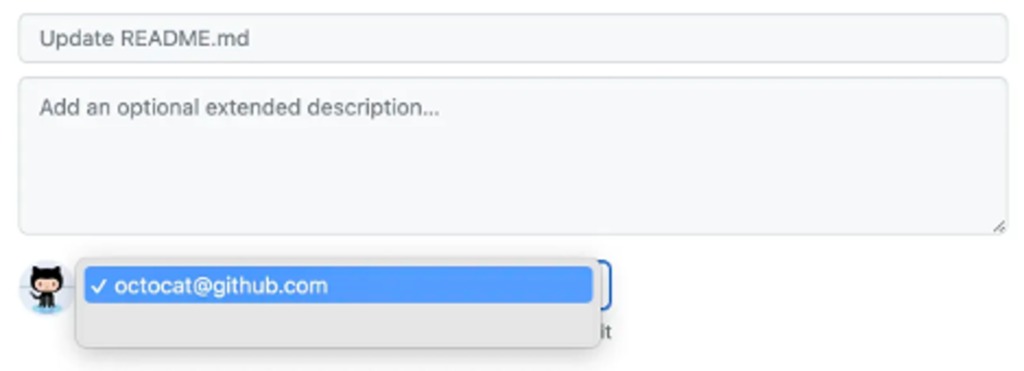
10. Below the commit message fields, decide whether you want to add your commit to the current branch or create a new branch.
If your current branch is the default branch, it is recommended to create a new branch for your commit and then open a pull request.
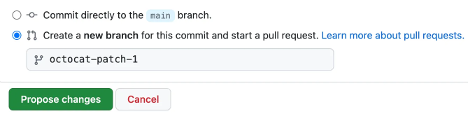
11. Select “Commit changes” or “Propose changes.”
🎉 Congratulations, you’ve just created a new file in your repository!
You’ve also created a new branch and made a commit.
Before diving into branches and commits in the next unit, let’s take a quick look at gists, wikis, and GitHub Pages, as they are similar to repositories.
What is a gist?
Now that you understand what a repository is, let’s see what a gist is.
Like repositories, gists are a simplified way to share code snippets with others.
Each gist is a Git repository that you can fork, clone, and make public or secret.
- Public gists are visible to everyone and can be viewed as they are created. They are also searchable.
- Secret gists, on the other hand, are not indexed but are not completely private. If you share the URL of a secret gist with someone, they will be able to view it.
👉 To learn more about gists, check the linked article in the Resources section at the end of this module, titled Create gists.
What is a wiki?
Every repository on GitHub.com has a dedicated section for hosting documentation, called a wiki.
You can use your repository’s wiki to share detailed content about your project, such as:
- How to use it
- How it was designed
- Its core principles
While a README file gives a quick overview of what your project does, a wiki provides more comprehensive documentation.
If your repository is private, only people with at least read access to the repository will be able to view the wiki.
