
Version 2 of the IretiPay application
Home Page
1) Screen Name
Home – Main page after authentication.
2) Objective
Allows the user to:
- View their balance (hidden by default for privacy).
- Quickly access main actions: Top-up and Transfer.
- See recent beneficiaries and recent transactions.
- Navigate to other sections via the menu bar.
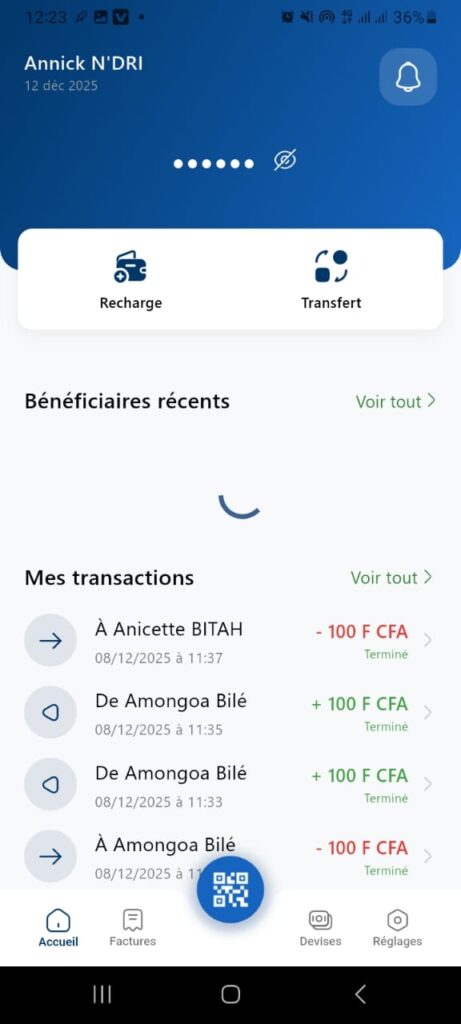
3) Structure & Content
Header
- Username: Hermiune.
- Date: Dec 9, 2025.
- Notification icon (bell) → access alerts.
- Balance: displayed as dots ••••••• with eye icon (toggle visibility).
Quick Actions
- Top-up (vehicle icon) → purchase credit or deposit.
- Transfer (silhouette icon) → send money.
Section: Recent Beneficiaries
- Add button (+) → add a new beneficiary.
- Link “View All” → full list of beneficiaries.
Section: My Transactions
- List of latest operations:
Example: To Sidibé Rita -100 F CFA Completed (12/08/2025 at 11:37). - Red color for debit, green for credit.
- Link “View All” → complete history.
Floating QR button (blue) → scan a QR code for payment or transfer.
Bottom Navigation Bar
- Home (house icon).
- Bills.
- Currencies.
- Settings.
4) Main Features
- Balance display: hidden by default, toggle via eye icon.
- Top-up & Transfer: direct access to workflows.
- Recent transactions: max 3–4 displayed, with status (Completed).
- Notifications: badge if new alerts.
- QR Code: for quick payments.
- Navigation: access to other modules.
5) Interactions
- Tap eye → show/hide balance.
- Tap Top-up/Transfer → navigate to dedicated screens.
- Tap View All → full list.
- Tap QR → open scanner.
- Swipe transactions → options (details, repeat).
