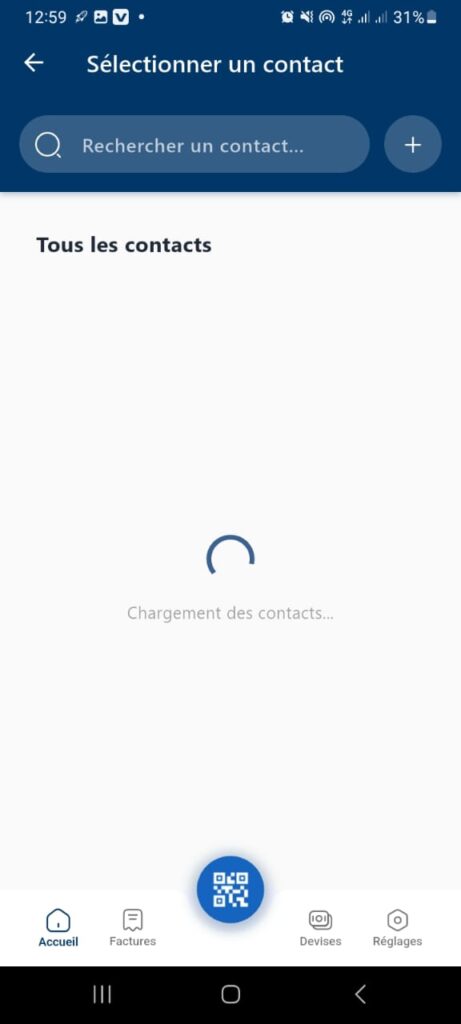
Version 2 of the IretiPay application
Transfer – Select a Contact
Location
Home Page > Transfer > Contact
Objective
This page allows the user to select a contact to perform an action (for example: transfer, payment, or other interaction).
Visible Elements
1. Title
- Main title: Select a Contact
2. Search Bar
- Search field with placeholder: Search for a contact…
- Magnifying glass icon: to initiate the search.
- + button (on the right): allows adding a new contact.
3. Contact List
- Section: All Contacts
- Current state: Loading contacts… (indicated by text and a circular loading animation).
4. Navigation Bar (bottom)
- Home (house icon)
- Bills (document icon)
- Currencies (currency icon)
- Settings (gear icon)
- Central floating button: QR Code (likely for scanning a code to perform a quick action).
Expected Behavior
- Search:
The user enters a name or number in the search bar to filter contacts. - Add Contact:
By clicking the + button, the user is redirected to a page to add a new contact. - Loading:
While loading, the contact list is unavailable.
Once loading is complete, contacts appear under the All Contacts section.
Error Cases
- If no contact is available, display a message: No contacts found.
- If the search returns no results, display: No matching contact found.
Target Audience
Users who want to select a contact for operations within the application.