
Confirm Transfer
1. Page Objective
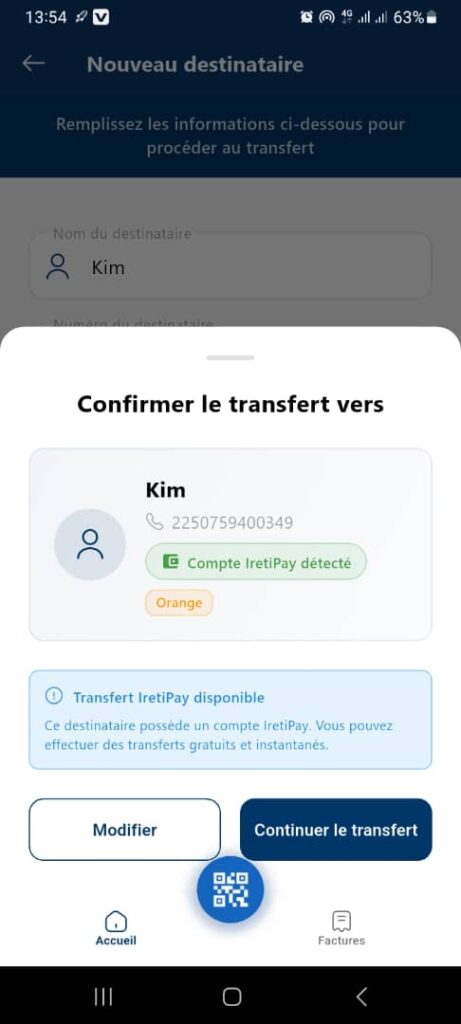
The Confirm Transfer page allows the user to definitively validate the recipient before proceeding with a money transfer operation.
Its purpose is to:
- secure the operation
- prevent sending errors
- inform the user about the available transfer type
2. Access Context
This page is accessible after:
- entering a new recipient
- or selecting a number during the money transfer process
It is displayed as a modal window / sliding panel on top of the previous page.
3. General Page Structure
3.1 Display Type
- Modal panel with rounded corners
- Darkened background
- Content centered on recipient confirmation
🎯 Objective: focus the user’s attention on validating the information.
4. Page Header
4.1 Title
Confirm transfer to
Clearly indicates that the user is at the validation step before sending.
4.2 Slide Indicator
- Horizontal bar at the top of the panel
- Indicates that the window can be closed or dragged
5. Recipient Card
5.1 Displayed Information
The central card displays the beneficiary’s information:
- Recipient name: Kim
- Phone number: 2250759400349
- Avatar: user icon
5.2 Account Status
- Badge: ✅ IritiPay account detected
- Color: green
- Meaning:
- the number matches an existing IritiPay account
- the transfer can be performed within the IritiPay network
5.3 Telecom Operator
- Badge: Orange
- Function:
- indicates the operator of the phone number
- provides additional information to the user
6. Informational Message – Transfer Type
6.1 Information Box
- Icon: information (ℹ️)
- Title: IritiPay transfer available
6.2 Message Content
This recipient has an IritiPay account.
You can make free and instant transfers.
🎯 Objectives:
- reassure the user
- highlight the benefits of internal transfers
- inform about speed and zero fees
7. Action Buttons
7.1 Edit Button
- Color: light / secondary
- Function:
- return to the previous step
- edit the recipient’s name or number
- Usage:
- correct an error before continuing
7.2 Continue Transfer Button
- Color: dark blue
- Function:
- definitively validate the recipient
- move to the next step (e.g. amount entry)
- Critical action:
- triggers continuation of the transfer process
8. Bottom Navigation
Visible elements:
- 🏠 Home
- 📷 QR Code (central button)
- 🧾 Bills
📌 Navigation remains accessible even during the process.
9. Expected Functional Behaviors
✅ Automatic number verification
✅ IritiPay account detection
✅ Dynamic display of the transfer type
✅ Blocking progression if information is invalid
10. Error Cases to Handle
- Invalid number
- Account not found
- Network connection issue
👉 In these cases, a clear message must be displayed along with a corrective action.
11. Security
- No transaction is executed at this step
- Final amount confirmation occurs later
- Information is displayed in read‑only mode
12. UX / UI Rules
- Key information clearly visible
- Primary actions clearly differentiated
- Reassuring and educational messages
- Mandatory confirmation step to reduce errors
13. Summary
✅ Key step for securing the transfer
✅ Clear validation of the recipient
✅ Highlighting the benefits of IritiPay
✅ Reduction of money transfer errors
