
Version 3 of the Ireti App
Home Page
1) Screen Name
Home – Main page after authentication.
1. Page Objective
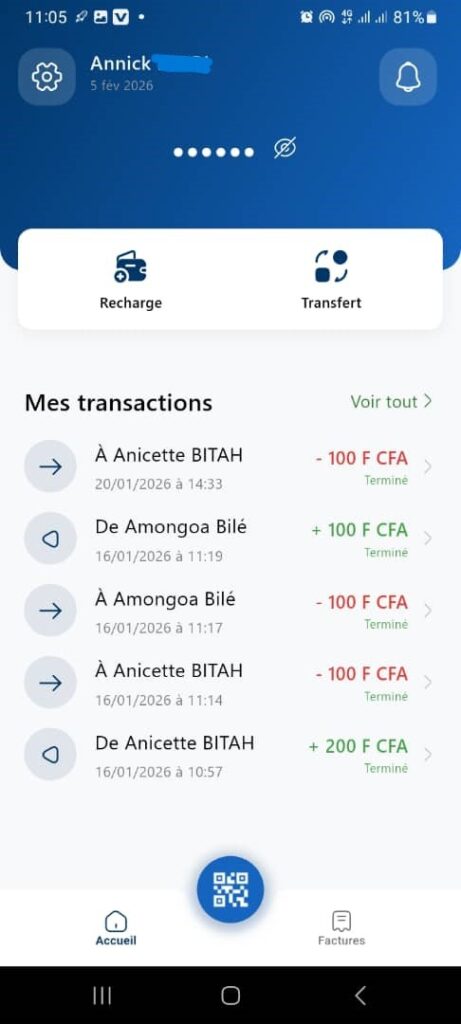
The Home page is the central hub of the application.
It allows the user to:
- quickly view their account balance
- access the main actions (Top Up, Transfer)
- view the recent transaction history
- navigate to other key features
2. Page Header
2.1 User Information
- User name: Annick
- Date: February 5, 2026
This information clearly identifies the logged‑in account and the consultation date.
2.2 Header Icons
- ⚙️ Settings
Allows access to account settings (profile, security, preferences, etc.). - 🔔 Notifications
Allows the user to view notifications related to transactions, alerts, or system messages.
3. Balance Display
3.1 Balance Area
- The balance is hidden by default (represented by dots ●●●●●●).
- A crossed‑out eye icon allows the user to:
- display the actual balance
- hide the balance again
🎯 Objective:
- Protect the user’s financial privacy
- Avoid exposing the balance in public
4. Main Actions
A central card provides two quick actions:
4.1 Top Up
- Icon: Card / phone
- Function: Allows adding money to the account via:
- Mobile Money
- Other available top‑up methods
4.2 Transfer
- Icon: Transfer arrows
- Function: Allows sending money to:
- another user
- a new recipient
📌 These actions are intentionally highlighted for quick access.
5. Section – My Transactions
5.1 Title
My transactions
5.2 “View all” Link
- Allows access to the full transaction history
- Displays more details (filters, periods, statuses, etc.)
5.3 Recent Transactions List
Each transaction row contains:
a) Transaction direction
- ➡️ To: money sent
- ⬅️ From: money received
b) Counterparty name
Example:
- To Anicette BITAH
- From Amongoa Bilé
c) Date and time
- Format: DD/MM/YYYY at HH:MM
- Example: 16/01/2026 at 11:19
d) Amount
- Red (-): money outflow
- Example: – 100 CFA
- Green (+): money inflow
- Example: + 200 CFA
e) Status
- Completed (in green)
- Indicates that the transaction was successfully completed
6. Central Button – QR Code
Description
- Floating button in the center of the bottom bar
- QR Code icon
Function
Allows the user to:
- pay via QR Code
- receive money
- scan a code for a quick transaction
📌 Key element for fast payments without manual input.
7. Bottom Navigation Bar
Available items:
- 🏠 Home (current page)
- 📷 QR Code (central button)
- 🧾 Bills
🎯 Enables simple and consistent navigation between main sections.
8. Rules and Expected Behavior
- Transactions are displayed in reverse chronological order
- Amounts are formatted in CFA
- Colors clearly indicate the financial direction
- Data must be refreshed in real time or when the page is opened
9. Summary
✅ Page focused on simplicity and speed
✅ Immediate access to critical actions
✅ Clear visualization of financial history
✅ Enhanced security through balance masking
