
Version 3 of the Ireti App
Login Screen
Description
This screen allows the user to log in to their account by entering the password associated with the registered phone number.
It is automatically displayed when the application is opened if the account has already been created and identified by its phone number.
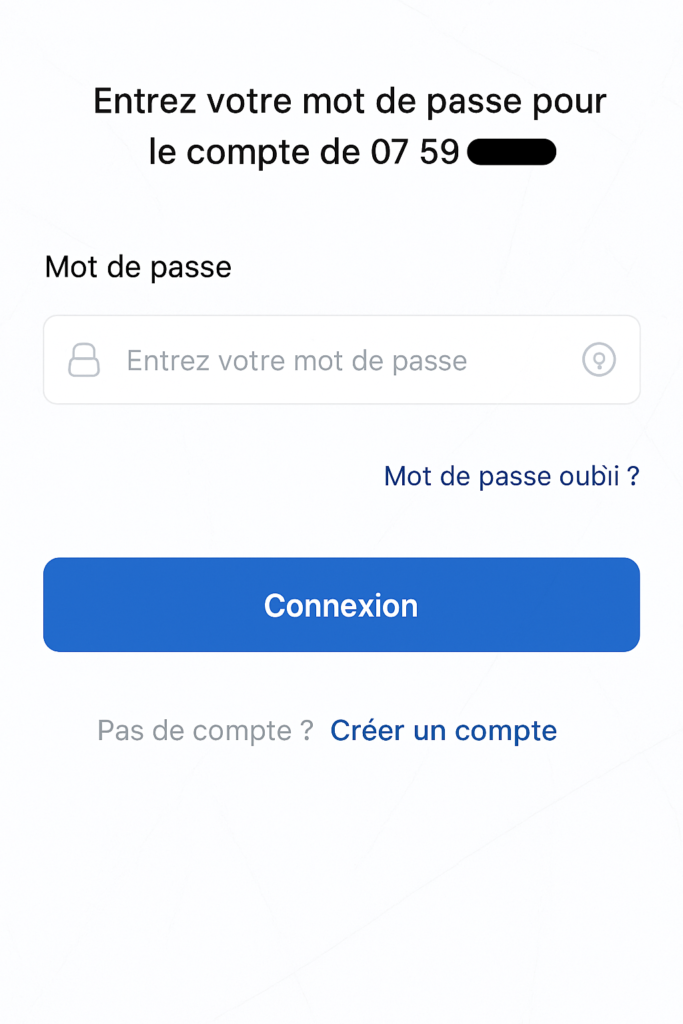
Interface Elements
Title / Instruction
Text displayed at the top of the screen:
“Enter your password for the account [phone number]”
This indicates to the user which account is concerned.
Input Field: Password
- Lock icon to indicate security.
- Text field that masks the entered characters.
- Allows the user to enter the password associated with the account.
Link: Forgot password?
- Redirects to the password recovery process.
- Used in case of forgotten or lost credentials.
Primary Button: Log in
- Color: Blue (highlights the main action).
- Action: Validates the input and attempts to log in to the account.
Secondary Link: Create an account
- Displayed at the bottom of the screen.
- Allows a new user to sign up.
Expected Behavior
Validation
- If the password is correct → Access to the application.
- If incorrect → Error message “Invalid password”.
Forgot password?
- Opens a flow to reset the password via SMS or email.
Create an account
- Redirects to the registration screen.
