
Money Transfer
1. Page Objective
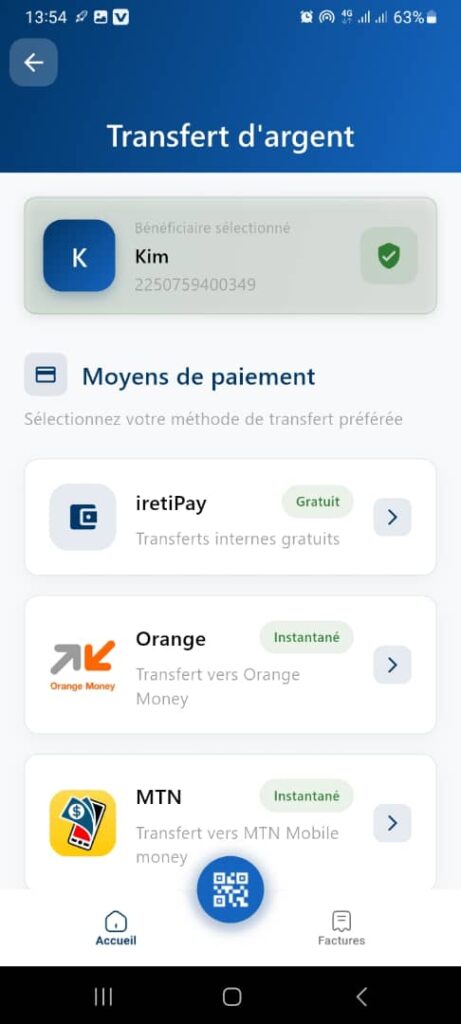
The Money Transfer page allows the user to:
- view the selected beneficiary
- choose the appropriate payment / transfer method
- continue the money‑sending process in a secure and suitable manner
It represents the transfer channel selection step after the recipient has been validated.
2. Access Context
This page is accessible after:
- recipient confirmation
- detection of the account type (IretiPay or Mobile Money)
3. Page Header
3.1 Back Button
- Icon: back arrow
- Function:
- return to the previous step
- modify the recipient if necessary
3.2 Title
Money Transfer
🎯 Clearly indicates that the user is in the process of sending money.
4. Selected Beneficiary Card
4.1 Displayed Information
The top section presents the selected beneficiary:
- Initial / Avatar: K
- Name: Kim
- Number: 2250759400349
4.2 Validation Status
- Icon: ✅ green checkmark
- Meaning:
- beneficiary correctly selected and validated
- information verified and ready for transfer
5. Section
Payment Methods
5.1 Section Title
Payment Methods
5.2 Description
Select your preferred transfer method
🎯 Objective: guide the user toward choosing the transfer channel.
6. Available Transfer Methods
Each method is presented as a clickable card with an icon, description, and informational badge.
6.1 IretiPay
- Label: IretiPay
- Description: Free internal transfers
- Badge: 🟢 Free
- Function:
- money transfer between IretiPay accounts
- immediate processing with no fees
✅ Recommended option when the recipient has an IretiPay account.
6.2 Orange Money
- Label: Orange
- Description: Transfer to Orange Money
- Badge: ⚡ Instant
- Function:
- money transfer to an Orange Money wallet
- near‑immediate execution
- Fees:
- according to the applicable pricing grid
6.3 MTN Mobile Money
- Label: MTN
- Description: Transfer to MTN Mobile Money
- Badge: ⚡ Instant
- Function:
- money transfer to MTN MoMo
- fast execution
📌 Additional methods may be added later (Moov Money, partner wallets, etc.).
7. User Interaction
A tap on a method:
- selects the transfer channel
- redirects to the next step:
- amount entry
- fee display
- final confirmation
8. Bottom Navigation
Visible elements:
- 🏠 Home
- 📷 QR Code (floating central button)
- 🧾 Bills
📌 Navigation remains active to ensure a smooth experience.
9. Expected Functional Behaviors
✅ Available methods are displayed based on the beneficiary profile
✅ Badges (Free, Instant) are dynamic
✅ Incompatible methods can be hidden or disabled
✅ Immediate redirection after selection
10. Error Cases to Handle
- Payment method unavailable
- Network issue
- Beneficiary account temporarily inaccessible
👉 A clear message and a fallback action must be provided.
11. Security
- No transaction is executed at this stage
- The amount will be confirmed later
- Final validation requires authentication (PIN, biometrics)
12. UX / UI Rules
- Clear prioritization of options
- Explicit icons
- Visual indicators of benefits (free, fast)
- Simple and quick selection
13. Summary
✅ Key step in the transfer process
✅ Clear choice of money‑sending channel
✅ Highlighting of the most advantageous options
✅ Smooth and secure user experience
