
Version 3 of the Ireti App
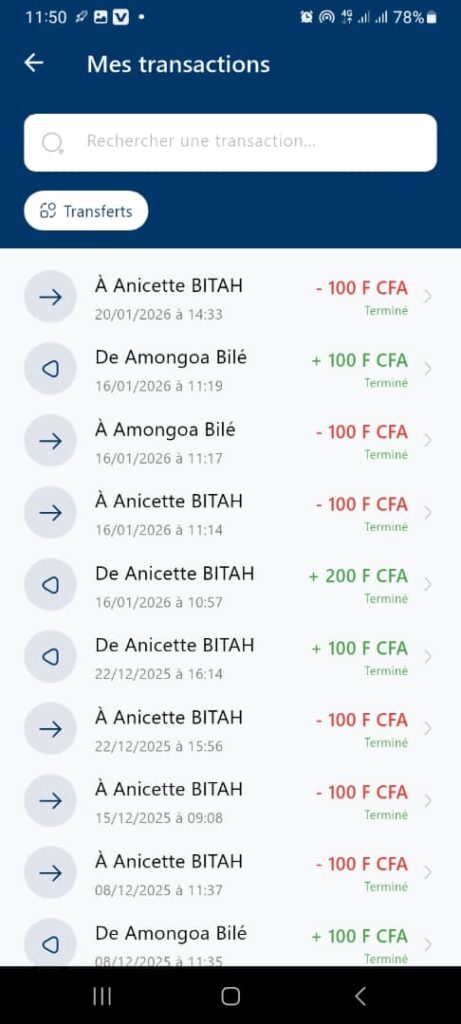
My Transactions
1. Page Objective
The My Transactions page allows the user to:
- view the detailed history of all their financial transactions
- search for a specific transaction
- filter transactions by type (e.g. transfers)
- access the details of a transaction
2. Page Access
This page is accessible from:
- the Home page via the View all transactions link
- the main application menu
3. Page Header
3.1 Back Button
- Icon: back arrow
- Action: return to the previous page
3.2 Title
My Transactions
🎯 Clearly indicates the content of the page.
4. Search Bar
4.1 Search Field
- Placeholder: Search for a transaction…
- Icon: magnifying glass
- Functionality:
- search by contact name
- search by amount
- search by date
- Behavior:
- dynamic filtering of the list
- real-time display of results
5. Transaction Filter
5.1 Filter: Transfers
- Type: button / filter chip
- Function:
- displays only transfer-type transactions
- excludes other operations (top-ups, payments, bills)
- Visual state:
- active when selected
📌 Additional filters may be added (top-ups, payments, bills, etc.).
6. Transaction List
6.1 Organization
- Vertical list display
- Sorted in descending chronological order
- The most recent transactions appear first
6.2 Content of a Transaction Row
Each transaction includes:
a) Direction Icon
- ➡️ To: outgoing transaction (sent)
- ⬅️ From: incoming transaction (received)
b) Label
- Name of the recipient or sender
- (e.g. To Anicette BITAH / From Amongoa Bilé)
c) Date and Time
- Format: DD/MM/YYYY at HH:MM
d) Amount
- Red (−): debit
- Example: −100 CFA francs
- Green (+): credit
- Example: +200 CFA francs
e) Status
- Completed (green color)
- Indicates that the transaction was successfully processed
f) Navigation Indicator
- Chevron ( > )
- Allows access to the full transaction details
7. User Actions
✅ Scroll through the history
✅ Search for a transaction
✅ Filter by type
✅ Select a transaction to view details (reference, status, fees, etc.)
8. Expected Functional Behaviors
- Real-time synchronization with the backend
- Automatic update when a new transaction occurs
- Network error handling
- Empty-state message if no transaction is found
9. UX / UI Rules
- Clear color coding (green = incoming, red = outgoing)
- Readable alignment of amounts
- Explicit icons
- Good readability on mobile
10. Security and Privacy
- Display limited to the logged-in user’s account
- Data is protected and non-editable
- No destructive actions available from this page
11. Summary
✅ Complete and detailed view of financial history
✅ Integrated search and filters
✅ Quick readability thanks to visual indicators
✅ Key page for financial tracking and transparency
