
Version 3 of the Ireti App
New Password Page Documentation
1. Purpose of the page
Allow the user to:
- Create a new password
- Reset their account credentials
- Ensure the new password follows security rules
- Prevent reuse of previous passwords
This page is used when the user needs to reset their password for security or recovery purposes.
2. Access context
The user accesses this page after:
- Successfully requesting a password reset
- Validating an OTP or a reset link
- Being redirected automatically to the New Password page
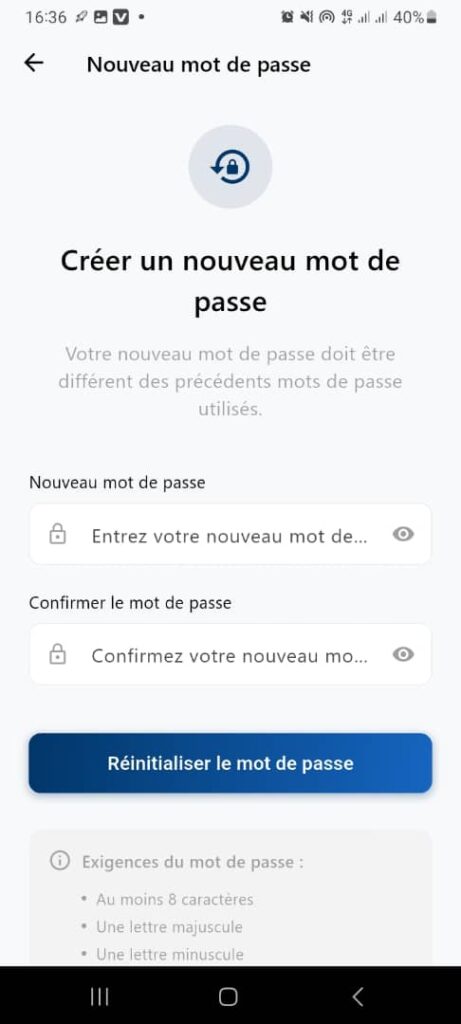
3. Page structure
3.1. Header
- Title: New Password
- Back icon ←
3.2. Section: Create a new password
a) Icon
An icon symbolizing security or password reset.
b) Title
Create a new password
c) Subtitle
Your new password must be different from the previous passwords used.
3.3. Input fields
a) New password field
- Label: New password
- Placeholder: Enter your new password
- Visibility icon (eye)
Rules:
- Hidden input by default
- Can switch between visible/hidden
- Dynamic validation can be applied
b) Confirm password field
- Label: Confirm password
- Placeholder: Confirm your new password
- Visibility icon (eye)
Rules:
- Must match the “New password” field
- Can display validation states
3.4. Action button
- Button: Reset password
- Full-width
- Dark blue gradient
- Activated only when:
- Both fields are valid
- Passwords match
- All security criteria are respected
3.5. Password requirements section
Displayed below the fields:
- At least 8 characters
- One uppercase letter
- One lowercase letter
- (If applicable) one special character
4. Functional behaviors
✔ Create a new password
- User enters a new password
- User confirms the password
- System verifies:
- Compliance with rules
- Matching of both fields
- Password is different from old passwords
- User taps Reset password
- System:
- Saves the new password
- Completes the reset process
- Redirects the user (usually to login page)
✔ Password visibility toggle
- Eye icon allows user to display or hide the password
- Each field has its own toggle
5. Business rules
→ BR01 – Password requirements
The password must meet all listed requirements.
→ BR02 – Matching rule
The confirmation password must be identical to the new password.
→ BR03 – Password uniqueness
The new password must be different from previously used passwords.
→ BR04 – Button activation
The Reset password button is enabled only when:
- The new password is valid
- Both passwords match
→ BR05 – Security
Password must be hidden by default.
6. Expected result
- User can reset password easily and securely
- User receives immediate feedback on password quality
- System enforces strong password policy
- System prevents reuse of previous passwords
- User is redirected after a successful reset
