
Version 3 of the Ireti App
Page: My Numbers / Add a Number
1. Purpose of the page
Allow the user to:
- Add a secondary Mobile Money number to their account
- View the list of all their already registered Mobile Money numbers
- Verify an added number
- Delete an existing number
This page is used to manage multiple Mobile Money numbers for operations (payment, top‑up, transfer…).
2. Access context
The user accesses this page after:
- Successful authentication
- Navigation to Profile / Secondary Number or through the settings menu from the home screen
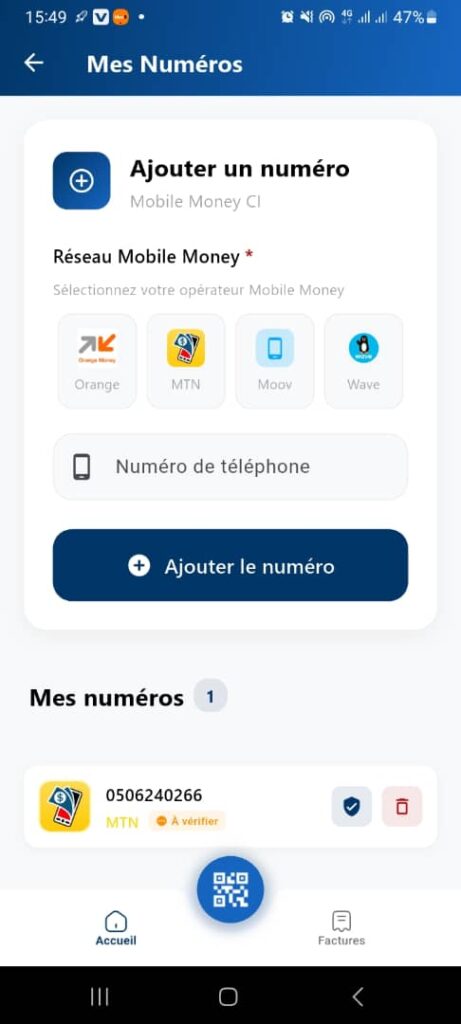
3. Page structure
3.1. Header
- Title: My Numbers
- Back icon ←
3.2. Section: Add a Number
White framed block including:
a) Title
- Add a number
- Subtitle: Mobile Money CI
b) Mobile Money Network (mandatory)
- Label: Mobile Money Network *
- Subtext: Select your Mobile Money operator
4 operators displayed as buttons:
- Orange Money
- MTN Money
- Moov Money
- Wave
Interaction:
- The selected operator changes visually (active color).
c) Phone Number Field
- Type: numeric input field
- Placeholder: Phone number
Rules:
- Numeric format
- Instant validation
- Must be unique in the user’s number list
d) Action button
- Button: Add the number
- Icon: +
- Color: dark blue
3.3. Section: My numbers
- Subtitle: My numbers (1)
- Displays the total number of already registered numbers.
Card of an added number
Each number is displayed as a “card” containing:
- Operator logo (e.g., MTN)
- Number: e.g., 0506240266
- Status: To verify (yellow icon)
- Verify icon (blue)
- Delete icon (red – trash bin)
Possible interactions:
- Verify a number
- Delete a number
4. Functional behaviors
✔ Add a number
- The user selects the operator
- The user enters the number
- The user clicks on Add the number
- The system:
- Checks whether the number already exists
- Checks the format
- Adds the number to the list
- Sets the status to To verify
✔ Verify a number
- The user clicks the ✔ icon
- An OTP is sent to this Mobile Money number
- The status changes depending on success
✔ Delete a number
- Click on the 🗑️ icon
- Display of a confirmation popup
- The number disappears from the list if deletion is successful
5. Business rules
→ BR01 – Number uniqueness
A number can only be added once.
If already existing → display an error:
“This number already exists”
→ BR02 – Number format
Must follow CI format (e.g., 10 digits).
→ BR03 – Mandatory operator
Impossible to add a number without selecting an operator.
→ BR04 – Mandatory verification
A number added but not verified remains in the status:
- To verify
- Some operations may be blocked
→ BR05 – Displayed data
All numbers created by the user must appear in the list.
