
Scan a QR Code
1. Page Objective
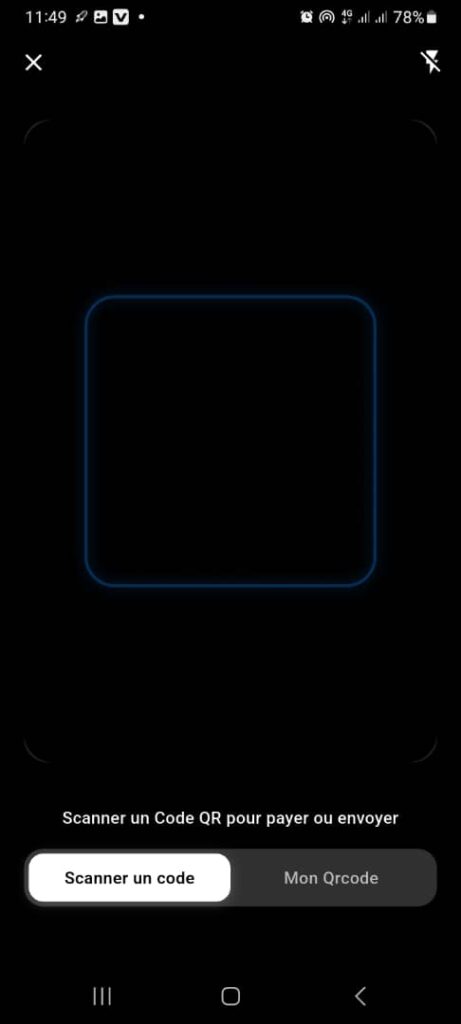
The Scan a QR Code page allows the user to:
- scan another user’s QR code
- pay or send money quickly
- avoid manual entry of the recipient’s number or information
It serves as the main entry point for QR code payments.
2. Access Context
This page is accessible from:
- the QR Code button (central button) in the navigation bar
- the Scan a code tab of the QR module
3. General Page Structure
3.1 Display Type
- Full‑screen view
- Dark background to improve scan visibility
- Centered and clearly defined scan area
🎯 Objective: facilitate fast and accurate QR code reading.
4. Page Header
4.1 Close Button
- Icon: ❌ (cross)
- Position: top left corner
- Function: close the scan screen and return to the previous screen
4.2 Sound / Vibration Icon
- Icon: muted speaker
- Function:
- enable or disable sound / vibration
- signal successful scanning
- Objective: allow discreet or audible use depending on the context
5. QR Code Scan Area
5.1 Scan Frame
- Square shape with illuminated borders
- Clearly indicates the target area
- Automatic detection of the QR code within this area
📌 The scan is triggered automatically as soon as a valid QR code is detected.
5.2 Camera Usage
- Access to the phone’s rear camera
- Requires camera access permission
- Automatic focus adjustment
6. Instruction Message
Displayed text:
“Scan a QR Code to pay or send”
🎯 Objective:
- clearly explain the expected action
- indicate the two possible uses:
- payment
- money transfer
7. Bottom Page Options
7.1 Scan a Code Tab
- Function:
- activate scan mode (active page)
- State:
- visually selected
7.2 My QR Code Tab
- Function:
- switch to the page displaying the personal QR code
- allow receiving money
- Action:
- opens the My QR Code page
📌 These two tabs allow smooth navigation between sending and receiving money.
8. Expected Functional Behaviors
✅ Automatic scanning without additional action
✅ Fast QR code recognition
✅ Immediate redirection to:
- the payment confirmation page
- or the amount entry page
✅ Visual / sound feedback after detection
9. Error Cases to Handle
❌ Camera access denied
❌ Invalid or unrecognized QR code
❌ Expired QR code or unavailable account
❌ Lighting or focus issues
👉 In these cases, a clear message and a corrective action must be provided.
10. Security
- No automatic payment without confirmation
- The scan retrieves only the necessary information
- All transactions must be validated by the user
- Data is secured and encrypted
11. UX / UI Rules
- Clearly visible scan area
- Short and explicit text
- High contrast to facilitate readability
- Simple and intuitive navigation
12. Summary
✅ Page dedicated to sending and paying via QR Code
✅ Fast experience with no manual input
✅ Enhanced security through user validation
✅ Key feature for modern payments
