
Top Up Account
1. Page Objective
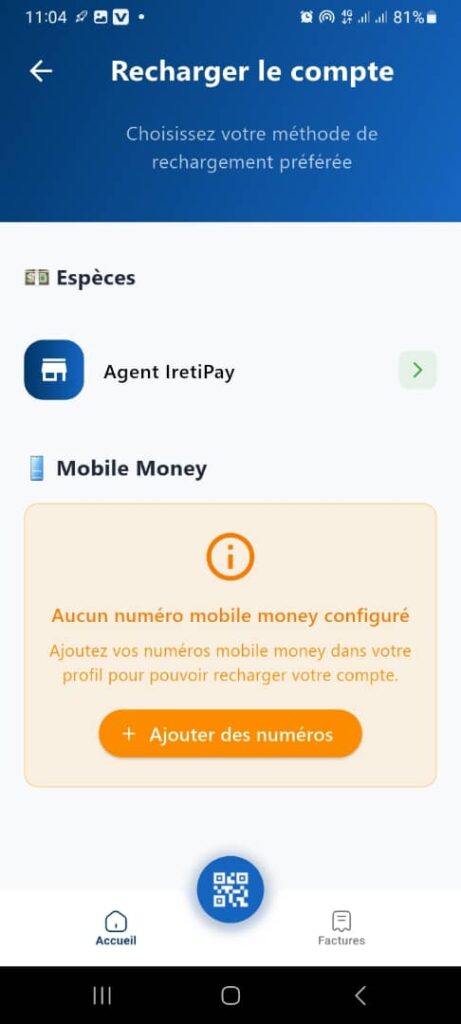
The Top Up Account page allows the user to add funds to their IretiPay account by choosing an available top‑up method (cash or mobile money).
2. Page Access
This page is accessible from:
- the Home page
- the Top Up action
3. Page Header
3.1 Title
Top Up Account
3.2 Subtitle
Choose your preferred top‑up method
🎯 This header clearly guides the user toward selecting a top‑up method.
3.3 Back Button
- Icon: back arrow
- Action: returns to the previous page
4. Available Top‑Up Methods
The page is organized into two main sections.
5. Section – Cash
5.1 Title
Cash
5.2 Option: IritiPay Agent
- Icon: Agent / shop
- Label: IritiPay Agent
- Chevron ( > ): indicates navigation
5.3 Functionality
This option allows the user to:
- top up their account with cash
- through an approved IritiPay agent
📌 When selected, the user is redirected to:
- an agent search page
- or a page with instructions for topping up through an agent
6. Section – Mobile Money
6.1 Title
Mobile Money
6.2 State: No configured number
When the user has no Mobile Money number configured, an informational message is displayed.
Displayed message
- Title:
No mobile money number configured - Description:
Add your mobile money numbers in your profile to be able to top up your account.
🎯 Objective:
- inform the user of the reason for the restriction
- guide the user toward the solution
6.3 Action Button
+ Add numbers
- Color: orange
- Action:
- redirects to the Profile / Mobile Money Numbers Management page
- allows adding one or more numbers (Orange Money, MTN MoMo, Moov Money, etc.)
📌 As long as no number is added:
- Mobile Money top‑up is disabled
7. Expected Functional Behavior
- ✅ Available methods are displayed based on the user’s account status
- ✅ The Mobile Money message is conditional
- ✅ After adding a Mobile Money number:
- the alert card disappears
- Mobile Money options become clickable
- ✅ Redirections must be fast and secure
8. Bottom Navigation Bar
Visible items:
- 🏠 Home
- 📷 QR Code (central button)
- 🧾 Bills
📌 The bar remains fixed to ensure continuous navigation.
9. Error Cases and Recommendations
- No agent available → display an informational message
- Mobile Money configuration error → clear message with corrective action
- Check permissions and network connectivity
10. Summary
✅ Simple, action‑oriented page
✅ Clear separation of top‑up methods
✅ Proper handling of user states (configured / not configured)
✅ Guided and secure user experience
