
Transfert – Sélectionner un contact
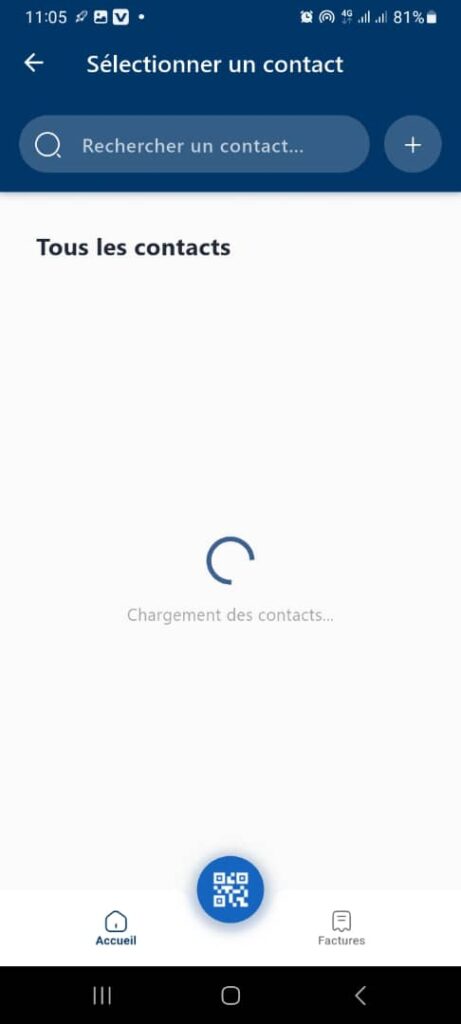
1. Page Objective
The Select a Contact page allows the user to choose an existing contact in order to carry out an operation, mainly:
- a money transfer
- or any action requiring a registered recipient
It facilitates the quick search for an already known contact.
2. Access Context
This page is accessible from:
- the Transfer flow
- the Choose an existing contact option
- or any feature requiring the selection of a beneficiary
3. Page Header
3.1 Back Button
- Icon: back arrow
- Function: return to the previous page without making a selection
3.2 Title
Select a Contact
🎯 Clearly indicates the action expected from the user.
4. Contact Search Bar
4.1 Search Field
- Placeholder: Search for a contact…
- Icon: magnifying glass
- Function:
- filter the contact list
- search by name and/or phone number
- Behavior:
- dynamic search while typing
- case-insensitive
4.2 Add Button
- Icon: ➕ (plus)
- Function:
- add a new contact
- redirect to the contact creation or new recipient page
5. Contact List
5.1 Section Title
All Contacts
5.2 Loading State
When contacts are not yet available:
- Visual indicator: circular loader
- Message:
Loading contacts…
🎯 Objective:
- inform the user that data is being retrieved
- avoid any confusion or premature action
5.3 Contact Source
The displayed contacts may come from:
- the application’s internal address book
- authorized phone contacts (if permission is granted)
6. Expected Functional Behaviors
6.1 Loading
✅ Automatic loading when the page opens
✅ Fast list refresh
✅ Handling of network errors or permission denial
6.2 Contact Selection
A tap on a contact:
- selects the recipient
- redirects to the next step (e.g. amount entry)
6.3 Error Cases to Handle
❌ No contact found
❌ Access to contacts denied
❌ Synchronization error
❌ Internet connection unavailable
👉 In each case, a clear message and a corrective action must be provided.
7. Bottom Navigation Bar
Visible elements:
- 🏠 Home
- 📷 QR Code (central button)
- 🧾 Bills
📌 This bar remains fixed to ensure smooth navigation.
8. UX / UI Rules
- Clean and readable interface
- Fast and efficient search
- Visible loading indicator
- Easy access to adding a new contact
9. Security and Privacy
- Contacts are displayed only after authorization
- No modification of the address book without explicit user action
- Data is used solely for the purpose of the transaction
10. Summary
✅ Page dedicated to the quick selection of a recipient
✅ Integrated contact search and addition
✅ Clear handling of loading states
✅ Key step in the money transfer flow
