
Accounting Rules
Phenix supports Accounting Rules to ease the accountant’s tasks and reduce errors.
Accounting Rules are preconfigured accounting transactions in which debit and credit accounts available for posting are defined.
For example, you can configure an Accounting Rule for a payroll that will display only the expense accounts related to payroll debits and only the asset accounts available for credits.
Later you could use Frequent Postings to add an entry to your journal entry.
Beginning at the main screen, click on Accounting. This will launch the Accounting menu. Select Accounting Rules
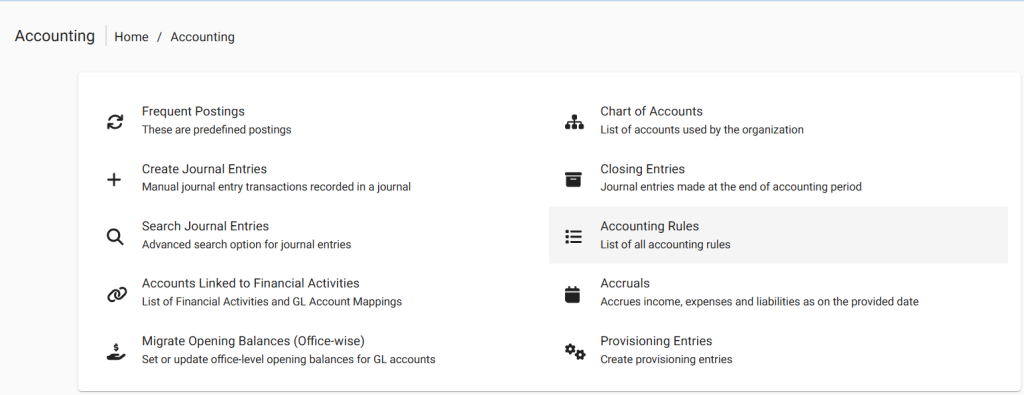
Create accounting rule
Click on +Add Rule the page shown below opens.
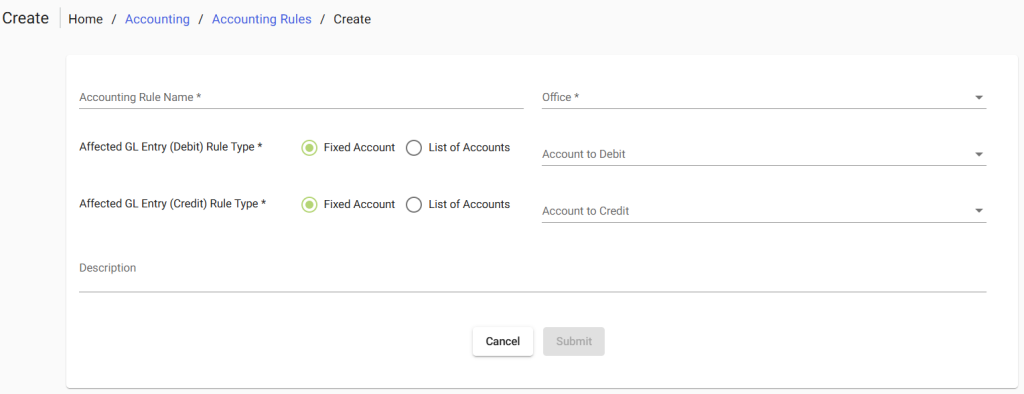
As illustrated in the image above, you need to provide details and click on Submit button.
Multiple entries:
In case, you want to do multiple entries you need to create debit and credit Account Tags, and then assign the tags to expense and asset accounts. The tagged accounts can then be used to create an Accounting Rule.
For example: To create a payroll posting rule, create a debit Account Tag, “Payroll”, and assign it to each Expense Account you want available for payroll debits. Then create a credit Account Tag, “Cash,” and assign it to each Asset Account you want available for credits.
To tag an account to be debited, do the following:
- Create a debit Account Tag:
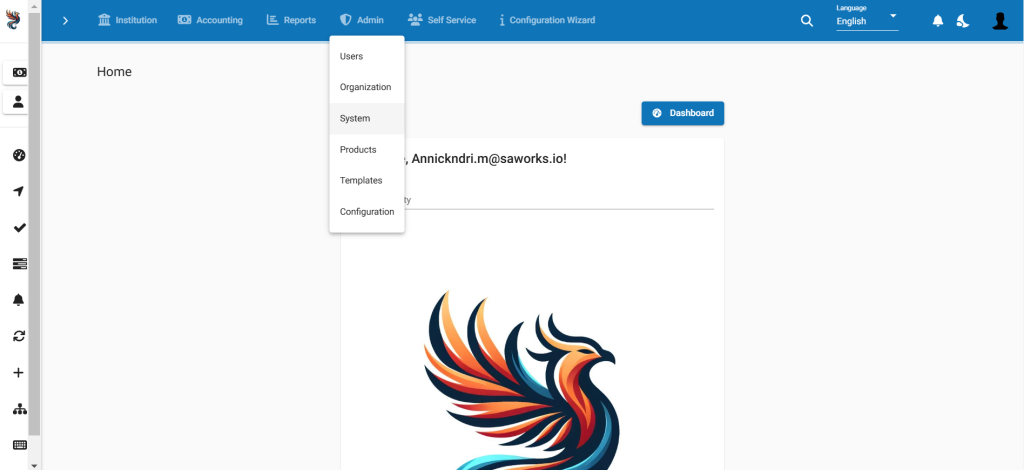
- a.On the Phenix toolbar, click Admin, andthen click System to open the System menu.
- b.On the System menu, click Manage Codes to open the Manage Codes dialog.
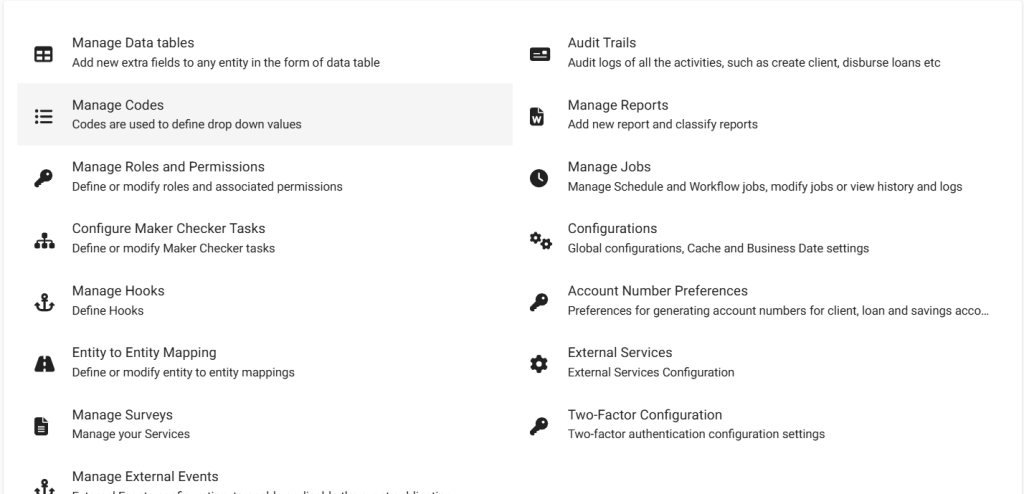
- c. In Code Name list, select ExpenseAccountTags.


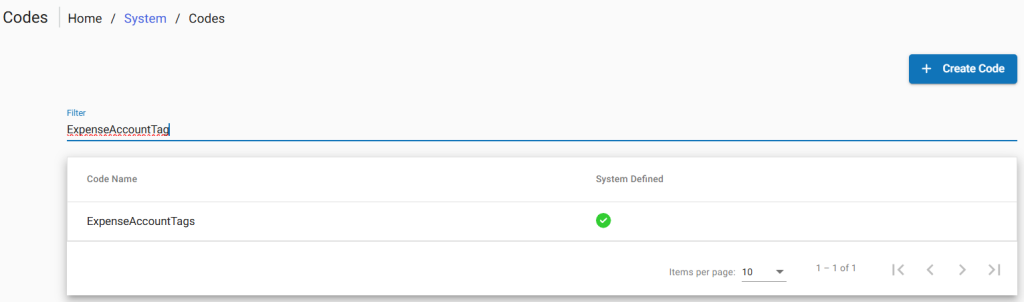
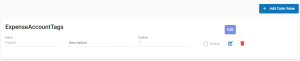
- d. In the Expense Account Tag dialog, click +Add Code Value.

- e. In the Code value box, enter a name for your debit Account Tag code value, and then click +Add Code Value in blue.

NOTE: To addition the code value, click the plus(+), To edit the code value, click the Edit Code Value button. To delete the code value, click the Delete Code Value button.


2. Assign Expense Account Tags to accounts you want available for debits using your Accounting Rule.
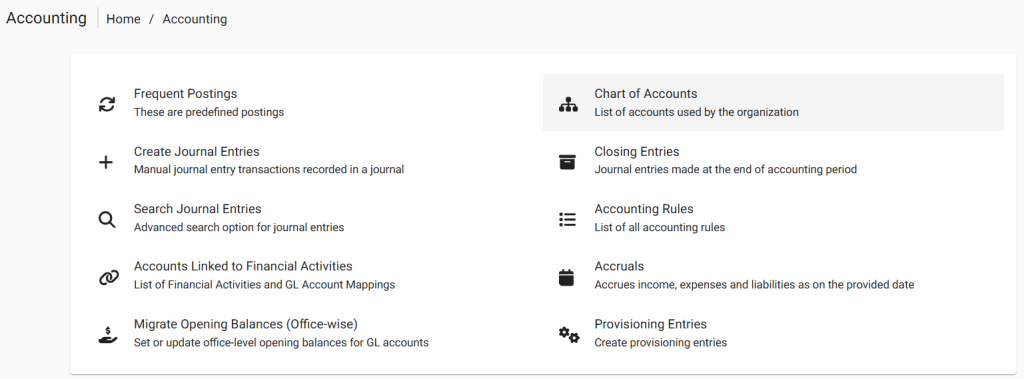
a.On the Phenix toolbar, click Accounting to open the Accounting menu.

b. On the Accounting menu, click Chart of Accounts.
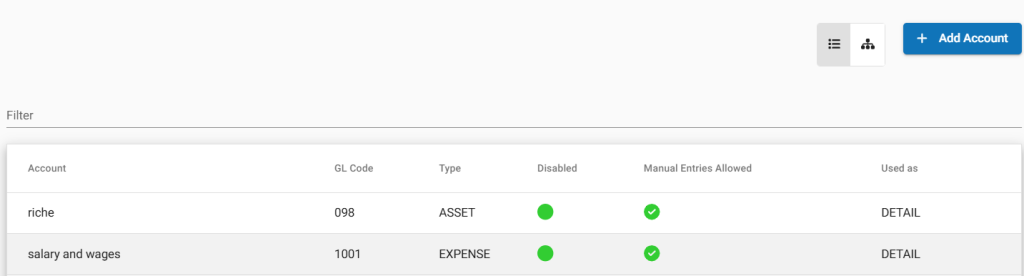
c. In the Chart of Accounts list, click the account you want to tag.
NOTE: For debits, select from accounts with an Account Type EXPENSE.
d. Click Edit.
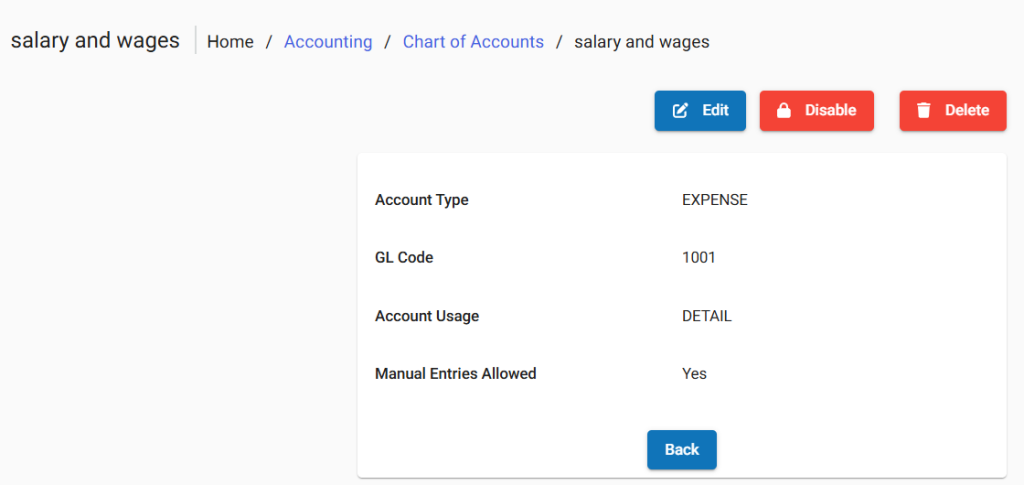
e. In the Edit GL Account dialog, in the Tag list, select the expense account tag you want to assign to the account, and then click Submit.
f. Repeat for each Expense Account you want your Accounting Rule to make available for debits.
To tag an account to be credited, do the following:
- Create a credit Account Tag
- On the Phenix menu, click Admin, and then click System on the drop down menuto open the System menu.

- On the System menu, click Manage Codes to open the Manage Codes dialog.
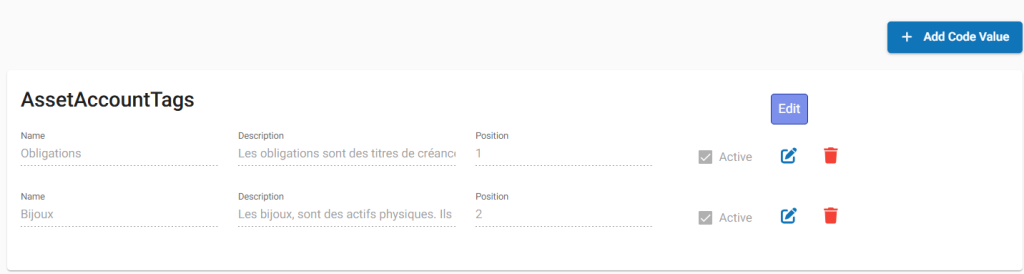
- In Code Name list, select AssetAccountTags.

- In the Asset Account Tag dialog, click +Add Code Value at the top right corner of the window.
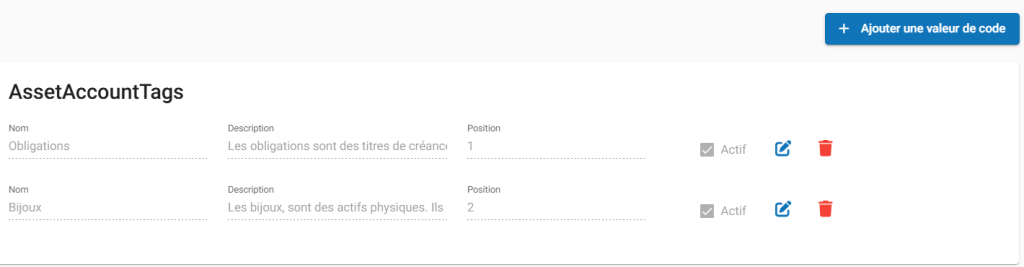
- In the Code value box, enter a name for your debit account tag code value, and then click +Add.
- NOTE: To edit the code value, click the Edit Code Value button. To delete the code value, click the Delete Code Value button.
2. Assign Asset Account Tags to accounts you want available for credits using your Accounting Rule
a. On the Phenix menu, click Accounting to open the Accounting menu.

b. On the Accounting menu, click Chart of Accounts.
c. In the Chart of Accounts list, click the account you want to tag.
NOTE: For credits, select from accounts with an Account Type ASSET.
d. Click Edit.
e. In the Edit GL Account dialog, in the Tag list, select the asset account tag you want to assign to the account and then click Submit.
f. Repeat for each Asset Account you want your Accounting Rule to make available for credits.
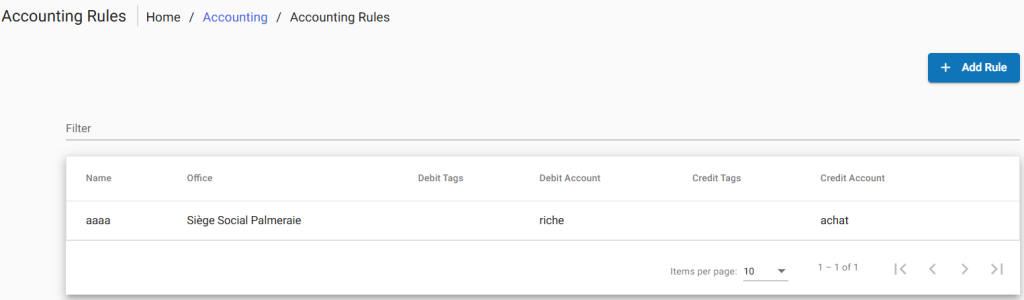
Go to Accounting then go to Accounting rules; by doing the following:
- On the Phenix menu, click Accounting to open the Accounting menu.
On the Accounting menu, click Accounting Rules to open the Accounting Rules dialog.
Click +Add Rule to open the Add Rule dialog.
In the Accounting rule name box, enter a name for your new accounting rule.
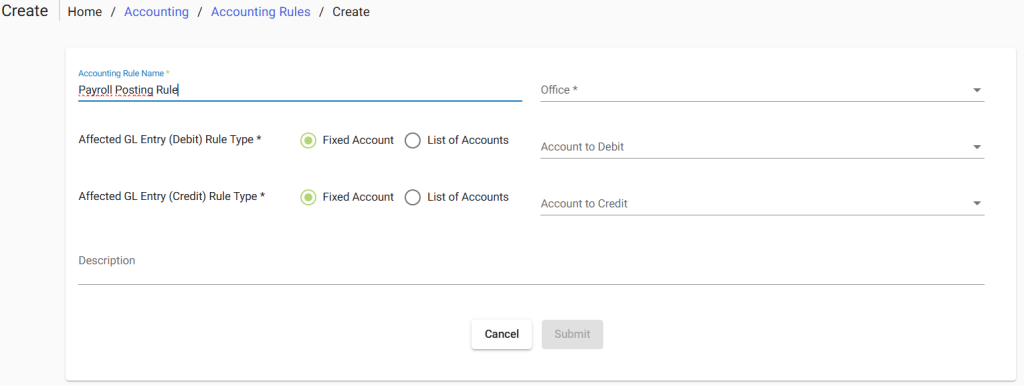
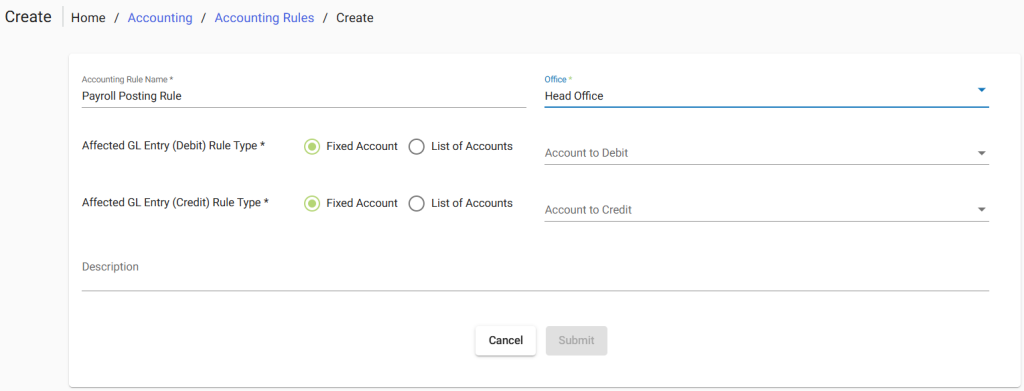
In the Office list, select an office. Exemple: Head Office.
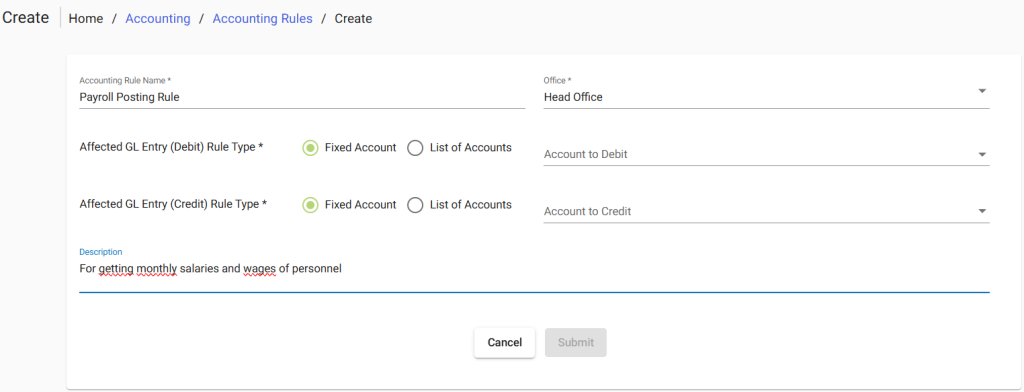
In the Description box, enter an optional description.
Under Affected GL entries, set the Credit and Debit rules.
To set the Debit rules:
Under Affected GL Entry (Debit) Rule Type, select List of Accounts.
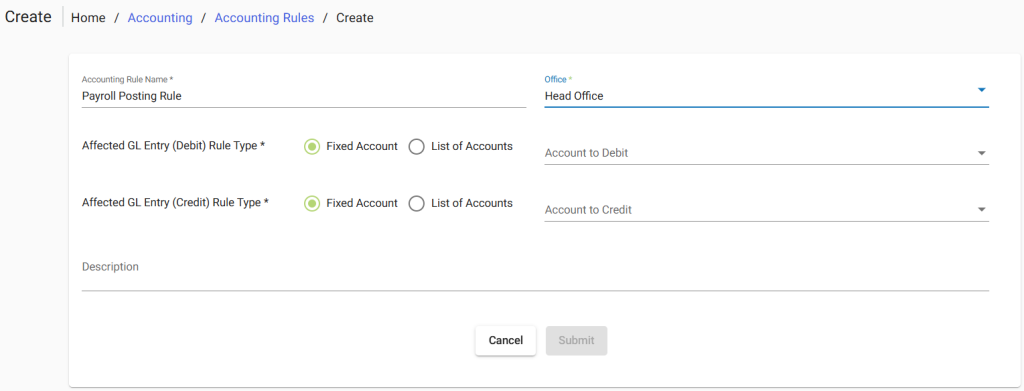
Select an account from the Available debit tag list.
NOTE: To allow multiple debit entries select Allow multiple debit entries.
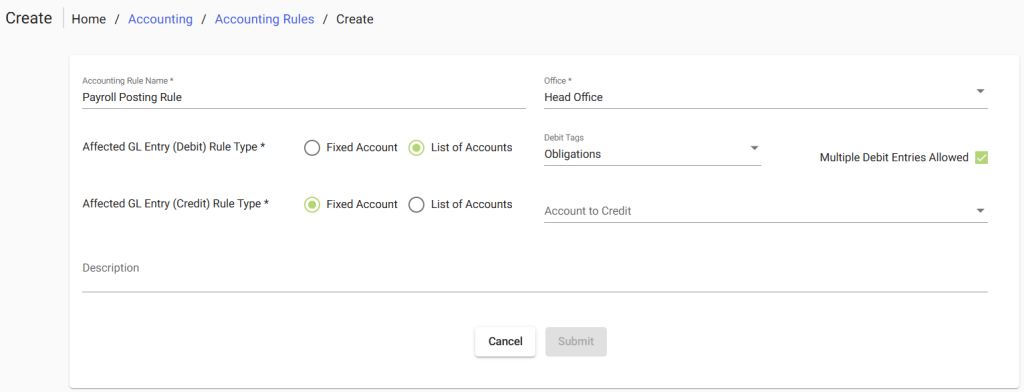
To set the Credit rules:
Under Credit Account Details, select List of Accounts.
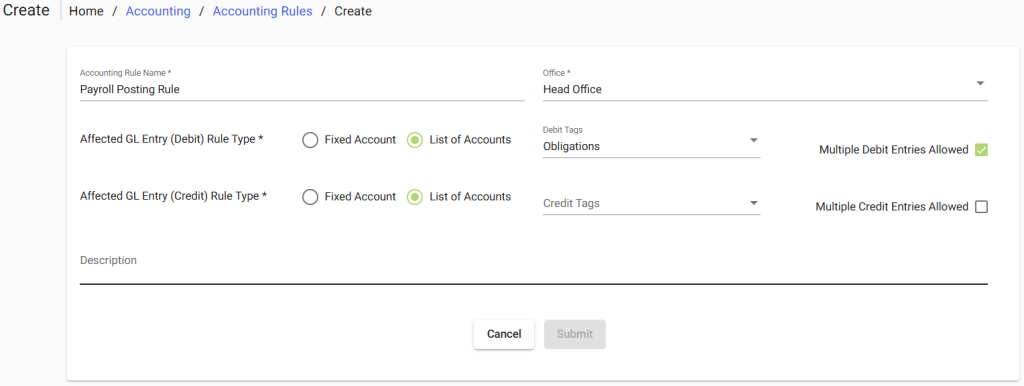
Select an account from the Available credit tag list
NOTE: To allow multiple debit entries select Allow multiple credit entries.
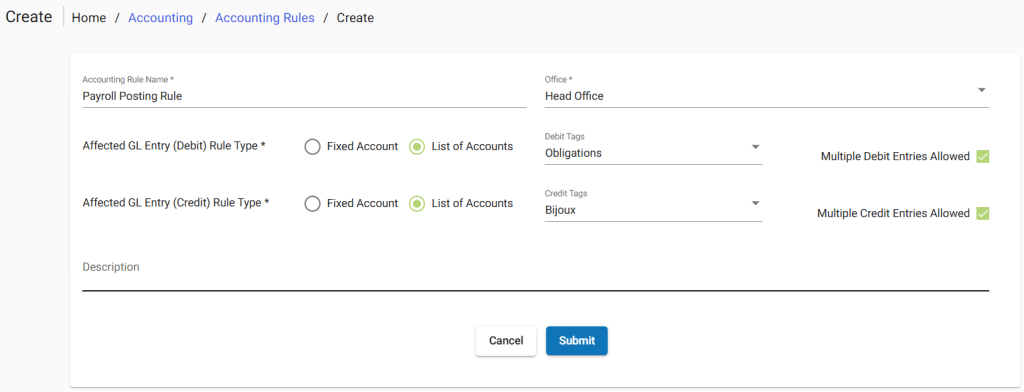
Click Submit to post your new accounting rule.
View Accounting rule
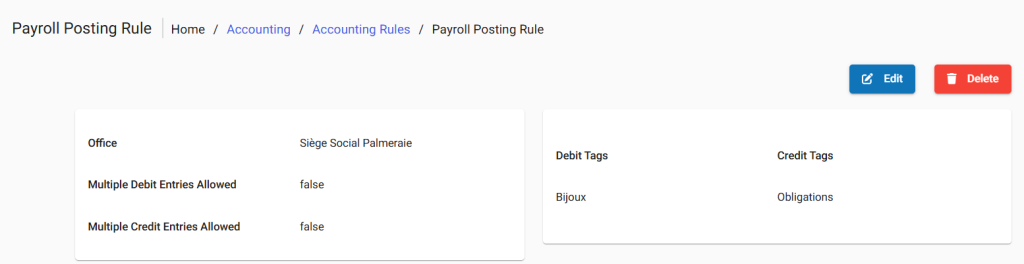
Edit or Delete Accounting rule
To Edit
Click on Edit button in blue, then modify necessary changes and click on Submit.
To Delete
Click on Delete button in red, then click on confirm.
